
Aluratek AWC2KF
Aluratek 2K HD Webcam lietošanas instrukcija
Model: AWC2KF | Brand: Aluratek
Ievads
The Aluratek 2K HD Webcam (Model AWC2KF) is designed to provide high-quality video and audio for your communication needs. Featuring 2K HD resolution, dual stereo noise-cancelling microphones, auto-focus, and automatic low-light correction, this webcam ensures clear visuals and crisp audio for video calls, recordings, and live streaming. Its plug-and-play design offers universal compatibility with various operating systems and popular video conferencing applications.
Galvenās iezīmes
- Full HD 2K Video: Delivers high-resolution video for clear and detailed visuals during calls, webinars, and recordings.
- Dual Stereo Noise-Cancelling Microphones: Captures clear audio while reducing background noise, ensuring your voice is heard distinctly.
- Automatic Low-Light Correction: Adjusts color and brightness automatically to maintain natural lighting conditions, even in dimly lit environments.
- Automātiskais fokuss: Ensures a sharp and clear image by automatically adjusting the focus.
- Wide 80-Degree Angle: Uztver plašu lauku view without distortion, suitable for individual or group presentations.
- Built-in Tripod Mount: Offers versatile mounting options for stability and optimal positioning.
- Plug-n-Play Ready: Requires no driver installation for quick and easy setup.
Iepakojuma saturs
- Aluratek 2K HD Webcam (AWC2KF)
- USB kabelis (pievienots)
- Īsā lietošanas pamācība (nav iekļauta šajā rokasgrāmatā)
Iestatīšana
The Aluratek 2K HD Webcam is designed for simple plug-and-play installation, requiring no additional drivers for most operating systems.
Montāža Webcam
The webcam features a versatile mounting clip that allows it to be securely placed on various surfaces:
- On a Laptop or Monitor: Gently open the universal mounting clip and place the webcam on top of your laptop screen or desktop monitor. Ensure the front lip of the clip rests securely on the top edge of the screen, and the rear part of the clip is pressed against the back of the screen for stability.
- On a Table Surface: Fold the universal mounting clip to create a stable stand, allowing the webcam to sit upright on any flat surface.
- Uz statīva: The webcam includes a built-in tripod mount (6 mm / .25 in. screw) on the bottom of the clip, enabling attachment to standard tripods for more flexible positioning.

1. attēls: detalizēti view no webcam's components and mounting features.

2. attēls: Webcam securely mounted on a laptop.
Savienojuma izveide ar datoru
Connect the integrated USB cable from the webcam to an available USB port on your computer. The webcam is plug-and-play, meaning your operating system (Windows or macOS) should automatically detect and install the necessary drivers. No manual driver installation is typically required.
Kad savienojums ir izveidots, webcam is ready for use with your preferred video conferencing or recording software.
Lietošanas instrukcijas
The Aluratek 2K HD Webcam is designed for seamless integration with various applications for video communication and content creation.
Izmantojot videokonferenču programmatūru
The webcam is compatible with popular video calling clients such as Skype, Zoom, WeChat, Google Hangouts, Microsoft Teams, GoToMeeting, and more. To use the webkamera:
- Launch your desired video conferencing application (e.g., Zoom, Skype).
- Navigate to the application's settings or preferences, usually found under "Audio & Video" or "Camera/Microphone" settings.
- Select "Aluratek 2K HD Webcam" as your video input device.
- Select "Aluratek 2K HD Webcam" or a similar entry as your microphone input device.
- Adjust any additional settings within the application, such as video resolution or mirror effects, as desired.

3. attēls: Webcam in use for video conferencing.
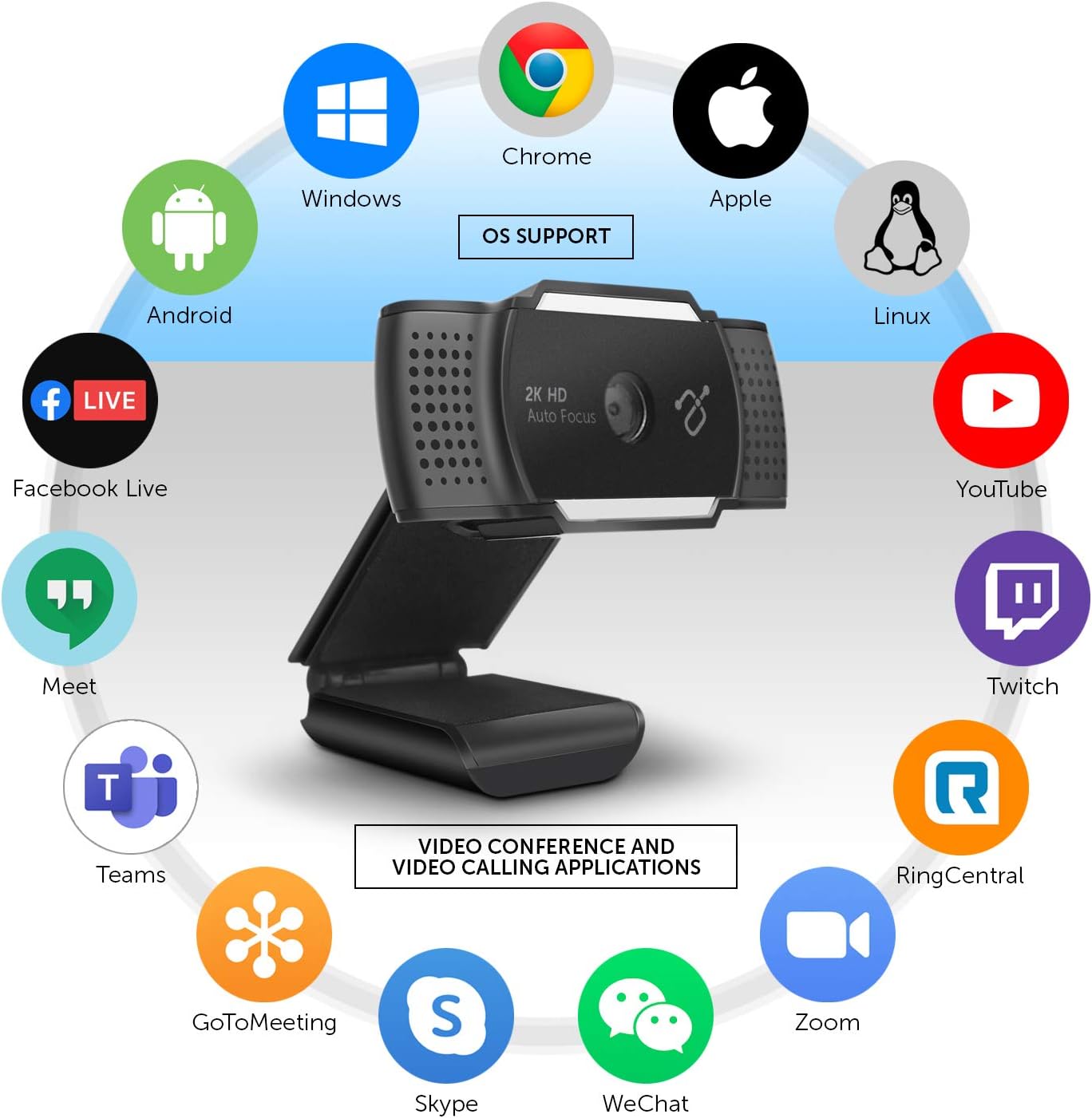
Figure 4: Operating System and Application Compatibility.
Adjusting the Integrated Light
The Aluratek 2K HD Webcam features an integrated light with three adjustable brightness levels to enhance your visibility in various lighting conditions. To cycle through the brightness settings:
- Pirmā nospiešana: Activates the lowest brightness setting.
- Otrā nospiešana: Increases to medium brightness.
- Trešā nospiešana: Activates the highest brightness setting.
- Ceturtā prese: Izslēdz gaismu.
This feature is particularly useful for improving image quality in low-light environments or for adding fill light to your face.

5. attēls. Priekšpuse view no webcam, highlighting the integrated light.
The camera eye can also be adjusted up to 30 degrees to perfectly frame your face or desired area.
Apkope
To ensure the longevity and optimal performance of your Aluratek 2K HD Webcam, follow these simple maintenance guidelines:
- Objektīva tīrīšana: Use a soft, lint-free cloth specifically designed for optics to gently wipe the camera lens. Avoid abrasive materials or harsh cleaning chemicals, which can scratch or damage the lens.
- Ķermeņa tīrīšana: Noslaukiet ierīces ārpusi webcam with a soft, damp cloth. Do not use excessive moisture or allow water to enter any openings.
- Uzglabāšana: Kad to nelieto, uzglabājiet webkameru tīrā, sausā vietā, pasargājot no ekstremālām temperatūrām un tiešiem saules stariem.
- Kabeļa kopšana: Avoid bending or crimping the USB cable excessively, as this can damage the internal wires.
- Privātuma vāks: Utilize the integrated privacy lens cover when the webcam is not in use to protect the lens from dust and ensure privacy.
Problēmu novēršana
If you encounter issues with your Aluratek 2K HD Webkameras problēmu novēršanai skatiet tālāk norādītās bieži sastopamās problēmu novēršanas darbības.
No Image or Video
- Pārbaudiet USB savienojumu: Nodrošiniet webcam's USB cable is securely plugged into a working USB port on your computer. Try a different USB port.
- Restartējiet lietojumprogrammu/datoru: Close and reopen your video conferencing application. If the issue persists, restart your computer.
- Verify Camera Selection: In your application's video settings, confirm that "Aluratek 2K HD Webcam" is selected as the active camera device.
- Pārbaudiet konfidencialitātes iestatījumus: On Windows, go to Iestatījumi > Konfidencialitāte > Kamera and ensure "Allow apps to access your camera" is enabled. On macOS, go to System Preferences > Security & Privacy > Camera and ensure your application has camera access.
- Privātuma vāks: Ensure the physical privacy lens cover is open and not obstructing the lens.
Poor Image Quality (Blurry, Dark, Grainy)
- Apgaismojums: Ensure adequate lighting in your environment. Utilize the webcam's integrated light by pressing the button on top of the webcam to cycle through brightness levels.
- Tīrs objektīvs: Viegli notīriet webkameras objektīvu ar mīkstu, neplūksnojošu drānu.
- Automātiskais fokuss: The webcam features auto-focus. Ensure there are no obstructions in front of the lens that might interfere with focusing.
- Lietojumprogrammas iestatījumi: Check if your application's video settings allow for resolution adjustments. Higher resolutions require more bandwidth.
No Audio or Poor Audio Quality
- Verify Microphone Selection: In your application's audio settings, confirm that "Aluratek 2K HD Webcam" or a similar entry is selected as the active microphone device.
- Check Microphone Levels: Adjust the microphone input level in your computer's sound settings (Windows: Sound Settings > Sound Control Panel > Recording; macOS: Sistēmas preferences > Skaņa > Ieeja).
- Privātuma iestatījumi: On Windows, go to Settings > Privacy > Microphone and ensure "Allow apps to access your microphone" is enabled. On macOS, go to System Preferences > Security & Privacy > Microphone and ensure your application has microphone access.
- Vides troksnis: Kamēr webcam has noise-cancelling microphones, excessive background noise can still affect audio quality. Try to minimize ambient sounds.
Specifikācijas
| Modelis | AWC2KF |
| Video uzņemšanas izšķirtspēja | 2592x1944 (2K HD) |
| Fotoattēlu sensoru tehnoloģija | CMOS |
| Lauks View | 80 grādi |
| Mikrofoni | Dual Stereo Noise Cancelling |
| Īpašas funkcijas | Auto Focus, Low Light Correction, Built-in Tripod Mount |
| Savienojamības tehnoloģija | USB |
| Aparatūras platforma | Mac, PC, Laptop |
| Izmēri (LxWxH) | 1.25 x 1.25 x 1.25 collas |
| Preces svars | 1 unce |
Garantija un atbalsts
For warranty information and technical support, please refer to the official Aluratek webvietnē vai sazinieties tieši ar klientu apkalpošanas dienestu. Saglabājiet pirkuma čeku kā pirkuma apliecinājumu jebkādu garantijas prasību gadījumā.
Aluratek Support: www.aluratek.com/support
Ask a question about this manual
Ask about setup, troubleshooting, compatibility, parts, safety, or missing instructions. Manuals+ will review the question and use this page’s manual context to help answer it.