
Rapoo MT750S
Rapoo Bluetooth Wireless Mouse User Manual
Modelis: MT750S
Ievads
Thank you for choosing the Rapoo MT750S Multi-Device Wireless Laser Mouse. This advanced ergonomic mouse is designed for seamless connectivity across up to four devices, offering adjustable DPI, programmable buttons, and a side roller for enhanced productivity. This manual provides detailed instructions to help you set up, operate, maintain, and troubleshoot your new mouse, ensuring optimal performance and a comfortable user experience.

Image: The Rapoo MT750S Multi-Device Wireless Laser Mouse, showcasing its ergonomic design and multiple buttons.
Iepakojuma saturs
- Rapoo MT750S Multi-Device Wireless Laser Mouse
- USB-B Charging Cable
- Nano USB uztvērējs
- Built-in 800mAh Li-ion Rechargeable Battery (pre-installed)
Iestatīšana
Before first use, ensure the mouse is fully charged. Connect the USB-B cable to the mouse and a power source (e.g., computer USB port, USB wall adapter). The charging indicator light will show progress and turn off when fully charged.
I. 2.4G Wireless Connection Mode
- Turn on the mouse using the switch at the bottom.
- Take out the Nano USB Receiver from the mouse's storage compartment.
- Pievienojiet USB nano uztvērēju datora brīvajam USB portam.
- The mouse will automatically connect to your computer. The 2.4G connection indicator light will flash green once.

Image: Visual guide for connecting the Rapoo mouse via 2.4G wireless, showing the USB receiver and mouse.
II. Bluetooth Wireless Connection Mode
- Ieslēdziet slēdzi peles apakšā (pārliecinieties, vai pele ir ieslēgta).
- Short press the device switching button (located on top of the mouse) to select a Bluetooth channel (indicated by 1, 2, or 3 on the display screen).
- Press and hold the device switching button for more than 3 seconds. The device indicator flashes, and the Bluetooth pairing process begins.
- On your computer or device (PC, laptop, MacBook, iPad):
- Windows: Go to Settings > Devices > Bluetooth & other devices > Add Bluetooth or other device > Bluetooth. Select "RAPOO BLE" from the list.
- Mac: Go to System Preferences > Bluetooth. Select "RAPOO BLE" from the list.
- Once paired, the indicator light will stop flashing and remain in a constant state. Matching is successful.
Image: Illustration of the Rapoo mouse connecting via Bluetooth to a laptop, highlighting the wireless range.
Lietošanas instrukcijas
Vairāku ierīču pārslēgšana
The Rapoo MT750S mouse can connect to up to four devices simultaneously (one 2.4G USB connection and three Bluetooth connections). To switch between connected devices, simply short press the device switching button located on the top of the mouse. The display screen will show the active connection channel (1, 2, 3 for Bluetooth, or 2.4G for USB receiver).

Image: A visual representation of the Rapoo mouse's ability to connect and switch between four different devices, including laptops, tablets, and smartphones.
Regulējami DPI iestatījumi
The mouse features 4 adjustable DPI levels (600/1200/1600/3200) to control cursor speed and sensitivity. Press the DPI button on the mouse (located near the scroll wheel) to cycle through the available DPI settings. Choose the DPI that best suits your activity, whether for precise graphic design or fast-paced browsing.

Image: A graphic illustrating the four adjustable DPI settings (600, 1200, 1600, 3200) and the DPI button on the mouse.
Programmable Buttons and Side Roller
The Rapoo MT750S mouse is equipped with 8 programmable buttons, including a unique side scroll wheel. These buttons can be customized using the Rapoo driver software to perform various functions, such as basic commands, media controls, Windows functions, and advanced features. The side scroll wheel allows for horizontal scrolling, which is highly efficient for applications like AutoCAD, Revit, Excel, and Adobe graphic editing software.

Image: A detailed diagram labeling the various buttons on the Rapoo mouse, including the main clicks, scroll wheels, forward/back buttons, and the side scroll wheel.

Image: A screenshot depicting the Rapoo driver interface, showing options for personalizing mouse button functions and sensitivity settings.
Laser Tracking Technology
The MT750S utilizes a high-performance laser engine, allowing it to track accurately on virtually any surface, including glass or high-gloss surfaces, where traditional optical mice may struggle. This provides superior precision and responsiveness.
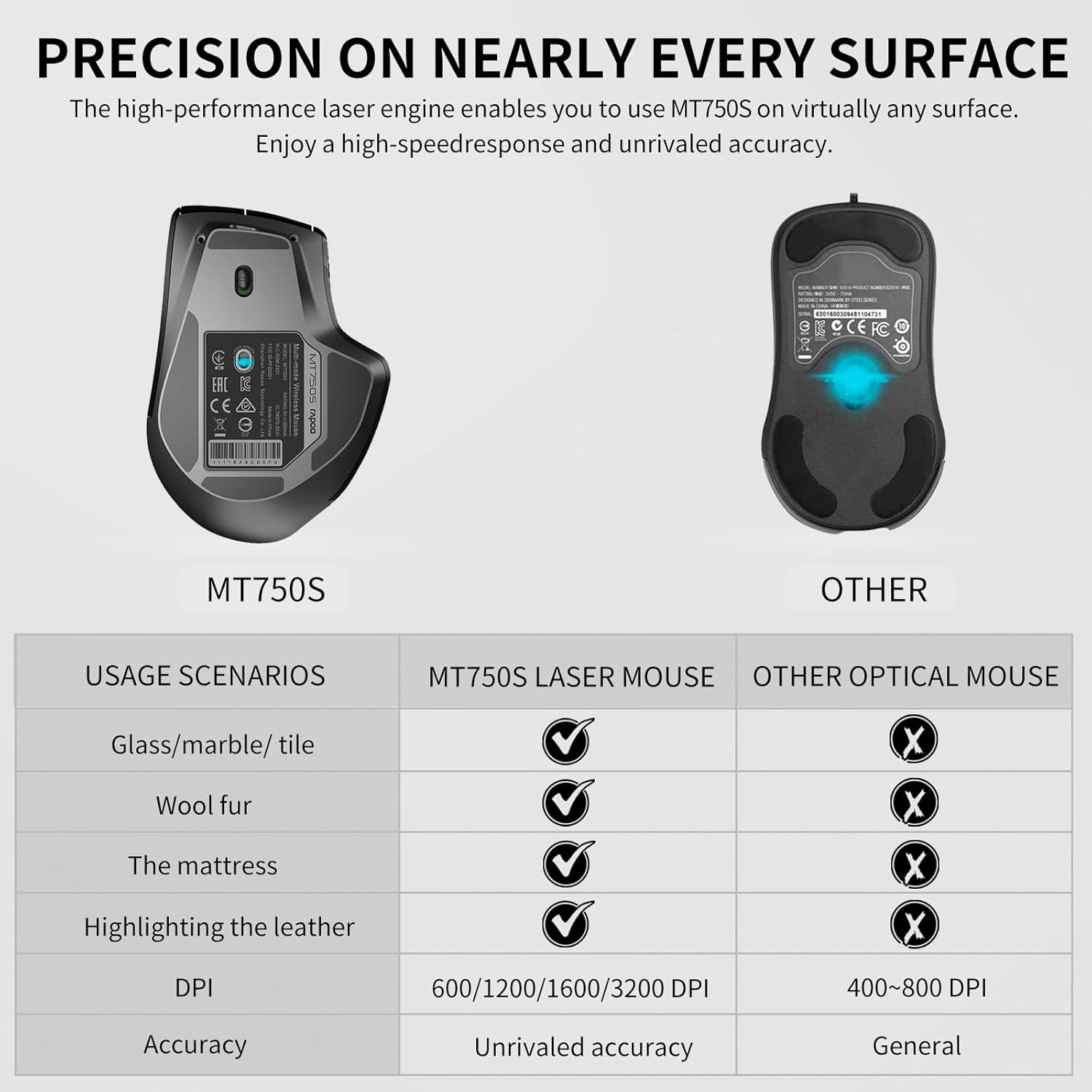
Image: A comparison chart demonstrating the superior tracking capabilities of the Rapoo MT750S laser mouse on various surfaces (glass, marble, wool, mattress, leather) compared to a standard optical mouse.
Apkope
Peles uzlāde
The Rapoo MT750S features a built-in 800mAh Li-ion rechargeable battery. To charge the mouse, connect the included USB-B cable to the charging port on the front of the mouse and plug the other end into a USB power source. A full charge takes approximately 3 hours and can last up to 30 days with typical use. The mouse has a super long standby time. A low battery indicator (flashing red light) will remind you when charging is needed.

Image: A visual representation of the Rapoo wireless mouse connected to a USB-B cable for charging, with indicators for full charge time, standby time, and working duration.
Tīrīšana
Lai tīrītu peli, izmantojiet mīkstu, sausu drānu. Spēcīgu netīrumu gadījumā nedaudz paberzējiet.ampen the cloth with water or a mild, non-abrasive cleaner. Avoid using harsh chemicals or abrasive materials, as these can damage the mouse's surface.
Problēmu novēršana
- Pele nereaģē:
- Pārliecinieties, vai pele ir ieslēgta.
- Pārbaudiet akumulatora līmeni un, ja nepieciešams, uzlādējiet.
- 2.4G savienojumam pārliecinieties, vai USB uztvērējs ir droši pievienots. Izmēģiniet citu USB portu.
- Lai izveidotu Bluetooth savienojumu, pārliecinieties, vai ierīcē ir iespējots Bluetooth un pele ir pareizi savienota pārī. Mēģiniet atkārtoti savienot pārī peli.
- Mēģiniet restartēt datoru/ierīci.
- Kursora kustība ir nevienmērīga vai neprecīza:
- Clean the laser sensor on the bottom of the mouse.
- Ensure you are using the mouse on a suitable surface. While the laser mouse tracks on many surfaces, extreme textures or highly reflective surfaces can sometimes affect performance.
- Ja kursors darbojas pārāk ātri, samaziniet DPI iestatījumu.
- Nevar pārslēgties starp ierīcēm:
- Ensure all desired devices are properly paired or connected (2.4G receiver plugged in).
- Short press the device switching button firmly.
- Buttons not working or programmable features not active:
- Ensure the Rapoo driver software is installed and up to date on your computer.
- Verify button assignments within the driver software.
Specifikācijas
| Modeļa numurs | MT750S |
| Savienojamības tehnoloģija | 2.4G Wireless, Bluetooth 3.0, Bluetooth 4.0 (Multi-mode) |
| Kustību noteikšanas tehnoloģija | Lāzers |
| Regulējams DPI | 600 / 1200 / 1600 / 3200 |
| Programmējamās pogas | 8 |
| Akumulatora tips | Iebūvēts 800 mAh Li-ion uzlādējams akumulators |
| Akumulatora darbības laiks | Līdz 30 dienām (tipiska lietošana) |
| Produkta izmēri | 4.8 x 3.35 x 1.93 collas (12.2 x 8.5 x 4.9 cm) |
| Preces svars | 4.1 unces (116 grami) |
| Krāsa | Matēts melns |
| Ražotājs | Shenzhen Rapoo Technology Co., Ltd. |
| Izcelsmes valsts | Ķīna |

Image: Top and side views of the Rapoo mouse, indicating its dimensions and the location of various buttons including forward, back, DPI switch, and side scroll wheel.
Garantija un atbalsts
Rapoo provides a viena gada garantija un a 30 dienu naudas atdošanas garantija for this product. If you encounter any issues or have questions regarding your Rapoo MT750S mouse, please do not hesitate to contact Rapoo customer support. You can typically find support contact information on the official Rapoo webvietnē vai izmantojot jūsu pirkumu platformu.
For the latest drivers and software for customizing your mouse, please visit the official Rapoo support page.
Saistītie dokumenti — MT750S
 |
Rapoo MT750S bezvadu peles lietotāja rokasgrāmata un specifikācijas Visaptverošs Rapoo MT750S bezvadu peles ceļvedis, kurā aplūkota iestatīšana, funkcijas un tehniskās specifikācijas. Uzziniet par Bluetooth un 2.4G savienojamību, akumulatora uzlādi un pogu funkcijām. |
 |
Rapoo MT750S daudzrežīmu bezvadu peles īsā lietošanas pamācība Rapoo MT750S daudzrežīmu bezvadu peles ātrās lietošanas pamācība, kurā ietvertas 2.4G un Bluetooth savienojuma iestatīšanas instrukcijas, ierīču pārslēgšana un statusa indikatoru nozīmes. |
 |
Rapoo MT760L/MT760M daudzrežīmu bezvadu peles lietotāja rokasgrāmata Visaptveroša lietotāja rokasgrāmata Rapoo MT760L un MT760M daudzrežīmu bezvadu pelēm. Uzziniet par funkcijām, iestatīšanu, savienojuma režīmiem (2.4 GHz, Bluetooth), DPI iestatījumiem un ergonomisko dizainu uzlabotai produktivitātei. |
 |
Rapoo MT560 daudzrežīmu bezvadu pele — funkcijas un specifikācijas Iepazīstieties ar Rapoo MT560 — daudzpusīgu vairāku režīmu bezvadu peli ar 4000 DPI, uzlādējamu akumulatoru un nemanāmu ierīču pārslēgšanu. Uzziniet par tās funkcijām, specifikācijām un sistēmas prasībām. |
 |
Rapoo MT760 vairāku ierīču bezvadu peles konfigurācijas rokasgrāmata Visaptverošs ceļvedis Rapoo MT760 vairāku ierīču bezvadu peles konfigurēšanai, kurā detalizēti aprakstīta draivera instalēšana, 2.4 GHz savienošana pārī, pogu pielāgošana, vairāku ierīču pārslēgšana un rūpnīcas atiestatīšanas opcijas. |
 |
Rapoo MT760L daudzrežīmu bezvadu peles lietotāja rokasgrāmata Šajā dokumentā sniegti norādījumi un specifikācijas Rapoo MT760L daudzrežīmu bezvadu pelei, aptverot iestatīšanu, funkcijas un problēmu novēršanu. |
Ask a question about this manual
Ask about setup, troubleshooting, compatibility, parts, safety, or missing instructions. Manuals+ will review the question and use this page’s manual context to help answer it.