
1. Ievads
Welcome to the Nokia T10 Wi-Fi Tablet user manual. This guide provides essential information to help you set up, operate, maintain, and troubleshoot your new device. The Nokia T10 is an 8-inch HD Android 12 tablet designed for everyday use, offering a balance of performance and portability.
Please read this manual carefully to ensure proper use and to maximize the lifespan of your tablet.
2. Kas ir kastē
Upon unboxing your Nokia T10 tablet, please verify that all the following items are included:
- Nokia T10 Tablet Device
- C tipa USB kabelis
- Lādētājs
- Īsā lietošanas pamācība (QSG)
- Drošības buklets
- User Guide Band
- Plastic Bag (packaging material)
If any items are missing or damaged, please contact your retailer or Nokia customer support immediately.
3. Iestatīšana
3.1 Planšetdatora uzlāde
Before first use, fully charge your Nokia T10 tablet. Connect the provided Type-C USB cable to the tablet's charging port and the other end to the charger. Plug the charger into a power outlet. The battery indicator on the screen will show the charging status.
3.2 Ieslēgšana/izslēgšana
- Lai ieslēgtu: Press and hold the Power button until the Nokia logo appears.
- Lai izslēgtu: Press and hold the Power button until the power options appear on the screen. Select "Power off" and confirm.
- Lai restartētu: Press and hold the Power button until the power options appear. Select "Restart" and confirm.
3.3 Sākotnējā iestatīšana
When you power on your tablet for the first time, you will be guided through an initial setup process:
- Valodas izvēle: Izvēlieties vēlamo valodu.
- Wi-Fi savienojums: Connect to a Wi-Fi network to access the internet. This is crucial for downloading updates and setting up your Google account.
- Google konts: Sign in with your existing Google account or create a new one. This is necessary for accessing the Google Play Store, Gmail, and other Google services.
- Datums un laiks: Iestatiet pareizo datumu un laiku vai ļaujiet tīklam to iestatīt automātiski.
- Drošība: Set up a screen lock (PIN, pattern, password) and consider enabling AI Face Unlock for convenient access.
3.4 MicroSD kartes ievietošana
The Nokia T10 supports expandable storage via a MicroSD card. Locate the SIM/SD card tray on the side of the tablet. Use the provided SIM ejector tool to open the tray. Carefully place the MicroSD card into the designated slot with the gold contacts facing down, then reinsert the tray firmly.
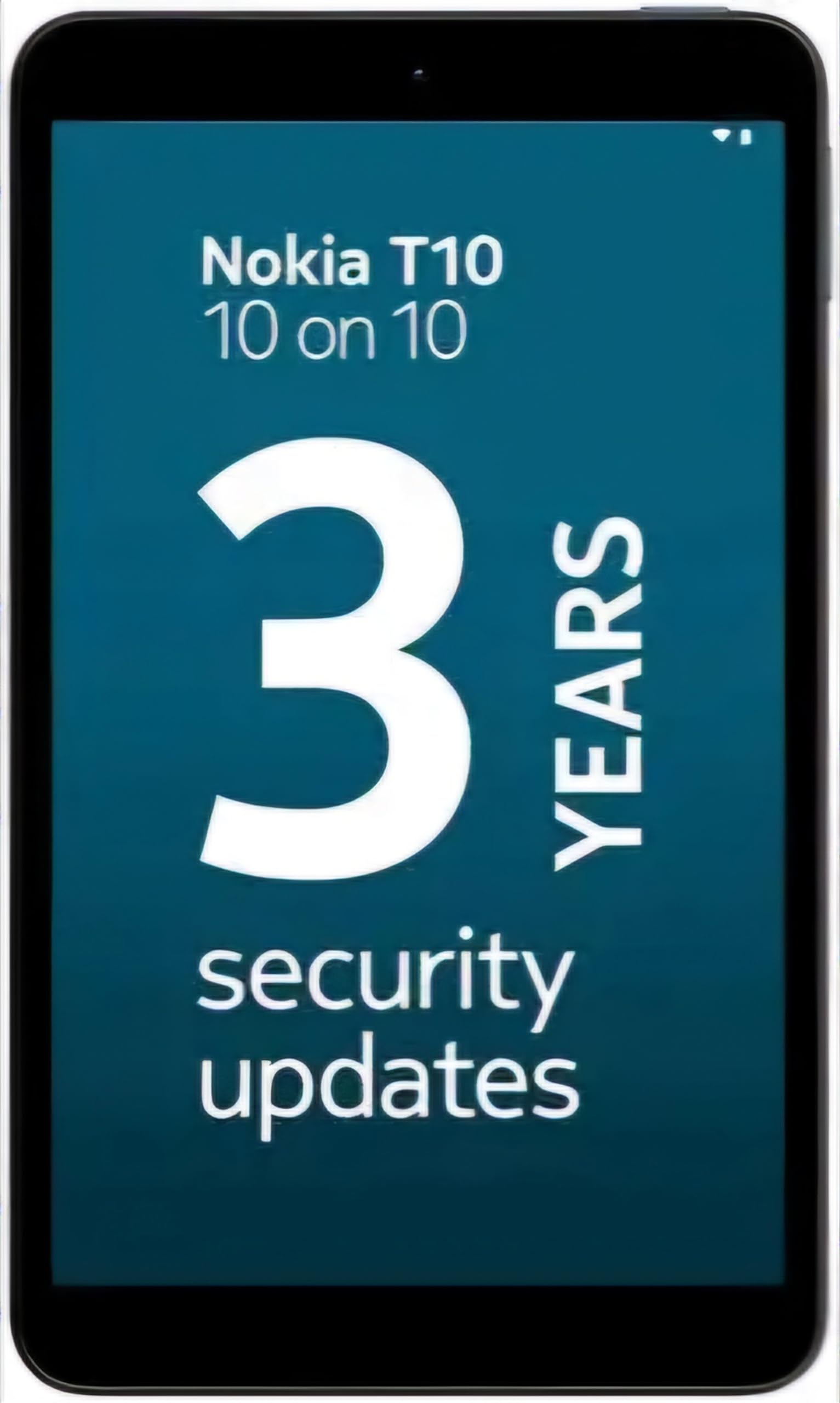
Image: Nokia T10 tablet, showcasing its sleek design and the rear camera module.
4. Lietošanas instrukcijas
4.1 Displejs un navigācija
The Nokia T10 features an 8-inch HD display (1280x800 pixels). Navigate the interface using touch gestures:
- Pieskarieties: Atlasiet vienumu vai atveriet lietotni.
- Pavelciet: Ritiniet ekrānus, sarakstus vai saturu.
- Savilkšana, lai tuvinātu: Pietuviniet vai attāliniet fotoattēlus un web lapas.
- Ilgi nospiediet: Piekļūstiet kontekstuālajām izvēlnēm vai pārvietojiet lietotņu ikonas.
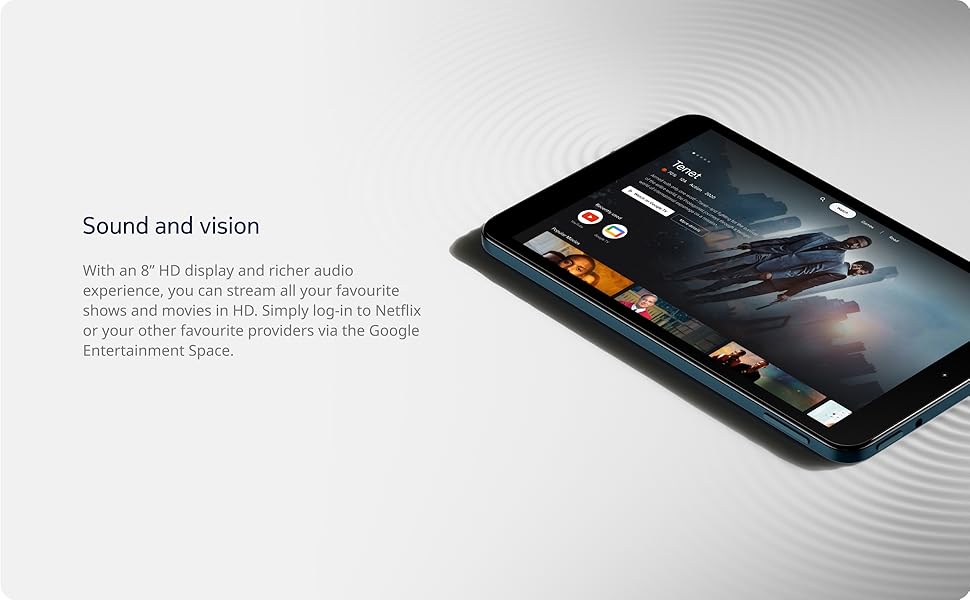
Image: The Nokia T10 tablet showcasing its 8-inch HD display with streaming video content.
4.2 Kameras funkcijas
Your tablet is equipped with an 8MP rear camera with autofocus and flash, and a 2MP front camera.
- Fotografēšana: Atveriet lietotni Kamera, kadrējiet attēlu un pieskarieties slēdža pogai.
- Video ierakstīšana: Switch to video mode in the Camera app and tap the record button to start/stop. The tablet supports FHD 1080p video capture.
- Priekšējā kamera: Tap the camera switch icon to use the front camera for selfies or video calls.

Image: A Nokia T10 tablet displaying a video call, highlighting its front camera functionality.
4.3. Akumulatora pārvaldība
The Nokia T10 has a 5250 mAh battery designed for all-day use. To optimize battery life:
- Samaziniet ekrāna spilgtumu.
- Izslēdziet Wi-Fi un Bluetooth, kad tie netiek lietoti.
- Aizveriet fona lietotnes.
- Enable battery saver mode in Settings.
4.4 Savienojamība
- Wi-Fi: Connect to wireless networks via Settings > Network & internet > Wi-Fi. The tablet supports 802.11a/b/g/n/ac standards.
- Bluetooth: Pair with Bluetooth devices (headphones, speakers) via Settings > Connected devices > Bluetooth. The tablet features Bluetooth 5.0.
- C tipa USB: Uzlādei un datu pārsūtīšanai izmantojiet USB-C portu.
4.5 Mākslīgā intelekta sejas atbloķēšana
For quick and secure access, set up AI Face Unlock:
- Go to Settings > Security > Face unlock.
- Izpildiet ekrānā redzamos norādījumus, lai reģistrētu savu seju.
- Ensure you are in a well-lit environment during setup and use.
4.6 Programmatūra un atjauninājumi
The Nokia T10 runs on Android 12. Nokia provides 2 years of OS updates and 3 years of monthly security updates to keep your device secure and up-to-date. You will receive notifications when updates are available. It is recommended to install updates over a Wi-Fi connection.
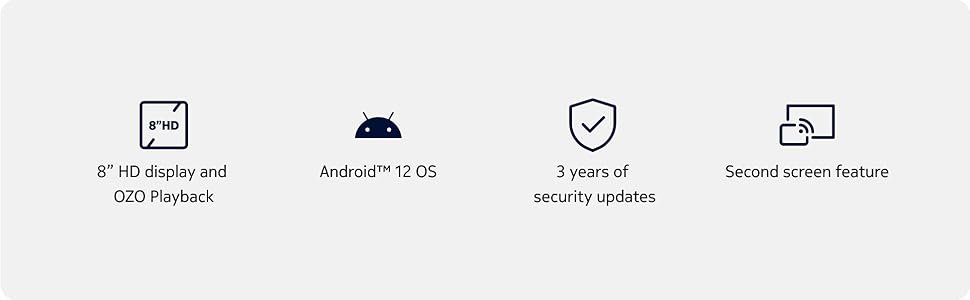
Image: Visual representation of Nokia T10 features including Android 12 OS and 3 years of security updates.
5. Apkope
5.1 Planšetdatora tīrīšana
- Ekrāna un korpusa tīrīšanai izmantojiet mīkstu, nepūkošu drānu.
- Izvairieties no spēcīgu ķīmisku vielu, abrazīvu tīrīšanas līdzekļu vai aerosolu lietošanas.
- Do not expose the tablet to excessive moisture.
5.2. Programmatūras atjauninājumi
Regulāri pārbaudiet un instalējiet programmatūras atjauninājumus, lai nodrošinātu optimālu veiktspēju un drošību. Dodieties uz Iestatījumi > Sistēma > Sistēmas atjauninājums.
5.3. Krātuves pārvaldība
To maintain performance, periodically manage your tablet's storage:
- Izdzēsiet nevajadzīgās lietotnes un files.
- Pārvietot lielu file(fotoattēlus, videoklipus) uz MicroSD karti vai mākoņkrātuvi.
- Clear app cache regularly via Settings > Apps > [App Name] > Storage & cache.
6. Traucējummeklēšana
If you encounter issues with your Nokia T10 tablet, try the following solutions:
| Problēma | Risinājums |
|---|---|
| Planšetdators neieslēdzas | Pārliecinieties, vai akumulators ir uzlādēts. Pievienojiet lādētāju un uzgaidiet dažas minūtes, pirms mēģināt atkārtoti ieslēgt ierīci. |
| Wi-Fi savienojuma problēmas | Restart your Wi-Fi router. Go to Settings > Network & internet > Wi-Fi, turn Wi-Fi off and then on again. Forget the network and reconnect. |
| Lēna veiktspēja | Close unused apps. Clear app caches. Restart the tablet. Check for available software updates. |
| Lietotnes avarē vai sasalst | Force stop the app (Settings > Apps > [App Name] > Force stop). Clear the app's cache and data. Reinstall the app. |
| Akumulators ātri izlādējas | Reduce screen brightness. Disable unnecessary features like GPS, Bluetooth, and Wi-Fi when not in use. Check battery usage in Settings to identify power-hungry apps. |
If the problem persists after trying these steps, please contact Nokia customer support.
7. Specifikācijas
Below are the key technical specifications for the Nokia T10 Wi-Fi Tablet:
- Modeļa nosaukums: Nokia T10 TA-1472 WIFI 3/32
- Operētājsistēma: Android 12
- Procesors: Unisoc T606 (Octa-core, 1.6 GHz)
- Grafikas kopprocesors: Mali-G57
- RAM: 3 GB
- Iekšējā atmiņa: 32 GB
- Paplašināma krātuve: Yes, via MicroSD card (up to 512GB, sold separately)
- Displejs: 8-inch HD (1280 x 800 pixels) TFT, 16:10 aspect ratio
- Aizmugurējā kamera: 8 MP with AF and Flash
- Priekšējā kamera: 2 MP
- Video uzņemšanas izšķirtspēja: FHD 1080p at 30 fps
- Akumulators: 5250 mAh litija polimērs
- Savienojamība: Wi-Fi (802.11a/b/g/n/ac), Bluetooth 5.0, USB Type-C, 3.5mm Audio Jack
- Drošības līdzekļi: AI sejas atbloķēšana
- Audio: Stereo Speakers, OZO Playback
- Dimensions (L x W x Thickness): 20.8L x 12.3W x 0.9Th Centimeters
- Svars: 375 grami
- Krāsa: Zils
8. Informācija par garantiju
The Nokia T10 tablet comes with a 1 gadu ražotāja garantija for the device and battery from the date of purchase. In-box accessories are covered by a 6 mēnešu ražotāja garantija from the date of purchase. Please retain your proof of purchase for warranty claims. For detailed terms and conditions, refer to the warranty card included in your product packaging or visit the official Nokia support webvietne.
9. Atbalsts
For further assistance, technical support, or to find service centers, please visit the official Nokia support website or contact their customer service. You can typically find support contact information on the Nokia website or in the safety booklet provided with your tablet.
Tiešsaistes atbalsts: Nokia atbalsts Webvietne