Ievads
This manual provides detailed instructions for the setup, operation, and maintenance of your Dexnor Keyboard Case for the Samsung Galaxy Tab S8 Ultra 14.6 Inch. Please read this manual thoroughly before using the product to ensure proper functionality and to maximize your user experience.

Image: The Dexnor Keyboard Case with a Samsung Galaxy Tab S8 Ultra tablet inserted, ready for use.
Saderība
The Dexnor Keyboard Case is designed exclusively for the Samsung Galaxy Tab S8 Ultra 14.6 inch (Model SM-X900/X906) 2022 Release. This product is not compatible with other tablet models, including the Samsung Galaxy Tab S9 Ultra.
Piezīme: The Samsung Galaxy Tab S8 Ultra tablet and S Pen are not included with this keyboard case.

Image: A visual guide confirming compatibility with Samsung Galaxy Tab S8 Ultra (Models SM-X900/X906) and explicitly stating non-compatibility with Galaxy Tab S9 Ultra.
Iepakojuma saturs
Lūdzu, pārliecinieties, ka iepakojumā ir visi nepieciešamie priekšmeti:
- 1 x Dexnor Bluetooth Keyboard Case
- 1 x USB-C lādēšanas kabelis
- 1 x Īsā darba sākšanas rokasgrāmata
- 1 x Produkta rokasgrāmata (šis dokuments)
Iestatīšanas instrukcijas
1. Attaching the Tablet to the Case
The keyboard case features a two-piece design. The protective back panel attaches magnetically to your Samsung Galaxy Tab S8 Ultra. Align the tablet with the back panel and allow the magnets to secure it in place.
2. Tastatūras pievienošana
The keyboard component also attaches magnetically to the protective back panel. Position the keyboard at the base of the tablet, ensuring the magnetic connection is firm. This allows for a laptop-like setup.
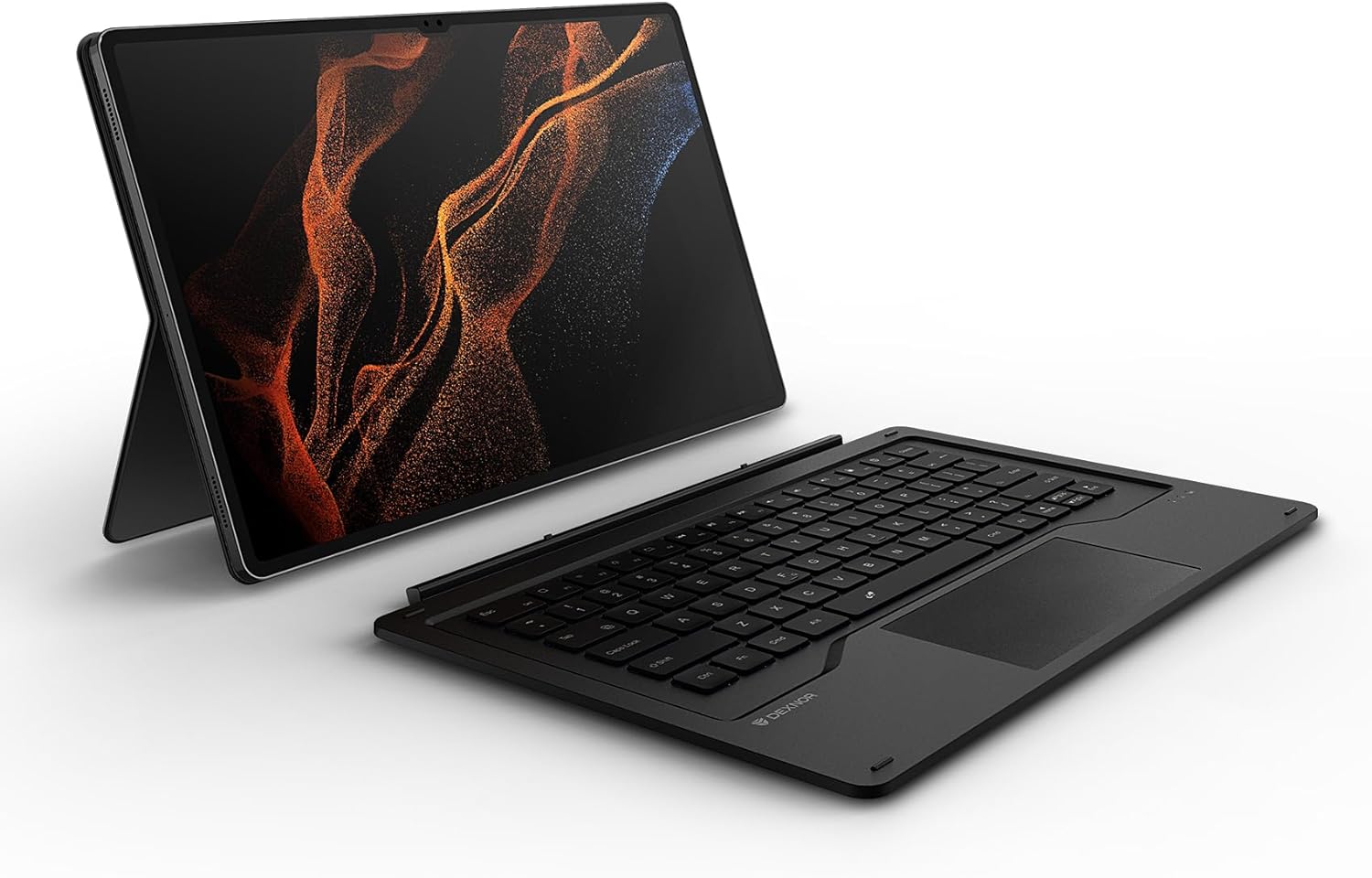
Image: The detachable keyboard and the tablet within its protective back cover, illustrating the two-piece design.
3. Bluetooth savienošana pārī
- Ensure the keyboard is charged (refer to the Charging section).
- Ieslēdziet tastatūru, izmantojot barošanas slēdzi.
- Savā Samsung Galaxy Tab S8 Ultra ierīcē dodieties uz Iestatījumi > Savienojumi > Bluetooth.
- Iespējojiet Bluetooth un meklējiet pieejamās ierīces.
- Select "Dexnor Keyboard" (or similar name) from the list of devices.
- Follow any on-screen prompts to complete the pairing process. The keyboard's indicator light will confirm successful pairing.
Lietošanas instrukcijas
Kickstand regulēšana
The integrated kickstand on the back panel allows for multiple viewing angles. Adjust the stand to your preferred position for typing, drawing, or viewing content. The maximum angle between the stand and the back panel can be adjusted to 130 degrees, and the angle of the tablet to the keyboard can reach 155 degrees.

Image: Tablet with kickstand set to a 155-degree angle for typing.

Image: Tablet with kickstand set to a 130-degree angle for drawing or viewing.
Multi-Touch Trackpad
The large AG glass trackpad supports multi-gesture controls, providing precise navigation similar to a mouse. Use gestures such as scrolling, swiping, and pinching to interact with your tablet.

Attēls: Tuvplāns view of the keyboard's large multi-touch trackpad.
Taustiņi ar aizmugurgaismojumu
The keyboard features 7 solid color backlights with 3 adjustable brightness levels. Press the backlight key (often indicated by a light bulb icon) to cycle through colors and brightness settings, allowing for comfortable typing in various lighting conditions.

Image: The keyboard with its keys illuminated by a blue backlight, demonstrating visibility in low light.
Function Keys and DeX Mode
The keyboard includes a 14-key function row for quick access to media controls and other shortcuts. When combined with Samsung DeX mode, the keyboard provides a laptop-like computing experience, enhancing productivity.

Image: A close-up of the keyboard highlighting the function keys and indicating DeX mode support.
S pildspalvas turētājs
The case features a precise opening on the back cover for secure storage and wireless charging of your S Pen. This design ensures easy access while preventing loss. Please note that the stylus may protrude slightly when stored, potentially touching the surface if the tablet is placed face down.

Attēls: A view of the S Pen holder on the back of the case, showing the S Pen securely in place.
Uzlāde
The keyboard is equipped with an 800mAh battery, providing extended usage. To charge the keyboard, connect the included USB-C charging cable to the keyboard's charging port and a suitable power source. A full charge typically takes approximately 4 hours.

Image: A USB-C cable connected to the keyboard's charging port, indicating the charging process.
Apkope
- Tīrīšana: Izmantojiet mīkstu, damp cloth to clean the surface of the keyboard and case. Avoid using harsh chemicals or abrasive materials.
- Uzglabāšana: Kad klaviatūras korpuss netiek lietots, uzglabājiet to vēsā, sausā vietā, pasargājot to no tiešiem saules stariem un ekstremālām temperatūrām.
- Akumulatora kopšana: Lai paildzinātu akumulatora darbības laiku, izvairieties no biežas tastatūras pilnīgas izlādes. Regulāri uzlādējiet to, pat ja tā netiek pastāvīgi lietota.
Problēmu novēršana
| Problēma | Iespējamais risinājums |
|---|---|
| Tastatūra neieslēdzas | Ensure the keyboard is charged. Connect it to a power source using the USB-C cable. |
| Keyboard does not connect via Bluetooth | 1. Ensure Bluetooth is enabled on your tablet. 2. Make sure the keyboard is in pairing mode. 3. Forget the device in your tablet's Bluetooth settings and attempt to re-pair. 4. Restart both the tablet and the keyboard. |
| Taustiņi nereaģē | 1. Check if the keyboard is connected via Bluetooth. 2. Pārliecinieties, vai tastatūra ir uzlādēta. 3. Restart the keyboard and tablet. |
| Trackpad is unresponsive | 1. Ensure the keyboard is connected. 2. Clean the trackpad surface. 3. Restart the keyboard and tablet. |
| Fona apgaismojums nedarbojas | Press the backlight key to cycle through brightness levels and colors. Ensure the keyboard is charged. |
Ja rodas problēmas, kas šeit nav uzskaitītas, vai ja ieteiktie risinājumi problēmu neatrisina, lūdzu, sazinieties ar klientu atbalsta dienestu.
Specifikācijas
| Funkcija | Detaļas |
|---|---|
| Modeļa numurs | DK002 |
| Saderība | Samsung Galaxy Tab S8 Ultra 14.6 Inch (SM-X900/X906) |
| Savienojamība | Bluetooth |
| Akumulatora ietilpība | 800 mAh litija jonu |
| Uzlādes laiks | Apmēram 4 stundas |
| Fona apgaismojums | 7 solid colors, 3 adjustable brightness levels |
| Trackpad | Large multi-touch AG glass trackpad |
| Izmēri (G x P x A) | 13.01 x 8.56 x 0.71 collas |
| Preces svars | 2.29 mārciņas |
Garantija un atbalsts
This Dexnor Keyboard Case comes with a 1-year manufacturer's warranty. Lifetime technical support is also provided. For warranty claims, technical assistance, or any product-related inquiries, please contact Dexnor customer support through the official webvietne vai jūsu pirkumu platforma.