
1. Ievads
The Huawei OptiXstar K251a-21 is a sub-FTTR (Fiber to the Room) unit designed to extend the high-speed network provided by the Huawei FTTR OptiXstar F50 Plus main unit. This device supports ultra-Gigabit high-speed access via upstream fiber optic lines and delivers Ultra Gigabit dual-band Wi-Fi and ultra-Gigabit network ports to users. It integrates next-generation Wi-Fi 7 technology for higher speeds and lower latency, ensuring a superior home network experience.
2. Drošības informācija
Please read and understand all safety instructions before using this device. Failure to follow these instructions may result in injury, damage to the device, or property damage.
- Izmantojiet tikai ierīces komplektācijā iekļauto strāvas adapteri.
- Nepakļaujiet ierīci ūdenim, mitrumam vai ekstremālām temperatūrām.
- Nenovietojiet ierīci siltuma avotu tuvumā vai tiešos saules staros.
- Nodrošiniet pareizu ventilāciju, lai novērstu pārkaršanu.
- Nemēģiniet ierīci atvērt vai remontēt pats. Lai saņemtu palīdzību, sazinieties ar kvalificētu servisa personālu.
- Glabājiet ierīci bērniem un mājdzīvniekiem nepieejamā vietā.
3. Iepakojuma saturs
Pārliecinieties, vai iepakojumā ir visas preces:
- Huawei OptiXstar K251a-21 Sub FTTR Device
- Strāvas kabelis
- Īsā lietošanas pamācība (ja iekļauta)
4. Produkts beidziesview
Iepazīstieties ar ierīces sastāvdaļām un indikatoriem.
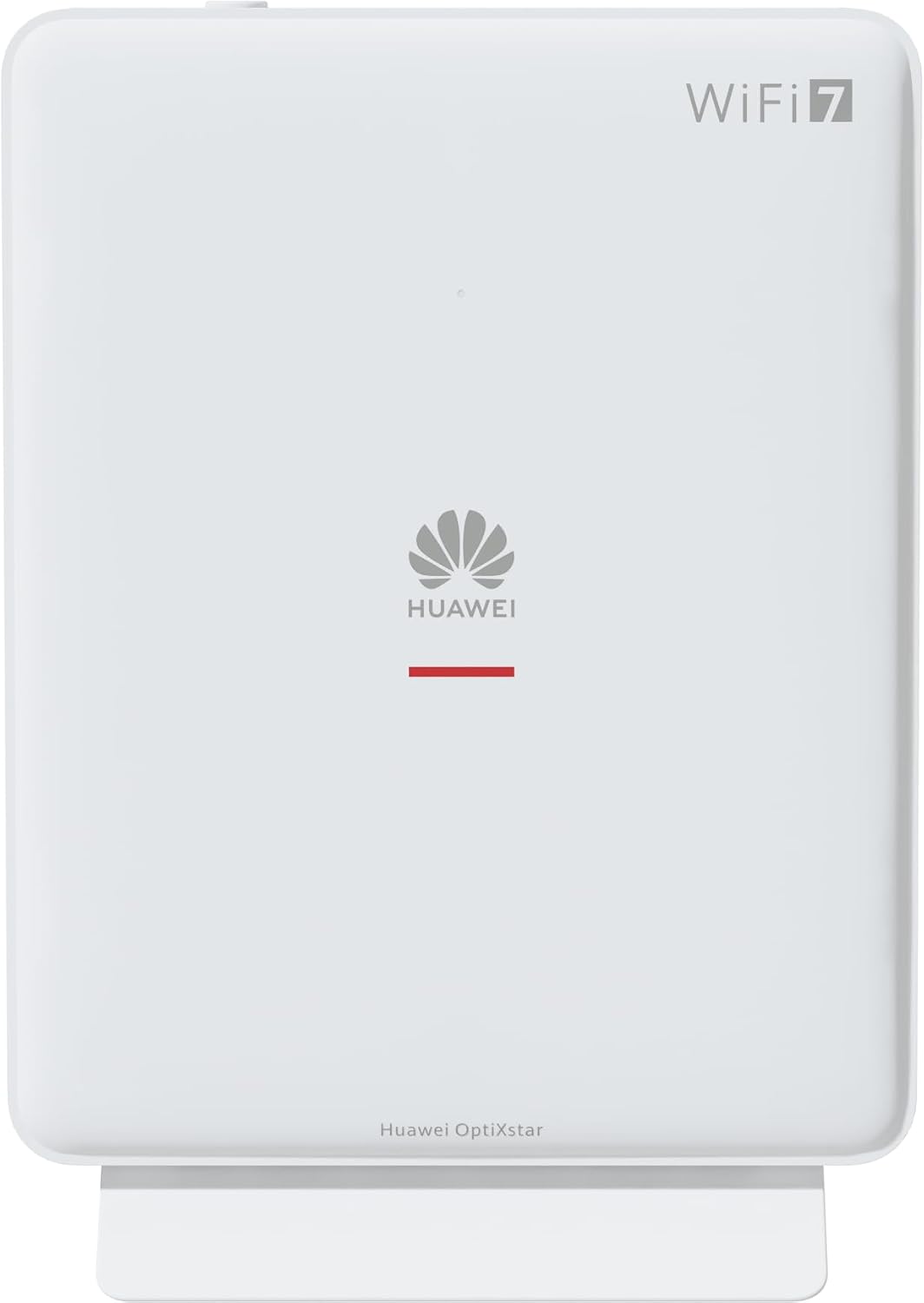
1. attēls. Priekšpuse view of the Huawei OptiXstar K251a-21 Sub FTTR device, showing the Huawei logo and "WiFi 7" branding.

Figure 2: Angled front-side view of the Huawei OptiXstar K251a-21 Sub FTTR, highlighting its sleek design and ventilation.

3. attēls. Aizmugure view of the Huawei OptiXstar K251a-21 Sub FTTR, displaying the ports (Reset, 2-GE, 1-2.5GE, Power, FTTR) and mounting options.

4. attēls: Sānu profilsfile of the Huawei OptiXstar K251a-21 Sub FTTR, showing its slim form factor and ventilation grilles.

5. attēls: Leņķiska aizmugure view of the Huawei OptiXstar K251a-21 Sub FTTR, providing a clear look at the port labels and layout.

6. attēls: augšdaļa view of the Huawei OptiXstar K251a-21 Sub FTTR, featuring the WPS/LED button.
Porti un pogas:
- FTTR Port: Connects to the main FTTR unit via a fiber optic cable.
- 1-2.5GE Port: Gigabit Ethernet port for high-speed wired connections.
- 2-GE Port: Gigabit Ethernet port for wired connections.
- Barošanas ports: Savieno ar strāvas adapteri.
- Atiestatīšanas poga: Used to restore factory settings (press and hold for 5-10 seconds).
- WPS/LED Button: Initiates Wi-Fi Protected Setup (WPS) for easy device connection and controls LED indicators.
5. Iestatīšana
Follow these steps to set up your Huawei OptiXstar K251a-21 Sub FTTR device:
- Izvietojums: Choose a central location in your home for optimal Wi-Fi coverage. The device is suitable for various installation scenarios, including vertical placement on a desk, wall-mounting, plugging into a power strip, or mounting in an 86mm junction box with a bracket.
- Pievienojiet optisko šķiedru kabeli: Connect one end of the fiber optic cable to the FTTR port on the Sub FTTR unit and the other end to the corresponding FTTR port on your Huawei FTTR OptiXstar F50 Plus main unit or wall outlet. Ensure the connection is secure.
- Pievienojiet strāvu: Plug the power adapter into the Power port on the Sub FTTR unit, then plug the other end into a power outlet.
- Ieslēgšana: The device will automatically power on. Wait for the indicator lights to stabilize, typically indicating a successful connection to the main FTTR unit and active Wi-Fi.
- Wired Connections (Optional): For wired devices, connect an Ethernet cable from the 1-2.5GE or 2-GE ports on the Sub FTTR to your computer, gaming console, or other network devices.
6. Darbība
Once set up, your OptiXstar K251a-21 provides seamless Wi-Fi 7 connectivity.
- Wi-Fi savienojums: Meklēt the Wi-Fi network name (SSID) broadcast by your FTTR system on your devices (smartphones, laptops, etc.). Enter the Wi-Fi password. The system's unique SRCN (Seamless Roaming Coordinate Network) technology ensures seamless roaming throughout your home.
- C-WAN Architecture: The C-WAN architecture centrally controls and coordinates network-wide Wi-Fi resources via the Main FTTR, providing an ultra-Gigabit high-speed experience.
- IoT Casing: The device features an IoT casing designed to protect home network security and privacy.
- WPS funkcija: Press the WPS/LED button briefly to use Wi-Fi Protected Setup (WPS) for quick connection of compatible devices without entering the password.
- LED indikatori: The LED indicators provide status information. Refer to the main FTTR unit's manual or the device's specific documentation for detailed LED status meanings.
7. Apkope
Regular maintenance helps ensure optimal performance and longevity of your device.
- Tīrīšana: Viegli noslaukiet ierīci ar mīkstu, sausu drānu. Nelietojiet šķidrus tīrīšanas līdzekļus vai abrazīvus materiālus.
- Programmaparatūras atjauninājumi: Huawei periodically releases firmware updates to improve performance and security. These updates are typically managed through the main FTTR unit or a dedicated mobile application. Ensure your system is always running the latest firmware.
- Ventilācija: Pārliecinieties, vai ventilācijas atveres nav bloķētas, lai novērstu pārkaršanu.
- Kabeļu vadība: Keep fiber optic and power cables neatly organized and free from kinks or excessive bending.
8. Traucējummeklēšana
Ja rodas problēmas, izmēģiniet tālāk norādītās problēmu novēršanas darbības.
- Nav jaudas: Check if the power cable is securely connected to both the device and the power outlet. Try a different outlet.
- Nav interneta savienojuma:
- Verify that the fiber optic cable is correctly connected to the FTTR port.
- Check the status indicators on both the Sub FTTR and the main FTTR unit.
- Restart both the Sub FTTR and the main FTTR unit by unplugging them from power for 30 seconds and then plugging them back in.
- Ensure your main FTTR unit has an active internet connection.
- Lēns Wi-Fi ātrums:
- Ensure the device is placed optimally, away from obstructions and interference sources.
- Check if too many devices are connected to the network.
- Update the firmware of your FTTR system.
- Consider using a wired connection for bandwidth-intensive tasks.
- Nevar izveidot savienojumu ar Wi-Fi:
- Pārliecinieties, vai ievadāt pareizo Wi-Fi paroli.
- Try using the WPS button to connect.
- Restart your device and the Sub FTTR unit.
- Rūpnīcas režīma iestatīšana: If issues persist, you may need to perform a factory reset. With the device powered on, use a pointed object (like a paperclip) to press and hold the Reset button for 5-10 seconds until the indicators change. Note that this will erase all custom settings.
9. Specifikācijas
| Funkcija | Specifikācija |
|---|---|
| Zīmols | HUAWEI |
| Modeļa numurs | K8M251a-21G02 |
| Izmēri (iepakojumā) | 24.5 x 23.7 x 7.4 cm |
| Svars (iepakojums) | 300 grami |
| Īpaša iezīme | Interneta drošība |
| Frekvenču joslas klase | Dual Band |
| Bezvadu sakaru standarts | 802.11ax (Wi-Fi 7 Generation) |
| Saderīgas ierīces | Personālais dators |
| Ieteicamie lietojumi | Sākums |
| Iekļautie komponenti | Strāvas kabelis |
| Savienojamības tehnoloģija | Ethernet, FTTR, Wi-Fi, Fiberglass |
| Krāsa | Balts |
| Portu skaits | 4 (FTTR, 1-2.5GE, 2-GE, Power) |
| Datu pārsūtīšanas ātrums | 1 Gigabits per second |
| Viedās mājas saderība | Compatible with smart home systems |
| Interneta savienojamība | Jā |
| Savienojamības protokols | Wi-Fi |
10. Garantija un atbalsts
For warranty information and technical support, please refer to the official Huawei website or contact your local Huawei customer service. Keep your purchase receipt for warranty claims.
Tiešsaistes resursi: Visit the official Huawei support webvietne ar bieži uzdotajiem jautājumiem, atjauninātām rokasgrāmatām un programmatūras lejupielādēm.
Klientu apkalpošana: Contact details for customer support can typically be found on the Huawei website or in the documentation provided with your main FTTR unit.


