
Samsung SM-X230
Samsung Galaxy Tab A11+ SM-X230 User Manual
Modelis: SM-X230
1. Ievads
This manual provides essential information for setting up, operating, maintaining, and troubleshooting your Samsung Galaxy Tab A11+ SM-X230 tablet. Please read this manual carefully to ensure safe and optimal use of your device.
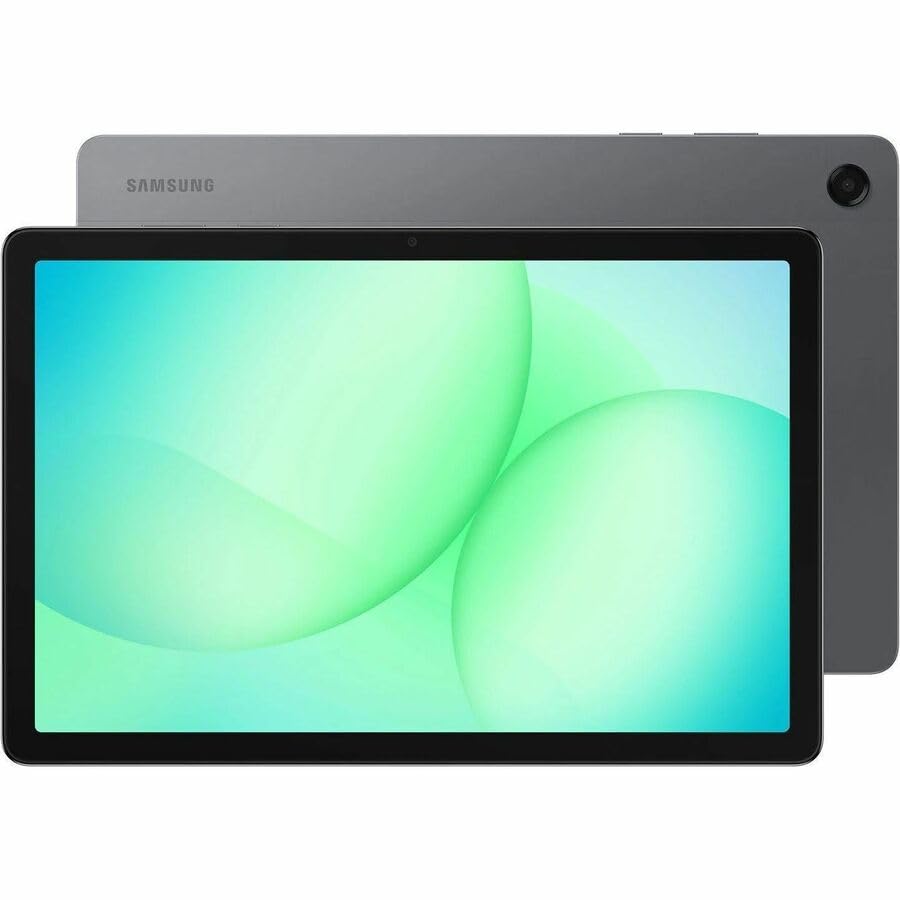
Image: Samsung Galaxy Tab A11+ tablet, showcasing its sleek design and available colors.
The Samsung Galaxy Tab A11+ SM-X230 is an 11-inch WUXGA tablet powered by a MediaTek Dimensity 7300 Octa-core processor, offering 6 GB of RAM and 128 GB of internal storage, expandable via microSD. It features a modern design, a vibrant 90 Hz display, and Dolby-engineered Quad Speakers for an immersive experience.
2. Darba sākšana (iestatīšana)
2.1 Izpakošana un sākotnējā pārbaude
Carefully remove all components from the packaging. Verify that all items are present: the Samsung Galaxy Tab A11+ tablet, a USB-C charging cable, and any included documentation. Inspect the tablet for any physical damage before proceeding.
2.2. Ierīces uzlāde
Before first use, fully charge your tablet. The device is equipped with a 7040 mAh battery and supports 25W Super Fast Charging.
- Pievienojiet USB-C kabeli planšetdatora uzlādes portam.
- Connect the other end of the cable to a compatible power adapter (not always included) and plug it into a wall outlet.
- The charging indicator will appear on the screen. Allow the tablet to charge until the battery icon shows a full charge.

Image: Visual representation of the tablet charging, highlighting its 7040mAh battery and 25W Super Fast Charging capability.
2.3 Ieslēgšana/izslēgšana
- Lai ieslēgtu: Nospiediet un turiet ieslēgšanas/izslēgšanas pogu (atrodas sānos), līdz parādās Samsung logotips.
- Lai izslēgtu: Nospiediet un turiet ieslēgšanas/izslēgšanas pogu un pēc tam ekrānā redzamo opciju klāstā atlasiet “Izslēgt”.
2.4 Sākotnējās iestatīšanas vednis
Pēc pirmās ieslēgšanas planšetdators jūs vadīs cauri sākotnējai iestatīšanas procedūrai:
- Izvēlieties vēlamo valodu.
- Izveidojiet savienojumu ar Wi-Fi tīklu.
- Review un piekrītiet lietotāja licences līgumam un konfidencialitātes politikai.
- Pierakstieties ar savu Google kontu vai izveidojiet jaunu. Tas ir svarīgi, lai piekļūtu Google Play veikalam un citiem Google pakalpojumiem.
- Iestatiet ekrāna bloķēšanu (PIN, kombinācija, parole).
- Follow any additional prompts to customize your device settings.
2.5 MicroSD kartes ievietošana
The Galaxy Tab A11+ supports microSD cards up to 2 TB for expanded storage.
- Atrodiet SIM/microSD kartes paliktni planšetdatora sānos.
- Insert the ejection pin (if provided, or a paperclip) into the small hole on the tray to eject it.
- Ievietojiet microSD karti teknē ar zelta kontaktiem uz leju.
- Viegli iespiediet paplāti atpakaļ slotā, līdz tā noklikšķ savā vietā.
3. Planšetdatora lietošana
3.1 Skārienekrāna navigācija
The tablet's primary interface is its 11-inch WUXGA (1920 x 1200 pixels) touchscreen with a 90 Hz refresh rate for smooth interactions.
- Pieskarieties: Atlasiet vienumu vai atveriet lietotni.
- Pieskarieties un turiet: Piekļūstiet kontekstuālajām izvēlnēm vai pārvietojiet vienumus.
- Pavelciet: Pārvietojieties pa ekrāniem, ritiniet sarakstus vai noraidiet paziņojumus.
- Savilkšana, lai tuvinātu: Palieliniet vai samaziniet view attēlu un web lapas.
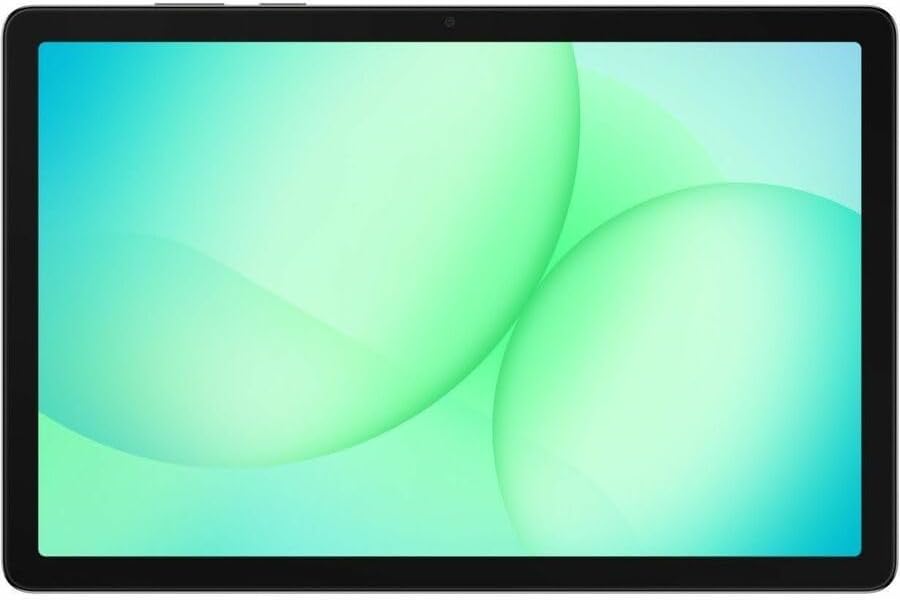
Image: The Samsung Galaxy Tab A11+ display, showcasing its vibrant and clear screen.
3.2. Veiktspēja
The tablet is powered by a MediaTek Dimensity 7300 (4 nm) Octa-core processor with 6 GB of RAM, ensuring responsive performance for various tasks, from gaming to multitasking.

Image: A visual representation of the tablet's enhanced CPU and GPU performance.
3.3. Krātuves pārvaldība
Your tablet comes with 128 GB of internal storage. You can expand this by up to 2 TB using a microSD card.
- Lai pārbaudītu krātuvi: dodieties uz Iestatījumi > Akumulatora un ierīces apkope > Krātuve.
- Lai atbrīvotu vietu: izdzēsiet nevajadzīgo fileatinstalējiet neizmantotās lietotnes vai pārvietojiet lielus failus fileuz mākoņkrātuvi vai ārējo microSD karti.

Image: The tablet displaying various media, illustrating its ample internal storage and microSD expansion capabilities.
3.4 Kameras funkcijas
The tablet features an 8 MP rear camera and a 5 MP front camera for photos and video calls.
- Atveriet Kamera lietotni no sākuma ekrāna vai lietotņu atvilktnes.
- Pieskarieties slēdža pogai, lai uzņemtu fotoattēlu.
- Pārslēdzieties starp priekšējo un aizmugurējo kameru, izmantojot kameras pārslēgšanas ikonu.
- Select video mode to record videos (up to HD 720p).
3.5 Audio iestatījumi
Experience rich, multidimensional audio with Dolby-engineered Quad Speakers. The tablet also includes a 3.5 mm audio jack for wired headphones.
- Adjust volume using the physical volume buttons on the side of the tablet.
- Access detailed audio settings via Iestatījumi > Skaņas un vibrācija.
- Connect wired headphones to the 3.5 mm jack for private listening.

Attēls: Planšetdatoru izstādeasing its immersive audio experience with Dolby Atmos technology.
3.6 Savienojamība (Wi-Fi, Bluetooth)
- Wi-Fi: Dodieties uz Iestatījumi > Savienojumi > Wi-Fi to connect to available networks. The tablet supports 802.11ac wireless compatibility.
- Bluetooth: Dodieties uz Iestatījumi > Savienojumi > Bluetooth lai savienotu pārī ar Bluetooth ierīcēm, piemēram, austiņām vai skaļruņiem.
3.7 Using Google Gemini
The Galaxy Tab A11+ integrates with Google Gemini. You can interact with Gemini to get assistance based on what you see on your screen or through your camera.
- To activate: Long press the side button to launch Google Gemini.
- Share your screen or camera view to ask for advice or information.

Image: The tablet demonstrating Google Gemini's capability to provide real-time assistance based on visual input.
3.8 File Kopīgošana
Viegli kopīgojiet files between your tablet and other compatible devices.
- Use built-in sharing options within apps (e.g., Gallery, Files) to send content via Bluetooth, Wi-Fi Direct, or cloud services.
- Connect to a computer via USB-C cable to transfer files tieši.

Image: Multiple Samsung devices illustrating the ease of file sharing across the ecosystem.
4. Apkope un kopšana
4.1 Planšetdatora tīrīšana
- Ekrāna un korpusa tīrīšanai izmantojiet mīkstu, nepūkošu drānu.
- Noturīgiem traipiem nedaudz uzdzerietampNoslaukiet drānu ar ūdeni vai ekrāna tīrīšanas līdzekli, kas īpaši paredzēts elektronikai.
- Izvairieties no spēcīgu ķīmisku vielu, abrazīvu materiālu vai pārmērīga mitruma lietošanas.
4.2. Programmatūras atjauninājumi
Regulāri pārbaudiet un instalējiet programmatūras atjauninājumus, lai nodrošinātu optimālu veiktspēju, drošību un piekļuvi jaunām funkcijām.
- Dodieties uz Iestatījumi > Programmatūras atjauninājums.
- Pieskarieties Lejupielādējiet un instalējiet.
- Ensure your tablet is connected to Wi-Fi and has sufficient battery charge before starting an update.
4.3 Akumulatora kalpošanas laiks
Lai maksimāli palielinātu akumulatora darbības laiku:
- Izvairieties no ekstremālām temperatūrām.
- Neatstājiet planšetdatoru ilgstoši pilnībā uzlādētu vai pilnībā izlādētu.
- Adjust screen brightness and use power-saving modes when possible.
4.4 Krātuves optimizācija
Periodiski review your storage to remove unnecessary files and apps. This helps maintain device performance.
- Utilize cloud storage for backups of photos and videos.
- Pārvietot lielus multivides failus files to an inserted microSD card.
5. Traucējummeklēšana
5.1. Bieži sastopamās problēmas un risinājumi
- Ierīce neieslēdzas:
- Pārliecinieties, vai akumulators ir uzlādēts. Pievienojiet planšetdatoru lādētājam vismaz uz 30 minūtēm.
- Veiciet piespiedu restartēšanu, vienlaikus nospiežot un turot nospiestu ieslēgšanas/izslēgšanas pogu un skaļuma samazināšanas pogu apmēram 7–10 sekundes.
- Wi-Fi savienojamības problēmas:
- Iestatījumos izslēdziet un ieslēdziet Wi-Fi.
- Restartējiet savu Wi-Fi maršrutētāju.
- Aizmirstiet par tīklu un pievienojieties vēlreiz.
- Lēna veiktspēja:
- Aizveriet neizmantotās lietotnes, kas darbojas fonā.
- Notīriet bieži izmantoto lietotņu kešatmiņas datus.
- Check available storage and free up space if necessary.
- Restartējiet planšetdatoru.
- Lietotņu avarē:
- Notīriet lietotnes kešatmiņu un datus (Iestatījumi > Lietotnes > [Lietotnes nosaukums] > Krātuve).
- Atinstalējiet un atkārtoti instalējiet lietotni.
- Pārliecinieties, vai lietotne ir atjaunināta uz jaunāko versiju.
5.2 Rūpnīcas atiestatīšana
If you encounter persistent issues, a factory reset can resolve many software-related problems. Brīdinājums: Tas izdzēsīs visus datus jūsu planšetdatorā. Pirms turpināt, dublējiet svarīgos datus.
- Dodieties uz Iestatījumi > Vispārīgā pārvaldība > Atiestatīt > Rūpnīcas datu atiestatīšana.
- Review informāciju un pieskarieties Atiestatīt.
- Ja tiek prasīts, ievadiet ekrāna bloķēšanas akreditācijas datus.
- Pieskarieties Dzēst visu to confirm. The tablet will restart and begin the reset process.
6. Produkta specifikācijas
| Funkcija | Specifikācija |
|---|---|
| Zīmols | Samsung |
| Modeļa nosaukums | Galaxy Tab A11+ |
| Modeļa numurs | SM-X230 |
| Ekrāna izmērs | 11 collas |
| Displeja veids | TFT LCD |
| Vietējā izšķirtspēja | 1920 x 1200 pikseļi (WUXGA) |
| Displeja atsvaidzes intensitāte | 90 Hz |
| Procesors | MediaTek Dimensity 7300 (4 nm) Octa-core, 2.5 GHz |
| RAM atmiņa | 6 GB |
| Iekšējā krātuve | 128 GB |
| Paplašināma krātuve | microSD (līdz 2 TB) |
| Operētājsistēma | Android |
| Aizmugurējā kamera | 8 MP |
| Priekšējā kamera | 5 MP |
| Video uzņemšanas izšķirtspēja | HD 720p |
| Akumulatora ietilpība | 7040 mAh (litija polimērs) |
| Vidējais akumulatora darbības laiks | 10 stundas |
| Uzlāde | 25 W īpaši ātra uzlāde |
| Savienojamība | Wi-Fi (802.11ac), Bluetooth, USB Type C |
| GPS funkcionalitāte | GPS-Enabled (GLONASS, Galileo, Beidou, QZSS) |
| Audio funkcijas | Dolby-engineered Quad Speakers, 3.5 mm audio jack |
| Dimensions (L x W x Thickness) | 0.3 collu garums × 10.1 collu platums × 6.6 collu biezums |
| Preces svars | 1.4 mārciņas |
7. Informācija par garantiju
The Samsung Galaxy Tab A11+ SM-X230 comes with a 12-month Manufacturer Warranty. This warranty covers defects in materials and workmanship under normal use. For specific terms and conditions, please refer to the warranty card included with your product or visit the official Samsung support webvietne.
Saglabājiet pirkuma apliecinājumu garantijas prasībām.
8. Atbalsts un serviss
For further assistance, technical support, or service inquiries, please contact Samsung customer support through the following channels:
- Tiešsaistes atbalsts: Apmeklējiet oficiālo Samsung atbalsta vietni webvietne, kurā ir bieži uzdotie jautājumi, problēmu novēršanas rokasgrāmatas un programmatūras lejupielādes. www.samsung.com/us/support/
- Atbalsts pa tālruni: Refer to your product packaging or the Samsung support webvietne reģionālajiem kontakttālruņiem.
- Servisa centri: Atrodiet pilnvarotus Samsung servisa centrus, lai saņemtu palīdzību klātienē.
When contacting support, please have your tablet's model number (SM-X230) and serial number ready.
Ask a question about this manual
Ask about setup, troubleshooting, compatibility, parts, safety, or missing instructions. Manuals+ will review the question and use this page’s manual context to help answer it.