Ievads
This manual provides instructions for the setup, operation, maintenance, and troubleshooting of your Microsoft Wireless Optical Mouse Blue, Model K80-00004. Please read this manual thoroughly before using your device.
Kas atrodas kastē
Pārliecinieties, vai iepakojumā ir visi priekšmeti:
- Microsoft Wireless Optical Mouse
- Bezvadu uztvērējs
- 2 AA baterijas (iepriekš uzstādītas vai iekļautas atsevišķi)
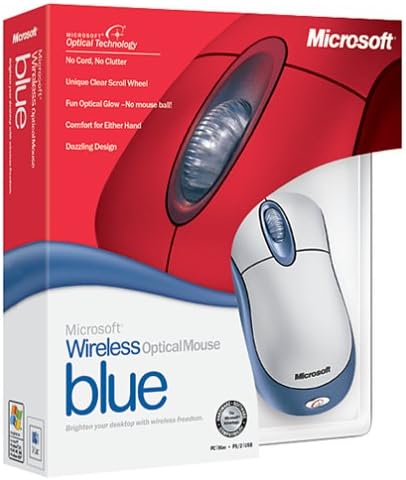
Image: Retail packaging of the Microsoft Wireless Optical Mouse Blue, showing the mouse and receiver.
Iestatīšana
1. Ievietojiet baterijas
- Atrodiet akumulatora nodalījumu peles apakšpusē.
- Atveriet akumulatora nodalījuma vāku.
- Ievietojiet divas AA baterijas, nodrošinot pareizu polaritāti (+/-).
- Aizveriet akumulatora nodalījuma vāku.

Attēls: priekšpuse view of the Microsoft Wireless Optical Mouse Blue, showing the top buttons and scroll wheel. The battery compartment is on the underside.
2. Connect the Wireless Receiver
- Pievienojiet USB bezvadu uztvērēju datora pieejamam USB portam.
- Allow your operating system to detect and install the necessary drivers. This process is usually automatic.
- For optimal performance, ensure the receiver is placed at least 12 inches away from other wireless devices or large metal objects.
3. Optional Software Installation (IntelliPoint)
- While not required for basic functionality, installing Microsoft IntelliPoint software provides advanced customization options for your mouse buttons and scroll wheel.
- Refer to the Microsoft support website for the latest IntelliPoint software compatible with your operating system.
4. Set Orientation (Calibration)
- After initial setup, it is recommended to perform an "Orientation Set" or calibration if available through the IntelliPoint software or your operating system's mouse settings. This helps optimize tracking performance.
Lietošanas instrukcijas
The Microsoft Wireless Optical Mouse Blue is designed for comfortable and precise navigation.
Pamatfunkcijas
- Kreisais klikšķis: Galvenā poga elementu atlasīšanai, atvēršanai fileun mijiedarbojoties ar programmatūru.
- Ar peles labo pogu noklikšķiniet: Otrā poga konteksta izvēļņu un papildu opciju piekļuvei.
- Ritināšanas ritenis: Ritiet ritenīti uz augšu vai uz leju, lai ritinātu dokumentus un web pages. The scroll wheel may also function as a clickable button for additional commands, depending on software configuration.
Bezvadu darbība
- The mouse operates wirelessly up to 6 feet (approximately 1.8 meters) from its receiver.
- Optical technology scans the desktop surface for precise cursor movement without the need for a mouse pad on most surfaces.
- The mouse is designed for comfortable use with either the right or left hand.

Attēls: Leņķis view of the Microsoft Wireless Optical Mouse Blue, highlighting its ergonomic shape and blue/silver design.
Apkope
Akumulatora nomaiņa
- The mouse requires two AA batteries.
- When battery power is low, your computer may display a notification (if IntelliPoint software is installed) or mouse performance may degrade.
- Replace batteries as described in the "Install Batteries" section under Setup.
- Always use fresh, high-quality batteries for optimal performance.
Tīrīšana
- To clean the mouse, gently wipe the surface with a soft, damp audums.
- Izvairieties no spēcīgu ķīmisku līdzekļu vai abrazīvu tīrīšanas līdzekļu lietošanas, jo tie var sabojāt apdari.
- Pārliecinieties, ka šķidrums nenokļūst peles iekšējās sastāvdaļās.
Travel Considerations
- The Microsoft Wireless Optical Mouse is a transmitting device. When traveling by air, it is recommended to remove the batteries from the mouse before boarding to comply with airline regulations regarding electronic devices.
Problēmu novēršana
Mouse Not Responding or Lagging
- Pārbaudiet akumulatorus: Pārliecinieties, vai baterijas ir pareizi ievietotas un tām ir pietiekams uzlādes līmenis. Nomainiet, ja nepieciešams.
- Pārbaudiet uztvērēja savienojumu: Ensure the wireless receiver is securely plugged into a functioning USB port. Try a different USB port.
- Tuvums: Ensure the mouse is within 6 feet of the receiver. Reduce obstacles between the mouse and receiver.
- Traucējumi: Other wireless devices (e.g., Wi-Fi routers, cordless phones) can cause interference. Move the receiver away from such devices.
- Virsma: Ensure the mouse is used on a suitable surface. Highly reflective or transparent surfaces may affect optical tracking.
- Atkārtota sinhronizācija: Some wireless mice have a re-sync button on both the mouse and receiver. Consult the full product manual or Microsoft support for specific re-sync procedures for this model if issues persist.
Clicking Issues
- If clicks are not registering or require multiple presses, check for physical obstructions or debris around the buttons.
- Pārliecinieties, vai pele ir ieslēgta un pievienota.
Programmatūras saderība
- The IntelliPoint software may have specific operating system requirements. For example, older versions may not be compatible with newer operating systems like Windows Vista or later.
- Always download the latest software from the official Microsoft support webvietne jūsu konkrētajai operētājsistēmai.
Specifikācijas
| Funkcija | Detaļas |
|---|---|
| Modeļa numurs | K80-00004 |
| Zīmols | Microsoft |
| Savienojamības tehnoloģija | Bezvadu |
| Kustību noteikšana | Optiskais |
| Krāsa | Blue / Silver |
| Baterijas | 2 AA baterijas (iekļautas) |
| Preces svars | 13.6 unces (apmēram 385.5 grami) |
| Produkta izmēri | 9.3 x 8.9 x 2.1 collas (aptuveni 23.6 x 22.6 x 5.3 cm) |
| Pirmais pieejamais datums | 1. gada 2002. augusts |
Garantijas informācija
According to the legal disclaimer, this product is sold without a warranty. Please refer to your point of purchase for any return or exchange policies.
Atbalsts
For further assistance, driver downloads, or updated information regarding your Microsoft Wireless Optical Mouse Blue, please visit the official Microsoft support webvietne.
You can typically find support resources by searching for "Microsoft support" and your product model number (K80-00004).


