1. Ievads
This user manual provides comprehensive instructions for the setup, operation, and maintenance of your new Microsoft Wired Keyboard, Modelis ANB-00021Pirms produkta lietošanas rūpīgi izlasiet šo rokasgrāmatu, lai nodrošinātu optimālu veiktspēju un ilgmūžību.

Figure 1: Microsoft Wired Keyboard (Model ANB-00021)
This image displays the Microsoft Wired Keyboard from an angled perspective, showcasing its full layout, including the numeric keypad and special function keys. The keyboard is black with a standard QWERTY layout and a wired USB connection.
2. Produkta īpašības
The Microsoft Wired Keyboard is designed for efficiency and durability, offering a comfortable typing experience. Key features include:
- Black, English/International Layout: Standard QWERTY layout suitable for various regions.
- USB savienojums: Simple and reliable wired connection.
- Ultra-Flat Design: Slim profile for a modern aesthetic and comfortable wrist position.
- Short Key Travel: Responsive keys with a short actuation distance for efficient typing.
- Izturīgs pret šļakatām: Designed to withstand minor spills, protecting internal components.
- Īpašie īsinājumtaustiņi: Includes 5 special keys for quick access to common functions.
- Kalkulatora atslēga: Instant access to the calculator application.
- Gently Inclined Key Block: Ergonomic design for reduced strain during extended use.
- Classic Keyboard Layout: Familiar and intuitive key arrangement.
- Plug and Play: No software installation required; simply connect and use.
3. Iestatīšana
Setting up your Microsoft Wired Keyboard is a straightforward process due to its Plug and Play functionality.
- Izpakojiet tastatūru: Uzmanīgi izņemiet tastatūru no iepakojuma.
- Connect to a USB Port: Locate an available USB port on your computer (desktop PC, laptop, or compatible device). Insert the USB connector of the keyboard firmly into the USB port.
- Sistēmas atpazīšana: Your operating system (Windows, macOS, Linux, etc.) will automatically detect and install the necessary drivers. This process usually takes a few seconds.
- Gatavs lietošanai: Once the drivers are installed, the keyboard is ready for immediate use. No additional software or configuration is typically required.
For optimal performance, ensure the USB cable is not kinked or strained.
4. Lietošanas instrukcijas
The Microsoft Wired Keyboard operates like any standard QWERTY keyboard, with additional convenience features.
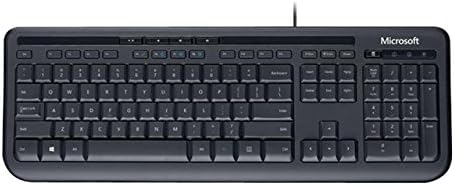
2. attēls: No augšas uz leju view of the keyboard layout
Šis attēls sniedz skaidru skatu no augšas uz leju view of the Microsoft Wired Keyboard, highlighting the full QWERTY key layout, function keys, numeric keypad, and the row of special hotkeys located above the function keys.
Standard Key Functions
- Burtciparu taustiņi: Izmanto burtu, ciparu un simbolu rakstīšanai.
- Funkciju taustiņi (F1–F12): Perform various tasks depending on the active application or operating system.
- Ciparu tastatūra: Located on the right, for efficient data entry.
- Navigācijas taustiņi: Arrow keys, Home, End, Page Up, Page Down for cursor movement and scrolling.
- Modificēšanas taustiņi: Shift, Ctrl, Alt, Windows key for combination shortcuts.
Special Keys (Hotkeys)
The keyboard features a row of dedicated hotkeys above the function keys for quick access to multimedia and system functions:
- Multivides vadības taustiņi: Atskaņot/pauze, apturēt, iepriekšējais celiņš, nākamais celiņš.
- Skaļuma regulēšanas taustiņi: Izslēgt skaņu, Samazināt skaļumu, palielināt skaļumu.
- Kalkulatora atslēga: Instantly launches the system's calculator application.
- Other Programmable Keys: Some models may include additional keys that can be customized through operating system settings or Microsoft keyboard software (if available).
Familiarize yourself with these keys to enhance your productivity.
5. Apkope
Proper care and maintenance will extend the life of your Microsoft Wired Keyboard.
- Tīrīšana:
- Pirms tīrīšanas atvienojiet tastatūru no datora.
- Viegli izmantojiet mīkstu, neplūksnu drānu dampnoskalot ar ūdeni vai maigu, neabrazīvu tīrīšanas līdzekli.
- Wipe the surface of the keys and the keyboard casing.
- Lai notīrītu putekļus un gružus starp taustiņiem, izmantojiet saspiestu gaisu.
- Nedrīkst immerse the keyboard in water or use harsh chemicals.
- Šļakatu izturība: While the keyboard is splash-resistant, it is not waterproof. Avoid exposing it to excessive liquids. In case of a spill, disconnect immediately, wipe dry, and allow to air dry completely before reconnecting.
- Uzglabāšana: Ja tastatūra netiek lietota ilgstoši, uzglabājiet to tīrā, sausā vietā, prom no ekstremālām temperatūrām.
- Kabeļa kopšana: Lai novērstu bojājumus, izvairieties no asiem USB kabeļa līkumiem vai mezgliem.
6. Traucējummeklēšana
Ja rodas problēmas ar tastatūru, skatiet tālāk norādītās bieži sastopamās problēmas un risinājumus.
| Problēma | Iespējamais cēlonis | Risinājums |
|---|---|---|
| Tastatūra nereaģē | Vaļīgs USB savienojums, nepareizs USB ports, draivera problēma. | Pārliecinieties, vai USB kabelis ir droši pievienots darbojošam USB portam. Izmēģiniet citu USB portu. Restartējiet datoru. |
| Atsevišķas atslēgas nedarbojas | Debris under the key, key mechanism damage. | Use compressed air to clear debris. If the key is physically damaged, contact support. |
| Karstie taustiņi nedarbojas | Software conflict, operating system settings. | Ensure your operating system is up to date. Check keyboard settings in your OS control panel. |
| Unexpected behavior after liquid exposure | Internal components affected by liquid. | Immediately disconnect the keyboard. Allow it to dry completely for at least 24-48 hours in a well-ventilated area before attempting to reconnect. If issues persist, the keyboard may be damaged. |
If the problem persists after trying these solutions, please refer to the Support section.
7. Specifikācijas
Detailed technical specifications for the Microsoft Wired Keyboard (Model ANB-00021):
| Atribūts | Detaļas |
|---|---|
| Modeļa numurs | ANB-00021 |
| Zīmols | Microsoft |
| Savienojamības tehnoloģija | USB (vadu) |
| Tastatūras apraksts | Standard QWERTY, USB |
| Īpaša iezīme | Izturīgs pret šļakatām |
| Krāsa | Melns |
| Atslēgu skaits | 600 (Note: This number is as per product specifications and may refer to total keypresses lifespan or a specific internal metric, not physical keys.) |
| Tastatūras fona apgaismojums | None (Single Color support listed, but typically implies no backlighting for this model) |
| Stils | Mūsdienīgs |
| Materiāls | Plastmasa |
| Produkta izmēri (G x P x A) | 8.66 x 3.15 x 1.18 collas (aptuveni 22 x 8 x 3 cm) |
| Preces svars | 1.31 mārciņas (aptuveni 0.59 kg) |
| Saderīgas ierīces | Laptop, PC, Tablet, Smartphone (via appropriate adapters if needed) |
| Ražotājs | Microsoft |
| Datums pirmais pieejams | 9. gada 2011. marts |
8. Garantija un atbalsts
For warranty information and technical support regarding your Microsoft Wired Keyboard, please refer to the official Microsoft support channels.
- Tiešsaistes atbalsts: Visit the official Microsoft Support webvietne ar bieži uzdotajiem jautājumiem, problēmu novēršanas rokasgrāmatām un draiveru lejupielādēm.
- Sazinieties ar atbalsta dienestu: For direct assistance, contact Microsoft customer service through their provided contact methods (phone, chat, email).
- Pirkuma apliecinājums: Vienmēr saglabājiet pirkuma apliecinājumu garantijas prasību gadījumā.
Specific warranty terms and conditions may vary by region and purchase date. Please consult the documentation included with your product or the Microsoft website for the most accurate and up-to-date warranty details.


