TP-Link TL-MR3420 Wireless N300 3G/4G Router User Manual
Modelis: TL-MR3420
1. Ievads
The TP-Link TL-MR3420 Wireless N300 3G/4G Router is designed to share a 3G/4G mobile broadband connection wirelessly. By connecting a compatible UMTS/HSPA/EVDO USB modem to the router, a Wi-Fi hotspot is instantly established, allowing multiple devices to access the internet. This router also features a 3G/WAN connection backup strategy, ensuring a continuous internet connection by switching between 3G/4G and WAN (Ethernet) connections as needed. It supports wireless N speeds of up to 300Mbps, suitable for various online activities.
2. Iepakojuma saturs
- TP-Link TL-MR3420 Wireless N300 3G/4G Router
- Strāvas adapteris
- Ethernet kabelis
- Ātrās uzstādīšanas rokasgrāmata
3. Aparatūra beigusiesview
3.1 Front Panel and LEDs
The front panel of the router features LED indicators that provide information about the device's status, including power, system, WLAN, WAN, LAN, and 3G/4G connection status.

Attēls: priekšpuse view of the TL-MR3420 router, showing the TP-Link logo and status LEDs.
3.2 Side Panel (USB Port)
The side panel includes a USB 2.0 port, primarily used for connecting a compatible 3G/4G USB modem.
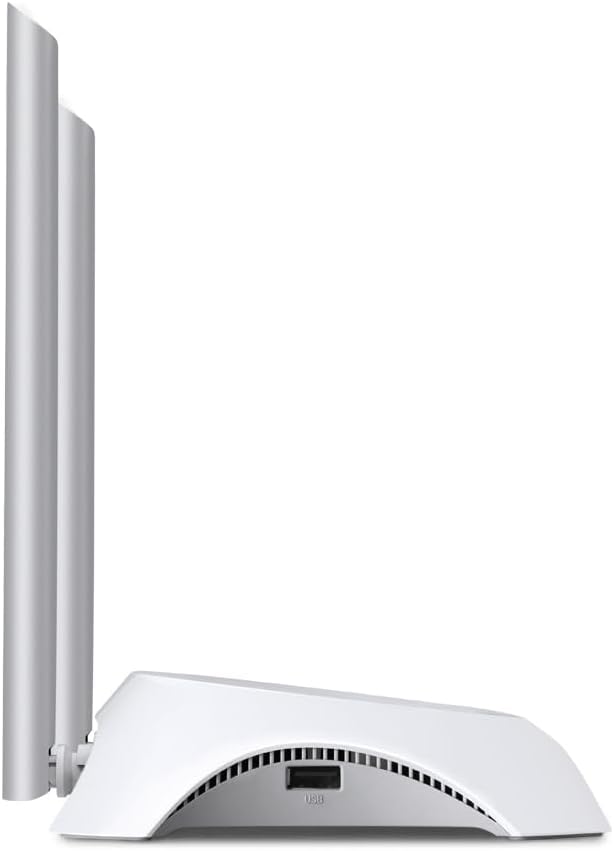
Attēls: Sāns view of the TL-MR3420 router, highlighting the USB port for modem connection.
3.3 Aizmugurējais panelis (porti un pogas)
The rear panel provides various ports and buttons for connectivity and control.
- Barošanas ports: Savieno ar strāvas adapteri.
- Ieslēgšanas / izslēgšanas poga: Ieslēdz vai izslēdz maršrutētāju.
- WAN ports (zils): Connects to a DSL/Cable modem for traditional internet access.
- LAN porti (dzelteni): Four ports for connecting wired devices like computers or switches.
- WPS/atiestatīšanas poga: Nospiediet, lai aktivizētu WPS funkciju; nospiediet un turiet, lai atiestatītu rūpnīcas iestatījumus.
- Antenas savienotāji: For attaching the two external antennas.

Attēls: Aizmugure view of the TL-MR3420 router, displaying the power port, WAN port, LAN ports, WPS/Reset button, and antenna connectors.
4. Iestatīšanas rokasgrāmata
4.1. Fiziskais savienojums
- Pievienojiet antenas: Screw the two detachable antennas firmly into their connectors on the rear panel.
- Connect 3G/4G USB Modem: Insert your compatible 3G/4G USB modem into the USB port on the side of the router.
- Ieslēgšana: Pievienojiet strāvas adapteri maršrutētāja barošanas portam un iespraudiet to sienas kontaktligzdā. Ja nepieciešams, nospiediet ieslēgšanas/izslēgšanas pogu.
- (Optional) Connect to WAN: If using a wired internet connection as a backup or primary, connect an Ethernet cable from your DSL/Cable modem to the blue WAN port on the router.
- (Optional) Connect Wired Devices: Connect your computer or other wired devices to the yellow LAN ports using Ethernet cables.

Image: The TL-MR3420 router with a 3G USB modem connected to its side USB port.
4.2 Sākotnējā konfigurācija (Web Interfeiss)
- Savienojuma izveide ar maršrutētāju: Connect your computer to the router either via an Ethernet cable to a LAN port or wirelessly using the default Wi-Fi SSID printed on the router's label (e.g., TP-Link_XXXX).
- Piekļuve Web Pārlūkprogramma: Atveriet a web pārlūkprogramma (piemēram, Chrome, Firefox) un ierakstiet
http://tplinkwifi.netorhttp://192.168.0.1(vaihttp://192.168.1.1) adreses joslā. Nospiediet taustiņu Enter. - Pieteikšanās: Ievadiet noklusējuma lietotājvārdu un paroli, kas parasti ir
adminfor both. If these do not work, check the label on the bottom of your router. - Palaist ātro iestatīšanu: Follow the on-screen Quick Setup Wizard to configure your internet connection and wireless settings.
4.3 3G/4G Connection Setup
During the Quick Setup, select 3G/4G maršrutētājs mode. The router will automatically detect your USB modem. You may need to select your region and ISP, and enter APN (Access Point Name) details if prompted. Ensure your 3G/4G USB modem is compatible with the TL-MR3420.
4.4 WAN Connection Setup (Optional)
If you are using a wired internet connection, configure the WAN settings. This can be done via Dynamic IP, Static IP, or PPPoE, depending on your Internet Service Provider (ISP) requirements. The TL-MR3420 supports a 3G/WAN failover strategy, allowing you to set a preferred connection (3G/4G or WAN) and use the other as a backup.
4.5 Bezvadu tīkla iestatīšana
Set your desired Wireless Network Name (SSID) and a strong password (WPA/WPA2 Personal recommended) for your Wi-Fi network. This will secure your wireless connection.
5. Maršrutētāja lietošana
5.1 LED indikatoru izpratne
| LED | Statuss | Norāde |
|---|---|---|
| Jauda | On | Router is powered on. |
| Sistēma | Mirgojošs | Maršrutētājs darbojas normāli. |
| WLAN | Ieslēgts/Mirgo | Wireless function is enabled/data is being transmitted. |
| WAN | Ieslēgts/Mirgo | WAN port is connected/data is being transmitted. |
| LAN (1-4) | Ieslēgts/Mirgo | Corresponding LAN port is connected/data is being transmitted. |
| 3G/4G | Ieslēgts/Mirgo | 3G/4G modem is connected and working/data is being transmitted. |
5.2. Ierīču pievienošana
- Bezvadu ierīces: Meklēt your Wi-Fi network (SSID) on your device and enter the password you configured.
- Vadu ierīces: Connect an Ethernet cable from your device to any of the yellow LAN ports on the router.
5.3 3G/WAN Failover
The router can be configured to use either 3G/4G or WAN as the primary internet connection, with the other serving as a backup. If the primary connection fails, the router will automatically switch to the backup, ensuring continuous internet access. This setting can be managed in the router's web interface under Network > WAN Backup.
6. Apkope
6.1 Programmaparatūras jaunināšana
Regulāri pārbaudiet un instalējiet programmaparatūras atjauninājumus no TP-Link oficiālās vietnes. website. Firmware updates can improve performance, add new features, and fix bugs. Download the correct firmware for your model and follow the instructions provided on the TP-Link support page for upgrading via the web interface (System Tools > Firmware Upgrade).
6.2 Konfigurācijas dublēšana un atjaunošana
Jūs varat dublēt sava maršrutētāja konfigurācijas iestatījumus uz file on your computer. This allows you to restore your settings quickly after a factory reset or if you need to revert to a previous configuration (System Tools > Backup & Restore).
6.3 Sistēmas atsāknēšana
If the router is experiencing issues, a simple reboot can often resolve them. You can reboot the router from the web interface (System Tools > Reboot) or by unplugging and replugging the power adapter.
6.4 Rūpnīcas atiestatīšana
A factory reset will revert all settings to their default values. This can be done by pressing and holding the WPS/Reset button on the rear panel for approximately 5-10 seconds until the System LED flashes rapidly, or via the web interface (System Tools > Factory Defaults).
7. Traucējummeklēšana
- Nevar piekļūt internetam:
- Check LED indicators: Ensure Power, System, WLAN, and 3G/4G (or WAN) LEDs are on or flashing correctly.
- Verify physical connections: Ensure all cables are securely connected.
- Check 3G/4G modem: Ensure it is properly inserted and recognized by the router.
- Confirm ISP settings: Verify that your 3G/4G or WAN settings (APN, connection type) are correct in the router's web saskarne.
- Pārstartējiet maršrutētāju un modemu.
- Bezvadu savienojuma problēmas:
- Ensure WLAN LED is on/flashing.
- Verify correct Wi-Fi SSID and password.
- Lai pārbaudītu signāla stiprumu, pārvietojieties tuvāk maršrutētājam.
- Change wireless channel in router settings to avoid interference.
- Lēns interneta ātrums:
- Check your 3G/4G signal strength or WAN connection speed.
- Ensure no other devices are heavily using bandwidth.
- Atjauniniet maršrutētāja programmaparatūru.
8. Specifikācijas
| Funkcija | Detaļas |
|---|---|
| Modeļa nosaukums | TL-MR3420 |
| Bezvadu Standard | IEEE 802.11n, 802.11g, 802.11b |
| Bezvadu ātrums | Līdz 300 Mbps |
| Frekvenču josla | 2.4 GHz |
| Antenas tips | 2x 5dBi Detachable Omni Directional Antennas |
| Saskarnes | 1x 10/100Mbps WAN Port, 4x 10/100Mbps LAN Ports, 1x USB 2.0 Port |
| Pogas | WPS/Reset Button, Power On/Off Button |
| Izmēri (G x D x A) | 11.34 x 8.9 x 2.8 collas (produkta izmēri) |
| Preces svars | 9.5 unces |
| Barošanas avots | 12VDC / 1A (External Power Adapter) |
| Bezvadu drošība | 64/128 bitu WEP, WPA/WPA2, WPA-PSK/WPA2-PSK šifrēšana |
| Saderīgas ierīces | Personal Computer, UMTS/HSPA/EVDO USB Modems |
9. Garantija un atbalsts
9.1 Produkta garantija
The TP-Link TL-MR3420 Wireless N300 3G/4G Router typically comes with a 2-year limited warranty. Please refer to the warranty card included in your package or visit the official TP-Link webvietni, lai iepazītos ar detalizētiem garantijas noteikumiem un nosacījumiem, kas attiecas uz jūsu reģionu.
9.2 Tehniskais atbalsts
For technical assistance, troubleshooting, or further inquiries, please visit the official TP-Link support website. You can find FAQs, firmware updates, and contact information for customer support.
- TP-Link atbalsts Webvietne: www.tp-link.com/support/