Ievads
The Microsoft LifeCam HD-3000 is a high-definition webcam designed for clear video conferencing and communication. It features true 720p HD video capabilities, a 16:9 widescreen aspect ratio, and a built-in noise-cancelling microphone to ensure clear audio. Its universal attachment base allows for flexible placement on various devices and surfaces.
This manual provides essential information for setting up, operating, maintaining, and troubleshooting your LifeCam HD-3000.

Figure 1: Microsoft LifeCam HD-3000, showcasing its compact design and universal attachment base.
Iestatīšana
The Microsoft LifeCam HD-3000 is designed for simple plug-and-play installation on compatible operating systems.
- Izpakojiet Webkamera: Carefully remove the LifeCam HD-3000 from its packaging.
- Savienojuma izveide ar datoru: Plug the USB cable of the LifeCam HD-3000 into an available USB 2.0 port on your desktop, laptop, or notebook computer.
- Automātiska draiveru instalēšana: For Windows 7 and newer operating systems, the necessary drivers will typically install automatically upon connection. Allow a few moments for the system to recognize the device and complete the installation.
- Novietojiet Webkamera: Utilize the universal attachment base to securely position the webcam. It can be placed on top of a monitor, on a flat surface like a desk, or adjusted for various angles. The flexible rubberized foot provides stability.
- Pārbaudiet instalāciju: Once installed, you can verify the webcam's functionality through your computer's camera application or a video conferencing software.

2. attēls. Priekšpuse view of the LifeCam HD-3000, showing the lens and microphone placement.
Lietošanas instrukcijas
The LifeCam HD-3000 is designed for ease of use with various video communication platforms.
- Videokonference: The webcam is compatible with popular video calling applications such as Microsoft Teams, Zoom, Skype, and Google Hangouts. Select "Microsoft LifeCam HD-3000" as your video input device within the settings of your chosen application.
- Augstas izšķirtspējas video: The camera captures true 720p HD video, providing clear and detailed images for your calls and recordings. The 16:9 widescreen format is ideal for cinematic video recording and broader field of view.
- Trokšņu slāpēšanas mikrofons: The built-in unidirectional microphone features acoustic noise cancellation, ensuring your voice is captured clearly with reduced background noise. Select "Microsoft LifeCam HD-3000" as your audio input device in your application settings.
- Gaismas korekcija: The LifeCam HD-3000 includes light correction features to optimize video quality in various lighting conditions.
- Izšķirtspējas iestatījumi: Depending on your internet speed and application, you may be able to adjust the video resolution. Lower resolutions can be beneficial for slower internet connections to maintain smooth video. Refer to your video conferencing software's settings for these options.
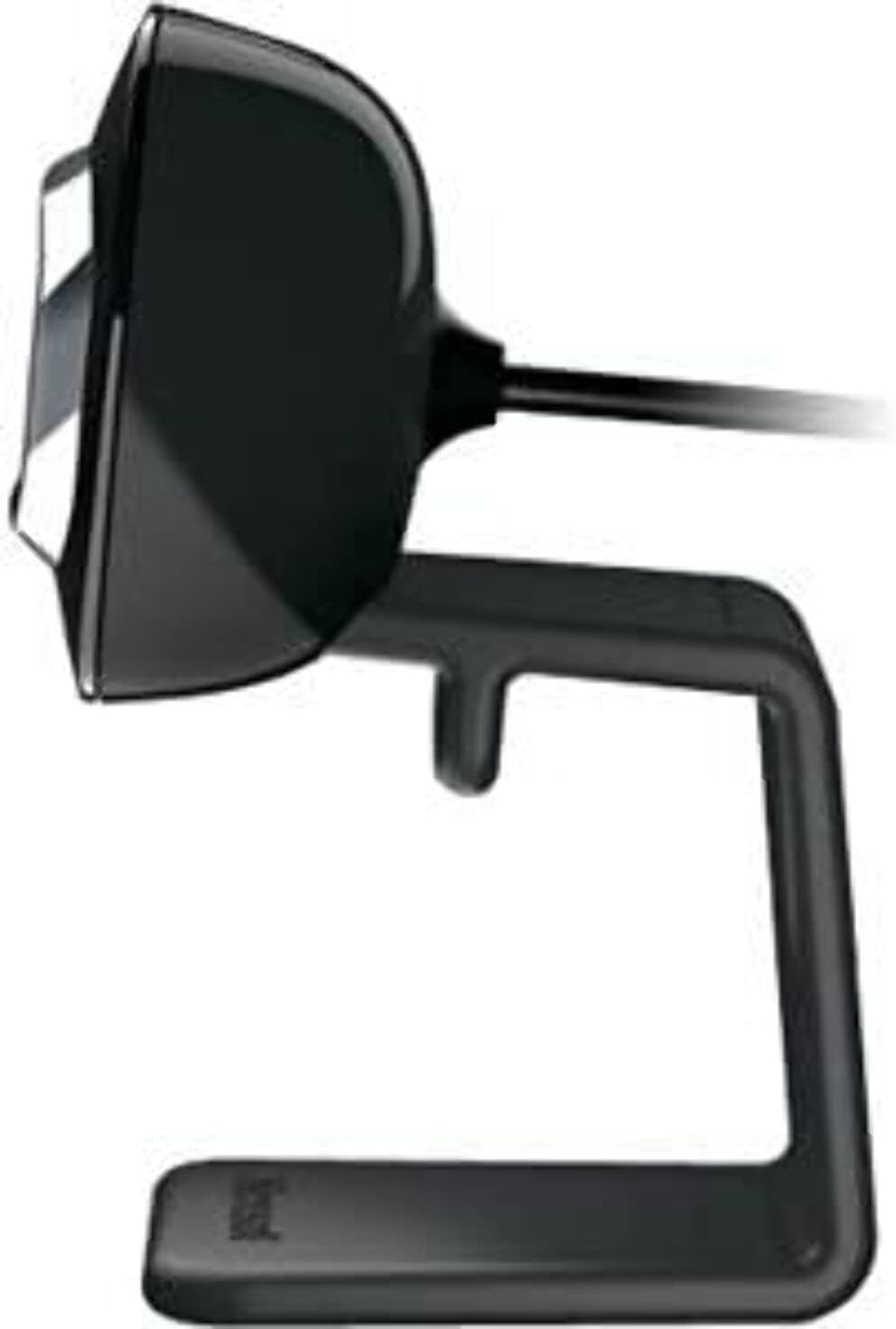
3. attēls: sāni view of the LifeCam HD-3000, illustrating its slim profile.
Apkope
Proper care and maintenance will help prolong the life of your Microsoft LifeCam HD-3000.
- Objektīva tīrīšana: Use a soft, lint-free cloth specifically designed for optics to gently wipe the camera lens. Avoid abrasive materials or harsh cleaning chemicals, which can scratch or damage the lens.
- Ķermeņa tīrīšana: Noslaukiet korpusu webkamera ar mīkstu, nedaudz damp audumu. Pārliecinieties, ka USB portā vai mikrofona atverē neiekļūs mitrums.
- Uzglabāšana: Kad to nelieto, uzglabājiet webcam in a clean, dry environment away from extreme temperatures and direct sunlight.
- Kabeļa kopšana: Avoid bending or crimping the USB cable excessively. Do not pull the cable to disconnect the webcam; always grasp the USB connector.
Problēmu novēršana
If you encounter issues with your LifeCam HD-3000, try the following troubleshooting steps:
- WebKamera nav atrasta:
- Ensure the USB cable is securely plugged into a functioning USB port. Try a different USB port.
- Restartējiet datoru.
- Check your computer's Device Manager (Windows) or System Information (macOS) to see if the webkamera ir norādīta sarakstā un atpazīta.
- No Video or Black Screen:
- Nodrošiniet webcam is selected as the primary video device in your video conferencing application's settings.
- Check privacy settings on your operating system that might be blocking camera access for certain applications.
- Ensure no physical obstruction is covering the lens.
- Poor Video Quality (Blurry, Grainy):
- Pārliecinieties, vai objektīvs ir tīrs (skatiet sadaļu "Apkope").
- Pārbaudiet apgaismojuma apstākļus. webcam has light correction, but sufficient ambient light is beneficial.
- Verify your internet connection stability if streaming video.
- Adjust resolution settings within your application if available.
- No Audio or Muffled Sound:
- Ensure the LifeCam HD-3000 microphone is selected as the audio input device in your application settings and operating system sound settings.
- Check microphone volume levels in your system settings.
- Ensure there are no obstructions to the microphone opening.
- Programmatūras problēmas:
- If using specific Microsoft LifeCam software, ensure it is up to date.
- For Windows 10, the built-in camera software is often sufficient and may work better than older dedicated software.
Specifikācijas
| Funkcija | Detaļas |
|---|---|
| Modeļa numurs | T4H-00002 |
| Zīmols | Microsoft |
| Video uzņemšanas izšķirtspēja | 720p HD |
| Malu attiecība | 16: 9 Platekrāns |
| Mikrofons | Built-in, Noise-Cancelling, Unidirectional |
| Savienojamības tehnoloģija | USB 2.0 |
| Aparatūras platforma | Dators, klēpjdators |
| Krāsa | Melns |
| Preces svars | 3.17 unces |
| Produkta izmēri (LxWxH) | 11.13 x 5.75 x 5.88 collas |
| Īpaša iezīme | Vāja apgaismojuma korekcija |
| Fotoattēlu sensoru tehnoloģija | CMOS |
Warranty and Protection Plans
Microsoft offers various options for product protection and support.
- Standarta atgriešanas politika: Typically, products purchased from Amazon.com are eligible for a return within 30 days of receipt for a refund or replacement. Please refer to Amazon's current return policy for specific details.
- Papildu aizsardzības plāni: Extended protection plans may be available for purchase to cover your device beyond the standard manufacturer's warranty. These plans are offered by third-party providers and can include:
- 2 gadu aizsardzības plāns
- 3 gadu aizsardzības plāns
- Complete Protect (a monthly plan covering eligible past and future purchases)
Atbalsts
For further assistance, technical support, or driver updates, please refer to the official Microsoft support channels.
- Microsoft atbalsts Webvietne: Visit the official Microsoft support website for your region. This is the primary resource for troubleshooting guides, FAQs, and driver downloads.
- Microsoft veikals: For general product information or to explore other Microsoft products, you can visit the Microsoft veikals vietnē Amazon.
- Sazināšanās ar atbalsta dienestu: If you require direct assistance, contact Microsoft customer support through their official channels, which typically include phone, chat, or email options.


