1. Ievads
The SteelSeries Sensei Laser Gaming Mouse is designed for precision and customization, catering to both casual and competitive gamers. It features an advanced laser sensor, an ambidextrous design, and extensive customization options through its dedicated software. This manual provides detailed instructions for setup, operation, maintenance, and troubleshooting to ensure optimal performance of your device.

1. attēls: No augšas uz leju view of the SteelSeries Sensei Laser Gaming Mouse, showcasing its sleek grey finish and central scroll wheel.
2. Iepakojuma saturs
Lūdzu, pārliecinieties, vai jūsu iepakojumā ir visas preces:
- SteelSeries Sensei Laser Gaming Mouse
- Īsā lietošanas pamācība (ja iekļauta)

Image 2: Retail packaging for the SteelSeries Sensei Laser Gaming Mouse, displaying the product name and brand logo.
3. Iestatīšana
3.1 Aparatūras savienojums
- Unpack the SteelSeries Sensei Laser Gaming Mouse from its packaging.
- Connect the USB cable of the mouse to an available USB port on your computer. The mouse is plug-and-play compatible, and your operating system should automatically detect and install the necessary basic drivers.
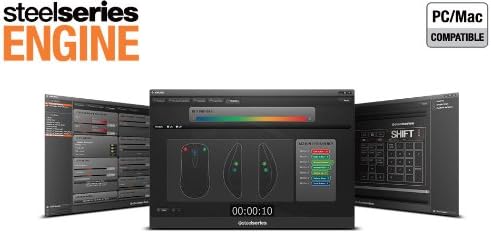
3.2 Software Installation (SteelSeries Engine)
For full customization and advanced features, it is recommended to install the SteelSeries Engine software:
- Visit the official SteelSeries webvietne (steelseries.com/dzinējs) to download the latest version of the SteelSeries Engine software.
- Izpildiet ekrānā redzamos norādījumus, lai instalētu programmatūru.
- Once installed, launch the SteelSeries Engine to configure your mouse settings, including CPI, button assignments, macros, and lighting effects.
3. attēls: Apakšdaļa view of the SteelSeries Sensei Laser Gaming Mouse, showing the laser sensor and product information label.
4. Peles lietošana
4.1 Ambidekstrāls dizains
The Sensei mouse features an ambidextrous shape, making it comfortable for both left-handed and right-handed users. The side buttons are mirrored on both sides to accommodate different grip styles and preferences.
4.2 programmējamās pogas
The mouse is equipped with 7 programmable buttons. These buttons can be customized using the SteelSeries Engine software to perform various functions, including:
- Standard mouse clicks (left, right, middle)
- Keyboard key assignments
- Complex macros
- CPI switching

4. attēls: Sāns view of the SteelSeries Sensei Laser Gaming Mouse, highlighting the two programmable side buttons.
4.3 CPI Adjustment
The Sensei mouse allows for on-the-fly CPI (Counts Per Inch) adjustment. The dedicated CPI indicator button, typically located behind the scroll wheel, allows you to cycle between two user-defined CPI settings. These settings can be configured within the SteelSeries Engine software to match your preferred sensitivity levels for different tasks or games.
4.4 Apgaismojums
The mouse features three-zone illumination: the scroll wheel, the CPI indicator, and the SteelSeries logo. The color and lighting effects (e.g., steady, pulse) for these zones can be customized through the SteelSeries Engine software.
5. SteelSeries Engine Software
The SteelSeries Engine is a powerful software suite that unlocks the full potential of your Sensei mouse. Key functionalities include:
- Pogu kartēšana: Assign any function, keyboard key, or macro to any of the 7 programmable buttons.
- CPI Settings: Fine-tune and save multiple CPI profiles dažādām lietojumprogrammām vai spēlēm.
- Makro redaktors: Create and manage complex macros for in-game actions or productivity tasks.
- Aptauju skaits: Adjust the mouse's polling rate for optimal responsiveness.
- Apgaismojuma kontrole: Customize LED colors and effects for the scroll wheel, CPI indicator, and logo.
- Profile Pārvaldība: Izveidojiet un saglabājiet vairākus profesionāļusfiles, allowing you to switch between different configurations quickly.
- Programmaparatūras atjauninājumi: Keep your mouse's firmware up-to-date for improved performance and new features.

Image 5: Screenshot of the SteelSeries Engine software interface, showing options for button mapping, CPI adjustment, and lighting customization.
6. Apkope
To ensure the longevity and optimal performance of your SteelSeries Sensei mouse, follow these maintenance guidelines:
- Tīrīšana: Peles virsmas noslaukšanai izmantojiet mīkstu, sausu drānu. Spēcīgu netīrumu gadījumā izmantojiet nedaudz sausu drānu.amp cloth can be used, but ensure no moisture enters the mouse. Avoid harsh chemicals or abrasive cleaners.
- Sensoru kopšana: Keep the laser sensor on the bottom of the mouse clean and free from dust or debris. Use a cotton swab or compressed air if necessary.
- Kabeļu vadība: Lai novērstu bojājumus, izvairieties no asiem līkumiem vai pārmērīgas USB kabeļa vilkšanas.
7. Traucējummeklēšana
If you encounter issues with your SteelSeries Sensei mouse, refer to the following common solutions:
- Pele nereaģē:
- Pārliecinieties, vai USB kabelis ir droši pievienots datoram.
- Mēģiniet pievienot peli citam USB portam.
- Restartējiet datoru.
- Nekonsekventa izsekošana:
- Clean the laser sensor on the bottom of the mouse.
- Pārliecinieties, ka peli lietojat uz piemērotas virsmas (piemēram, peles paliktņa).
- Check for dust or debris on your mouse pad.
- Pogas nedarbojas:
- Verify button assignments in the SteelSeries Engine software.
- Ensure the software is running correctly and profileir ielādēti.
- Programmatūras problēmas:
- Update the SteelSeries Engine software to the latest version.
- Reinstall the SteelSeries Engine software.
- Check for any available firmware updates for your mouse within the software.
8. Specifikācijas
| Funkcija | Detaļas |
|---|---|
| Zīmols | Tērauda sērija |
| Modeļa numurs | 62150 |
| Kustību noteikšanas tehnoloģija | Lāzers |
| Savienojamības tehnoloģija | USB |
| Krāsa | Pelēks |
| Aparatūras platforma | PC |
| Operētājsistēmas saderība | All Major PC Operating Systems |
| Preces svars | 14.6 unces |
| Produkta izmēri (LxWxH) | 7.9 x 6.8 x 2.3 collas |
| Programmējamās pogas | 7 |
| Illumination Zones | 3 (Scroll Wheel, CPI Indicator, Logo) |
9. Garantija un atbalsts
The SteelSeries Sensei Laser Gaming Mouse is covered by a manufacturer's warranty. For detailed information regarding warranty terms, conditions, and duration, please refer to the warranty card included with your product or visit the official SteelSeries website. For technical support, driver downloads, and frequently asked questions, please visit the SteelSeries support page.
SteelSeries Official Webvietne: steelseries.com
SteelSeries Support: support.steelseries.com


