Ievads
The ASTRO Gaming A40 TR Headset and MixAmp Pro TR are designed to provide a high-fidelity audio experience for gaming on PlayStation 4 and PC. The A40 TR headset offers user customization, allowing transformation from an open-back to a closed-back noise-canceling headset with optional Mod Kits. The MixAmp Pro TR features all-digital components for clear, interference-free audio and voice communication, with customizable settings via the ASTRO Command Center software.

Image: The ASTRO Gaming A40 TR Headset and MixAmp Pro TR, showcasing both components together. The headset is black with gold accents, and the MixAmp is a compact black unit with control dials.
Iepakojuma saturs
Pārliecinieties, vai jūsu produkta iepakojumā ir iekļauti visi tālāk norādītie priekšmeti:
- ASTRO A40 TR Headset
- ASTRO MixAmp Pro TR
- A40 TR Inline Mute Cable (2.0m)
- TOSlink Optical Cable (3.0m)
- Micro-USB Cable (3.0m)
- Digital Daisy Chain Cable (0.5m)
- Swappable Microphone
Iestatīšana
Savienojuma izveide ar PlayStation 4 (PS4)
- Savienojiet TOSlink Optical Cable from the MixAmp Pro TR's OPTICAL port to the PS4's Optical Out port.
- Savienojiet Mikro-USB kabelis from the MixAmp Pro TR's USB port to an available USB port on the PS4.
- Savienojiet A40 TR Inline Mute Cable from your A40 TR Headset to the headset port on the front of the MixAmp Pro TR.
- Savā PS4 konsolē dodieties uz Settings > Sound and Screen > Audio Output Settings.
- Iestatīt Primārā izejas osta uz Digitālā izeja (optiskā).
- Izvēlieties Dolby Digital (Bitstream) for the audio format.
- Dodieties uz Iestatījumi> Ierīces> Audio ierīces.
- Iestatīt Ievades ierīce uz USB Headset (ASTRO MixAmp Pro TR).
- Iestatīt Izvades ierīce uz USB Headset (ASTRO MixAmp Pro TR).
- Pielāgot Skaļuma kontrole (austiņas) līdz maksimumam.
- Iestatīt Izvade uz austiņām uz Tērzēšanas audio or Viss audio as preferred.
Savienojuma izveide ar datoru
- Savienojiet Mikro-USB kabelis from the MixAmp Pro TR's USB port to an available USB port on your PC.
- Savienojiet A40 TR Inline Mute Cable from your A40 TR Headset to the headset port on the front of the MixAmp Pro TR.
- On your PC, ensure the MixAmp Pro TR is selected as the default playback and recording device in your sound settings.
- Lejupielādējiet un instalējiet ASTRO Command Center software from the official ASTRO Gaming website to customize settings, update firmware, and manage EQ presets.
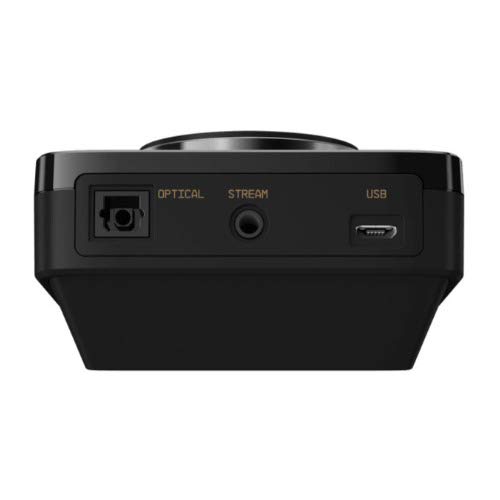
Attēls: Aizmugure view of the ASTRO MixAmp Pro TR, highlighting the Optical, USB, AUX, and Stream ports for various connections.
Operating the MixAmp Pro TR
SajaukumsAmp Pro TR provides intuitive controls for managing your audio experience:
- Galvenā skaļuma regulators: The large dial on the left controls the overall volume of your headset. Rotate clockwise to increase volume, counter-clockwise to decrease.
- Game/Voice Balance Dial: The smaller dial on the right allows you to adjust the balance between game audio and voice chat.
- Rotate towards "GAME" to prioritize game audio.
- Rotate towards "VOICE" to prioritize voice chat.
- EQ Presets Button: Located in the center, this button cycles through four customizable equalizer presets. The active preset is indicated by the illuminated icon (star, headphone, etc.). These presets can be configured using the ASTRO Command Center software.
- Dolby Button: Activates or deactivates Dolby Surround Sound. When active, the Dolby logo will illuminate.
- Mikrofona izslēgšanas poga: Located on the A40 TR Inline Mute Cable, this switch mutes or unmutes your microphone. When muted, the MixAmp's volume dials will typically glow red.
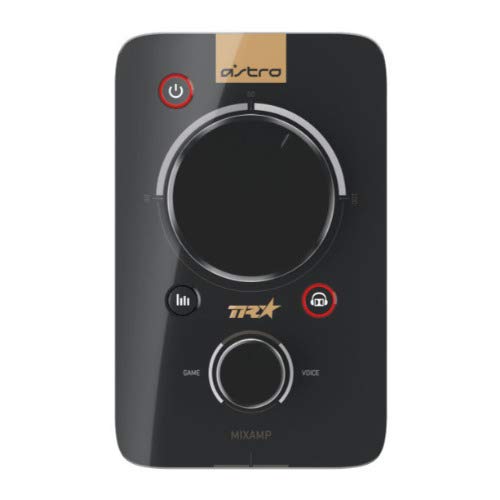
Attēls: Augšpusē view of the ASTRO MixAmp Pro TR, showing the large master volume dial, the smaller game/voice balance dial, and the EQ preset buttons.
Apkope
- Tīrīšana: Use a soft, dry cloth to clean the headset and MixAmpIzvairieties no abrazīviem tīrīšanas līdzekļiem vai šķīdinātājiem.
- Uzglabāšana: Store the headset and MixAmp vēsā, sausā vietā, prom no tiešiem saules stariem un ekstremālām temperatūrām.
- Kabeļa kopšana: Rīkojieties ar kabeļiem uzmanīgi, lai tos nesabojātu. Izvairieties no asiem līkumiem vai pārmērīgas vilkšanas.
- Ausu spilventiņi: Periodically check ear cushions for wear and tear. Replacement cushions are available from ASTRO Gaming.
Problēmu novēršana
If you encounter issues with your ASTRO Gaming A40 TR Headset or MixAmp Pro TR, try the following solutions:
| Problēma | Risinājums |
|---|---|
| Nav skaņas no austiņām. |
|
| Mikrofons nedarbojas. |
|
| Distorted or poor audio quality. |
|
For more detailed troubleshooting, please refer to the official ASTRO Gaming support resources.
Specifikācijas
- Modeļa numurs: 939-001511
- Frekvences reakcija: 20–20,000 Hz
- Nominālā pretestība: 48 omi
- Galvas lentes spiediens: 2.6N
- Produkta izmēri: 9.06 x 13.87 x 4.33 collas
- Preces svars: 1.06 mārciņas
- Savienojamība: Optiskais, USB
- Saderība: PlayStation 4, dators
Garantija un atbalsts
For detailed warranty information and product support, please visit the official ASTRO Gaming webvietnē vai skatiet pievienoto dokumentāciju:
Ensure you register your product on the ASTRO Gaming website for the latest updates and support.