Ievads
This manual provides essential information for setting up, operating, maintaining, and troubleshooting your Microsoft Surface Pro 3. The Surface Pro 3 is a versatile device designed to function as both a tablet and a laptop, powered by the Windows 10 operating system.
It features a 12-inch high-resolution screen, ample internal storage, dual HD cameras, and robust connectivity options, including a full-size USB 3.0 port. Its integrated kickstand allows for comfortable viewing in various positions, and the magnesium frame ensures a lightweight and durable design.
Drošības informācija
- Nepakļaujiet ierīci ekstremālām temperatūrām, tiešiem saules stariem vai augstam mitrumam.
- Izvairieties no ierīces nomešanas vai pakļaušanas spēcīgiem triecieniem.
- Use only Microsoft-approved power adapters and accessories.
- Keep the device away from liquids. In case of liquid contact, power off immediately and seek professional assistance.
- Nemēģiniet ierīci izjaukt vai remontēt pats. Tas var anulēt garantiju un radīt bojājumus.
- Ensure proper ventilation when using the device to prevent overheating.
Iestatīšana
1. Izpakošana un sākotnējā pārbaude
Carefully remove the Surface Pro 3 and all accessories from the packaging. Inspect the device for any visible damage. Retain the packaging for future transport or service needs.
2. Ieslēgšana un sākotnējā iestatīšana
- Connect the power supply to the Surface Pro 3 and a power outlet.
- Press the power button located on the top edge of the device.
- Follow the on-screen prompts to complete the Windows 10 initial setup, including language selection, network connection, and user account creation.
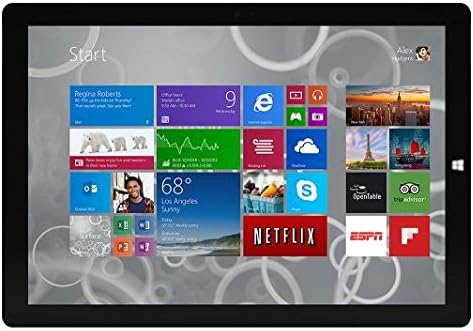
Figure 1: Windows 10 Start Screen during initial setup.
This image shows the Microsoft Surface Pro 3 screen displaying the Windows 10 Start menu, characterized by a grid of live tiles representing various applications and services. This is typically seen during the initial setup or when navigating the operating system.
3. Attaching Accessories (Sold Separately)
The Surface Pro 3 is compatible with various accessories, such as the Surface Type Cover keyboard and the Surface Pen, which are sold separately.
- Surface tipa vāks: Align the magnetic connector of the Type Cover with the bottom edge of the Surface Pro 3 until it clicks into place.
- Surface pildspalva: The Surface Pen can be magnetically attached to the side of the Surface Pro 3 for storage. For initial pairing, follow the instructions provided with the pen.
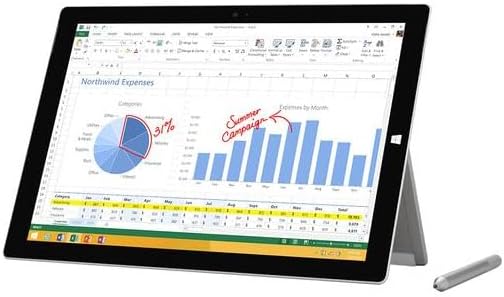
Figure 2: Surface Pro 3 with optional Surface Pen.
This image illustrates the Microsoft Surface Pro 3 in use, displaying an Excel spreadsheet on its screen. A Surface Pen is positioned next to the device, highlighting its compatibility for precise input and navigation.
4. Expanding Storage with a MicroSD Card
You can expand the internal storage of your Surface Pro 3 using a microSD card (sold separately).
- Locate the microSD card slot on the side of the Surface Pro 3, typically behind the kickstand.
- Ievietojiet microSD karti slotā, līdz tā noklikšķ savā vietā.
- The device will automatically detect the card. You may need to format it if it's a new card or if prompted by the system.

Figure 3: MicroSD card slot.
This close-up image shows the microSD card slot on the side of the Microsoft Surface Pro 3, with a microSD card partially inserted, demonstrating how to expand the device's storage.
Lietošanas instrukcijas
1. Navigating Windows 10
- Sākt izvēlne: Click the Windows icon in the bottom-left corner to access applications, settings, and power options.
- Skārienekrāns: Use gestures for navigation, zooming, and scrolling.
- Edge Browser: Utilize the pre-installed Edge browser for web browsing, which includes features for marking up web lapas.

Figure 4: Using the Surface Pro 3 for productivity.
This image depicts the Microsoft Surface Pro 3 in an active use scenario, showcasing a note-taking application open on its screen. The display features handwritten notes, diagrams, and sketches, illustrating the device's capability for creative and productive tasks.
2. Using the Integrated Kickstand
The multi-position kickstand allows you to adjust the viewing angle for optimal comfort, whether you are typing, watching videos, or drawing.
- Gently pull the kickstand out from the back of the device.
- Adjust it to your desired angle. The kickstand offers a wide range of positions for versatility.
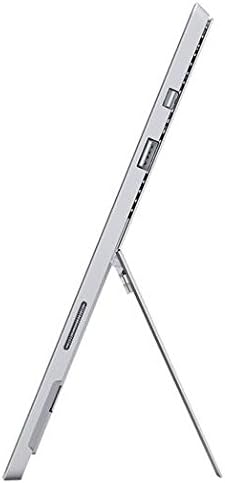
Figure 5: Adjustable kickstand.
Šis attēls sniedz sānu ieskatu view of the Microsoft Surface Pro 3, clearly showing its integrated kickstand extended to support the device at an angle, demonstrating its versatile viewspējas.
3. Kameras funkcionalitāte
The Surface Pro 3 is equipped with 5.0MP front and rear cameras.
- Open the Camera application from the Start Menu.
- Switch between front and rear cameras as needed for photos or video calls.

Figure 6: Front camera.
This close-up image focuses on the front-facing camera and associated sensors located at the top edge of the Microsoft Surface Pro 3 screen.
4. Savienojamība
The full-size USB 3.0 port allows for connecting various peripherals and transferring data.
- Insert USB devices (e.g., flash drives, external hard drives, printers) into the USB 3.0 port.
- The device also supports Wi-Fi (802.11a/b/g/n/ac) for wireless internet connectivity.
Apkope
1. Cleaning Your Surface Pro 3
- Izmantojiet mīkstu, neplūksnu drānu dampnoskalot ar ūdeni vai ekrāna tīrīšanas līdzekli, kas īpaši paredzēts elektronikai.
- Izvairieties no spēcīgu ķīmisku vielu, abrazīvu tīrīšanas līdzekļu vai aerosolu lietošanas.
- Viegli noslaukiet ekrānu un ārējās virsmas.
2. Programmatūras atjauninājumi
Regularly check for and install Windows updates to ensure your device has the latest security patches and performance improvements.
- Dodieties uz Iestatījumi > Atjaunināšana un drošība > Windows atjaunināšana.
- Noklikšķiniet uz "Pārbaudīt atjauninājumus" un instalējiet visus pieejamos atjauninājumus.
3. Krātuves pārvaldība
To maintain optimal performance, manage your device's storage space.
- Regulāri izdzēsiet nevajadzīgos files un lietojumprogrammas.
- Utilize cloud storage services or external drives for large files.
- Consider using the Disk Cleanup tool in Windows to remove temporary files.
Problēmu novēršana
Šajā sadaļā ir aplūkotas bieži sastopamas problēmas, ar kurām jūs varētu saskarties, lietojot Surface Pro 3.
Ierīce neieslēdzas
- Pārliecinieties, vai barošanas avots ir droši pievienots gan ierīcei, gan darbojošai strāvas kontaktligzdai.
- Izmēģiniet citu strāvas kontaktligzdu.
- Nospiediet un turiet ieslēgšanas/izslēgšanas pogu 10–15 sekundes, lai veiktu piespiedu izslēgšanu, pēc tam nospiediet to vēlreiz, lai restartētu.
Wi-Fi savienojamības problēmas
- Pārbaudiet, vai Windows iestatījumos ir iespējots Wi-Fi.
- Restartējiet savu Wi-Fi maršrutētāju.
- Aizmirstiet tīklu un pievienojiet to vēlreiz, vēlreiz ievadot paroli.
- Palaidiet Windows tīkla problēmu risinātāju.
Lēna veiktspēja
- Aizveriet nevajadzīgās lietojumprogrammas, kas darbojas fonā.
- Pārbaudiet un instalējiet visus gaidāmos Windows atjauninājumus.
- Pārliecinieties, ka jums ir pietiekami daudz brīvas vietas krātuvē.
- Veiciet vīrusu skenēšanu.
For more detailed troubleshooting or issues not covered here, please refer to the official Microsoft Support webvietni vai sazinieties ar klientu apkalpošanas dienestu.
Specifikācijas
| Funkcija | Detaļas |
|---|---|
| Modelis | Microsoft Surface 1631 Pro 3 |
| Operētājsistēma | Windows 10 |
| Ekrāna izmērs | 12 collas |
| Ekrāna izšķirtspēja | 2160 x 1440 |
| Procesors | Intel Core i3 1.5 GHz |
| RAM | 4 GB |
| Iekšējā krātuve | 128 GB zibatmiņa |
| Grafikas kopprocesors | Intel HD grafika |
| Kameras | 5.0MP Front and Rear |
| Bezvadu tips | 802.11b, 802.11a, 802.11g |
| Ostas | Full-size USB 3.0 |
| Preces svars | 1.8 mārciņas |
| Produkta izmēri | 11.5 x 0.36 x 7.93 collas |
| Krāsa | Sudrabs |
Garantija un atbalsts
Your Microsoft Surface Pro 3 comes with a standard manufacturer's warranty. For detailed warranty terms and conditions, please refer to the documentation included with your purchase or visit the official Microsoft support webvietne.
For technical assistance, troubleshooting guides, driver downloads, and service requests, please visit the Microsoft Surface Support lapā.


