Ievads
This manual provides instructions for the setup, operation, and maintenance of your Cimetech 2.4GHz Wireless Ergonomic Optical Mouse. This device offers reliable wireless connectivity, ease of use, and a comfortable design for various computing tasks.
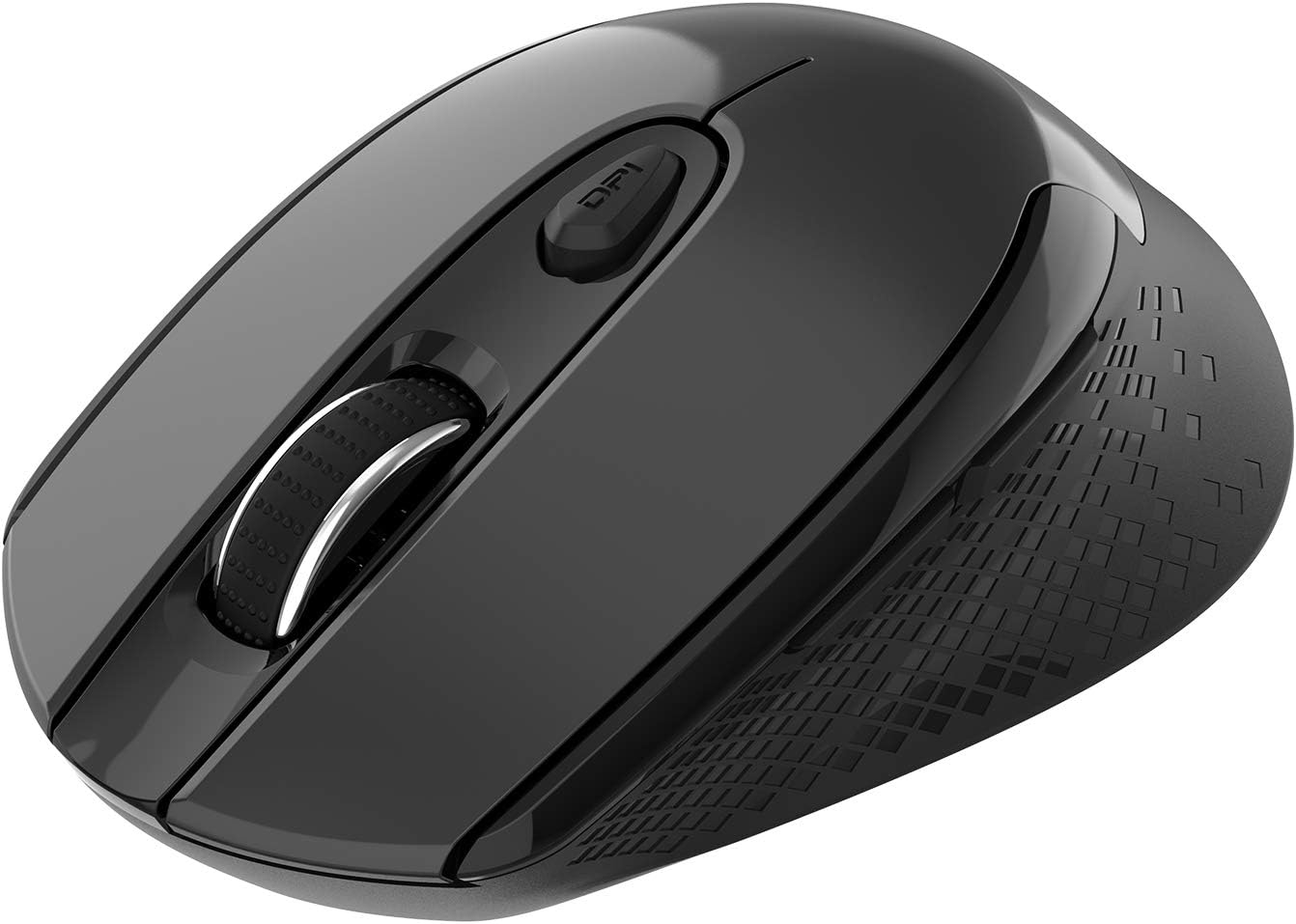
Attēls: No augšas uz leju view of the Cimetech Wireless Ergonomic Optical Mouse.

Image: The mouse connected via 2.4G wireless technology, showing the USB receiver plugged into a laptop.
Iepakojuma saturs
Pārliecinieties, vai iepakojumā ir visi priekšmeti:
- 1 x Cimetech Cordless Mouse
- 1 x USB Receiver (stored in the battery compartment of the mouse)
- 1 x Lietotāja rokasgrāmata
Iestatīšana
1. Akumulatora uzstādīšana
- Atrodiet bateriju nodalījuma vāku peles apakšpusē.
- Viegli pabīdiet vai paceliet vāku, lai atvērtu nodalījumu.
- Insert one AA battery (not included) into the compartment, ensuring correct polarity (+/-).
- Uzlieciet atpakaļ akumulatora nodalījuma vāku.
2. USB uztvērēja savienojums
- Open the battery compartment cover and carefully remove the USB receiver.
- Plug the USB receiver into an available USB port on your computer (laptop, desktop, Mac, or PC).
- The mouse should automatically connect to your device. No additional drivers are typically required.

Image: Visual guide for installing the AA battery and connecting the USB receiver.
Lietošanas instrukcijas
Pogu funkcijas
The Cimetech Wireless Mouse features 6 buttons for enhanced functionality:
- Kreisā klikšķa poga: Standarta primārā klikšķa funkcija.
- Labā klikšķa poga: Standarta sekundārā klikšķa funkcija.
- Ritināšanas ritenis: Vertikālai ritināšanai. Var nospiest arī, lai aktivizētu klikšķa ar vidējo pogu funkcionalitāti.
- DPI pārslēgšanas poga: Pielāgo peles jutību (DPI).
- Uz priekšu poga: Navigē uz priekšu web pārlūkprogrammas vai file pētnieki.
- Atpakaļ poga: Navigē atpakaļ web pārlūkprogrammas vai file pētnieki.

Image: Labeled diagram showing the location of the Left Click, Right Click, Scroll Wheel, DPI Switch, Forward, and Backward buttons, along with mouse dimensions.
DPI pielāgošana
The mouse offers three adjustable DPI (Dots Per Inch) levels to control cursor speed and sensitivity. To change the DPI setting:
- Nospiediet pogu DPI poga once: DPI is set to 800.
- Nospiediet pogu DPI poga a second time: DPI is set to 1200 (default setting).
- Nospiediet pogu DPI poga a third time: DPI is set to 1600.
The mouse retains the last selected DPI setting even after being turned off and on.
Intelligent Power-Saving Modes
The mouse is designed with three power-saving stages to conserve battery life:
- Stage 1 (Standby): Enters after 3 seconds of inactivity. Move the mouse to wake it up.
- Stage 2 (Auto Shut-off): Enters after 60 seconds of inactivity. Move the mouse to wake it up.
- Stage 3 (Deep Sleep): Enters after 15 minutes of inactivity. Move the mouse to wake it up.
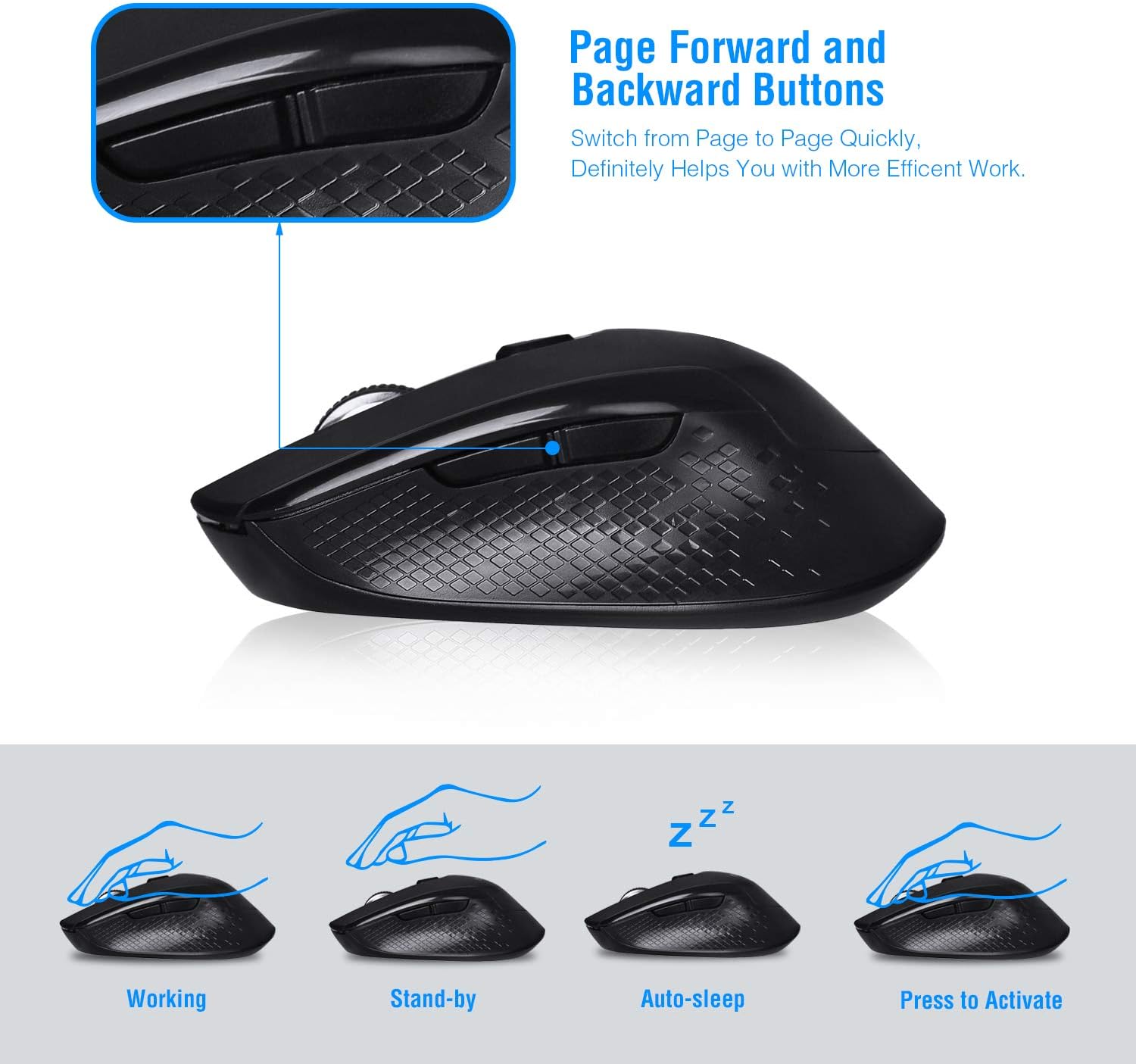
Image: Visual representation of the mouse's working, standby, auto-sleep, and activation states.
Apkope
- Turiet peli tīru, noslaukot to ar mīkstu, sausu drānu.
- Avoid exposing the mouse to extreme temperatures, direct sunlight, or liquids.
- When not in use for extended periods, consider removing the battery to prevent leakage.
- Store the USB receiver inside the mouse's battery compartment when traveling to prevent loss.
Problēmu novēršana
| Problēma | Risinājums |
|---|---|
| Pele nereaģē |
|
| Cursor movement is erratic or imprecise |
|
| Pogas uz priekšu/atpakaļ nedarbojas |
|
Specifikācijas
| Modeļa numurs | CQ-TM004 |
| DPI līmeņi | 800/1200 (noklusējums)/1600 |
| Aptauju skaits | 125 Hz |
| Darbības diapazons | Līdz 50 pēdām (apmēram 15 metri) |
| Savienojamība | 2.4 GHz bezvadu savienojums, izmantojot USB uztvērēju |
| Akumulatora tips | 1 x AA akumulators (nav iekļauts) |
| Saderība | Windows 2000/ME/XP/7/8/10, VISTA, Mac OS |
| Produkta izmēri | 4.13 x 2.64 x 0.1 collas (10.5 x 6.7 x 0.25 cm) |
| Preces svars | 2.82 unces (80 grami) |
Saderība
The Cimetech Wireless Mouse is compatible with a wide range of operating systems, including:
- Windows 2000
- Windows ME
- Windows XP
- Windows Vista
- Windows 7
- Windows 8
- Windows 10
- Mac OS
It is suitable for use with desktops, laptops, PCs, and MacBooks.
Garantija un atbalsts
Specific warranty information is not provided in this manual. For warranty details, technical support, or further assistance, please refer to the official Cimetech webvietnē vai sazinieties tieši ar viņu klientu apkalpošanas dienestu.
You can often find support resources, FAQs, and contact information on the manufacturer's product support page.


