1. Ievads
This manual provides essential information for the safe and efficient use of your Amazon Fire HD 10 tablet (2021 release). Please read it thoroughly before operating your device.
Galvenās iezīmes
- Fast and Responsive: Powered by an octa-core processor and 3 GB RAM, offering 50% more RAM than the previous generation.
- Ilgmūžīgs akumulators: Up to 12 hours of battery life for reading, browsing, video, and music.
- Spilgts displejs: 10.1-inch 1080p Full HD display, 10% brighter than the previous generation, with over 2 million pixels.
- Ample Uzglabāšana: Available with 32 GB or 64 GB internal storage, expandable up to 1 TB with a microSD card (sold separately).
- Lietotņu saderība: Access to popular apps like Netflix, Facebook, Disney+, Instagram, TikTok un citas lietotnes, izmantojot Amazon lietotņu veikalu.
- Produktivitātes rīki: Supports apps like Microsoft Office, OneNote, and Dropbox for enhanced productivity.
- Izturīgs dizains: Thinner and lighter than the previous generation, with a screen strengthened by aluminosilicate glass.
- Sadalītā ekrāna funkcionalitāte: Allows two compatible apps to be open side-by-side for multitasking.
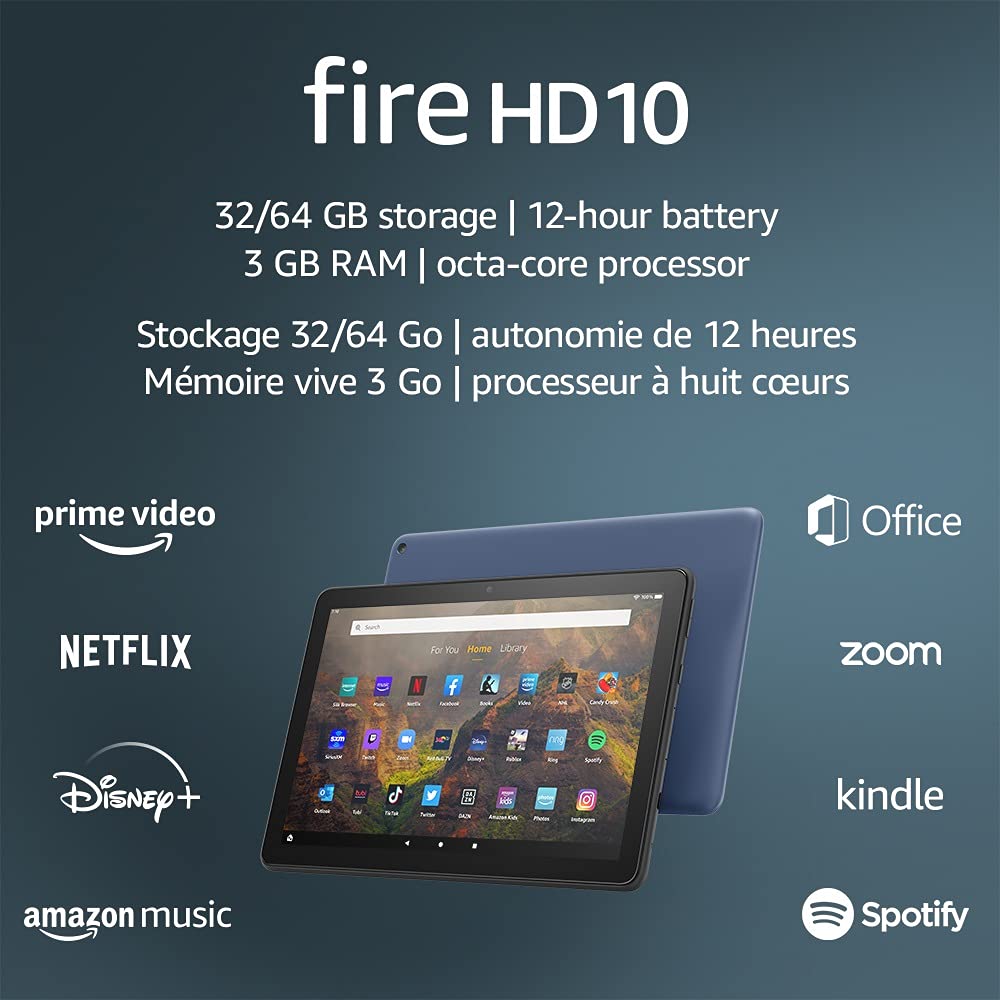
Image 1.1: The Amazon Fire HD 10 tablet highlighting its 32/64 GB storage, 12-hour battery, 3 GB RAM, and octa-core processor, alongside logos of supported applications such as Prime Video, Netflix, Disney+, Amazon Music, Office, Zoom, Kindle, and Spotify.
2. Iestatīšana
2.1 Izpakošana un sākotnējā uzlāde
Upon receiving your Fire HD 10 tablet, carefully remove all components from the packaging. Before first use, it is recommended to fully charge the device.
- Connect the provided USB-C (2.0) cable to the tablet's USB-C port.
- Plug the other end of the USB-C cable into the 9W power adapter.
- Pievienojiet strāvas adapteri sienas kontaktligzdai.
- A full charge from 0% to 100% typically takes approximately 4 hours while the device is in standby mode.
2.2 Ieslēgšana/izslēgšana
- Lai ieslēgtu: Nospiediet un turiet ieslēgšanas/izslēgšanas pogu, kas atrodas planšetdatora sānos, līdz ekrānā parādās Amazon logotips.
- Lai izslēgtu: Press and hold the power button until a power options menu appears. Select 'Power Off'.
- Lai restartētu: From the power options menu, select 'Restart'.
2.3 Wi-Fi savienojamība
To access online content and services, connect your Fire HD 10 to a Wi-Fi network.
- From the Home screen, swipe down from the top to open the Quick Settings panel.
- Pieskarieties Wi-Fi ikonai.
- Pieejamo tīklu sarakstā atlasiet vēlamo Wi-Fi tīklu.
- Ja tiek prasīts, ievadiet tīkla paroli un pieskarieties “Savienot”.
- The tablet supports 2.4 GHz and 5.0 GHz networks. Ad-hoc (peer-to-peer) Wi-Fi networks are not supported.
2.4. Konta iestatīšana
During the initial setup process, you will be guided to register your Fire HD 10 to an Amazon account. This is necessary to download apps, access Amazon content, and utilize cloud services.
- Follow the on-screen prompts to sign in with an existing Amazon account or create a new one.
- Ensure your account details are accurate for full functionality.
3. Lietošanas instrukcijas
3.1 Saskarnes navigācija
The Fire HD 10 tablet features a touch-sensitive display for interaction.
- Pieskarieties: To select an item, open an app, or activate a button.
- Pavelciet: To scroll through pages, lists, or switch between home screens.
- Savilkšana, lai tuvinātu: To zoom in or out on images, web pages, or documents.
- Ilgi nospiediet: Lai piekļūtu kontekstuālajām izvēlnēm vai pārvietotu lietotņu ikonas.
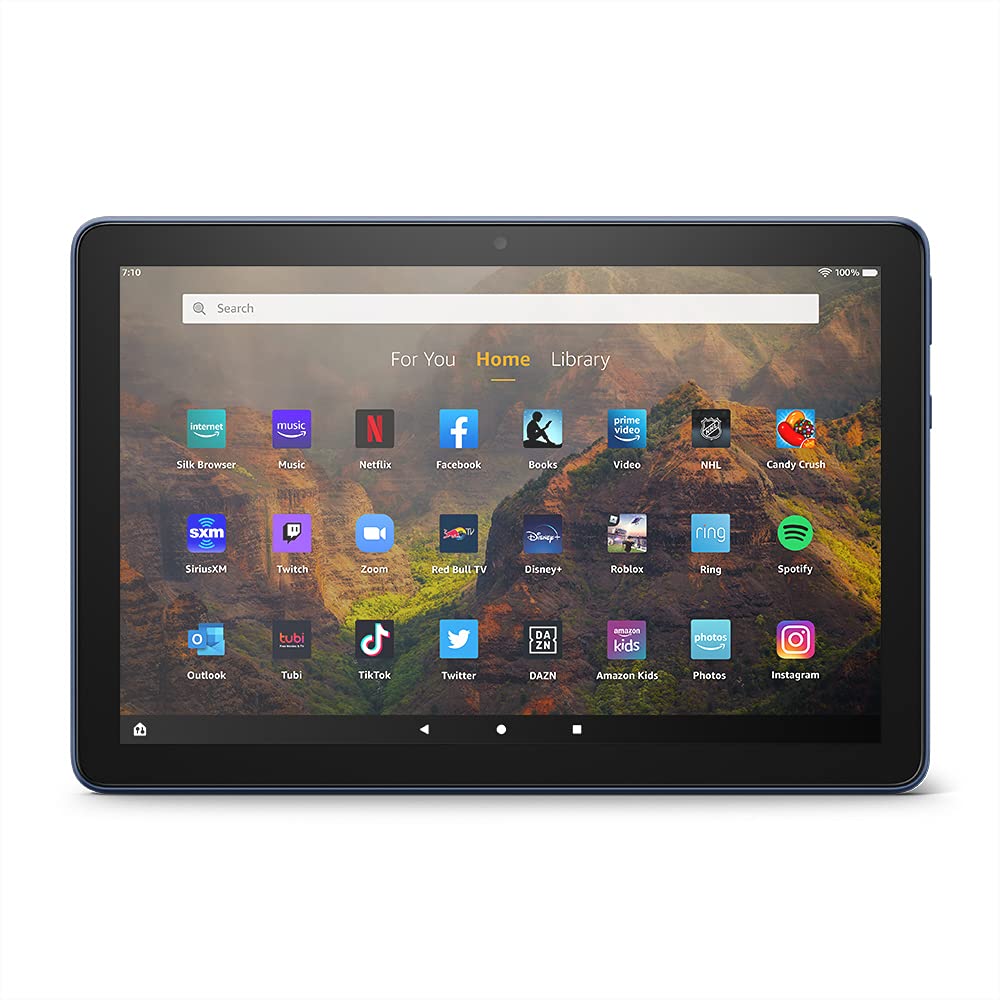
Image 3.1: The Amazon Fire HD 10 tablet's home screen, showcasing a grid of application icons including Silk Browser, Music, Netflix, Facebook, Books, Video, NHL, Candy Crush, SiriusXM, Twitch, Zoom, Red Bull TV, Disney+, Roblox, Ring, Spotify, Outlook, Tubi, TikTok, Twitter, DAZN, Amazon Kids, Photos, and Instagauns.
3.2 Lietojumprogrammu lietošana
Applications can be downloaded from the Amazon Appstore. Google Play is not supported.
- Tap an app icon on the Home screen to launch it.
- To find new apps, open the 'Appstore' application.
- Some apps may require a subscription for full access.

Image 3.2: A collage of content available on the Amazon Fire HD 10 tablet, featuring book covers like 'The Silent Patient', Amazon Original series and movies such as 'The Wilds', 'Coming to America', 'The Expanse', 'Dune', 'Hanna', 'One Night in Miami', 'Sound of Metal', 'The Marvelous Mrs. Maisel', 'Upload', and 'The Boys', alongside social media app logos for TikTok, Facebook, and Twitter.
3.3 Split Screen Multitasking
The Fire HD 10 supports split screen functionality, allowing two compatible applications to run side-by-side.
- Atveriet pirmo lietojumprogrammu, kuru vēlaties izmantot.
- Swipe up from the bottom of the screen to reveal the navigation bar.
- Long-press the icon of the first app in the recent apps view.
- Select 'Split Screen' from the options.
- Choose a second compatible app from your recent apps or app drawer to fill the other half of the screen.

Image 3.3: The Amazon Fire HD 10 tablet, shown with an optional Bluetooth keyboard case, demonstrating its split-screen capability. Two applications are open simultaneously: a calendar app on the left and a messaging app on the right, illustrating enhanced productivity.
3.4 Kameras lietošana
The tablet is equipped with a 2 MP front-facing camera and a 5 MP rear-facing camera, both capable of 720p HD video recording.
- Open the 'Camera' app from your Home screen or app drawer.
- Pieskarieties slēdža pogai, lai uzņemtu fotoattēlu.
- Pārslēdzieties starp priekšējo un aizmugurējo kameru, izmantojot kameras pārslēgšanas ikonu.
- Izvēlieties video režīmu, lai ierakstītu video.
3.5 Audio un Bluetooth
The Fire HD 10 includes dual integrated speakers and a 3.5 mm stereo jack for headphones. It also supports Bluetooth 5.0 LE.
- Connect wired headphones or external speakers via the 3.5 mm jack.
- To pair Bluetooth devices (headphones, speakers, microphones, LE accessories):
- Go to 'Settings' > 'Connected Devices' > 'Bluetooth'.
- Pārliecinieties, vai Bluetooth ir ieslēgts.
- Select your device from the list of available devices and follow pairing instructions.
3.6. Krātuves pārvaldība
Your Fire HD 10 comes with either 32 GB or 64 GB of internal storage. You can expand this by up to 1 TB using a microSD card.
- To insert a microSD card: Locate the microSD slot on the side of the tablet, open the cover, and gently insert the card until it clicks into place.
- Manage storage by going to 'Settings' > 'Storage'. Here you can view usage and move compatible apps or media to the microSD card.
4. Apkope
4.1 Akumulatora kopšana
- Avoid exposing the tablet to extreme temperatures, as this can degrade battery performance.
- Lai nodrošinātu optimālu akumulatora kalpošanas laiku, izvairieties no biežas akumulatora pilnīgas iztukšošanas vai ilgstošas tā turēšanas 100% uzlādes stāvoklī.
- Use only the provided 9W power adapter and USB-C cable for charging.
4.2. Ierīces tīrīšana
- Turn off the tablet before cleaning.
- Izmantojiet mīkstu, nepūkošu drānu, lai maigi noslaucītu ekrānu un korpusu.
- Noturīgiem traipiem nedaudz uzdzerietampNoslaukiet drānu ar ūdeni. Izvairieties no spēcīgu ķīmisku vielu, abrazīvu tīrīšanas līdzekļu vai aerosolu lietošanas.
4.3. Programmatūras atjauninājumi
Amazon periodically releases software updates to improve performance and add new features. Ensure your device is connected to Wi-Fi to receive these updates.
- Updates are typically downloaded and installed automatically.
- You can manually check for updates by going to 'Settings' > 'Device Options' > 'System Updates'.
5. Traucējummeklēšana
5.1 Ierīce nereaģē
- If the device is frozen or unresponsive, press and hold the power button for approximately 20 seconds to force a restart.
- Ensure the device has sufficient battery charge. Connect it to the charger and try powering it on again.
5.2 Wi-Fi savienojuma problēmas
- Verify that Wi-Fi is enabled in Quick Settings or 'Settings' > 'Wireless'.
- Pārliecinieties, vai atrodaties sava Wi-Fi maršrutētāja darbības rādiusā.
- Restartējiet Wi-Fi maršrutētāju un modemu.
- Forget the network in 'Settings' > 'Wireless' and reconnect, re-entering the password if necessary.
5.3 Lietotnes avarē vai netiek ielādētas
- Aizveriet un atkārtoti atveriet lietotni.
- Clear the app's cache: Go to 'Settings' > 'Apps & Games' > 'Manage All Applications', select the problematic app, and tap 'Clear Cache'.
- Pārliecinieties, vai planšetdatora programmatūra ir atjaunināta.
- Ja problēma joprojām pastāv, apsveriet lietotnes atinstalēšanu un atkārtotu instalēšanu.
5.4 Īss akumulatora darbības laiks
- Samaziniet ekrāna spilgtumu.
- Aizveriet neizmantotās lietojumprogrammas, kas darbojas fonā.
- Izslēdziet Wi-Fi vai Bluetooth, kad to nelietojat.
- Ierobežojiet fona datu izmantošanu lietotnēm.
- Check 'Settings' > 'Battery' to identify apps consuming the most power.
6. Specifikācijas
| Funkcija | Detaļas |
|---|---|
| Paaudze | 11. paaudze, 2021. gada izlaidums |
| Displejs | Brilliant 10.1” 1080p display (1920 x 1200) with over 2 million pixels (224 ppi). Screen strengthened with aluminosilicate glass. |
| Izmērs | 247mm x 166mm x 9.2 mm |
| Svars | 465 grams (Actual size and weight may vary) |
| CPU un RAM | Astoņkodolu 2.0 GHz ar 3 GB RAM |
| Uzglabāšana | 32 GB (24.2 GB available) or 64 GB (55.0 GB available) internal storage. Expandable up to 1 TB with microSD card. |
| Akumulatora darbības laiks | Up to 12 hours of mixed usage (reading, web, video, music). Varies by settings and usage. |
| Uzlādes laiks | Approx. 4 hours (0-100%) with provided 9W adapter in standby. |
| WiFi savienojamība | Supports 2.4 GHz and 5.0 GHz networks. Does not support ad-hoc networks. |
| Ostas | USB-C (2.0) for charging, microSD slot for external storage. |
| Audio | 3.5 mm stereo jack, dual integrated speakers, external volume controls. |
| Sensori | Akselerometrs, apkārtējās gaismas sensori. |
| Kameras specifikācijas | 2 MP front-facing, 5 MP rear-facing cameras with 720p HD video recording. |
| Mikrofoni | 2 iebūvēti mikrofoni. |
| Atrašanās vietas pakalpojumi | Location-based services via WiFi. |
| Pieejamās krāsas | Black, Denim. |
| Bluetooth | Built-in Bluetooth 5.0 LE with A2DP support for stereo headphones, speakers, microphone, and LE accessories. |
6.1 Pieejamības funkcijas
The Fire HD 10 tablet includes various accessibility features to assist users. These can be accessed via 'Settings' > 'Accessibility'.
- BalssView Ekrāna lasītājs: Sniedz mutisku atgriezenisko saiti neredzīgiem vai vājredzīgiem lietotājiem.
- Ekrāna lupa: Ļauj lietotājiem pietuvināt/attālināt un pārvietoties pa ekrānu.
- Slēdžu piekļuve: Enables interaction for users with motor impairments via compatible Bluetooth devices.
- Kindle skaļā lasīšana: Alexa var skaļi lasīt Kindle grāmatas.
- Displeja iestatījumi: Includes options for Closed Captioning, Font Size, Display Size, High Contrast Text, Color Inversion, Color Correction, and Convert Stereo to Mono audio. (Note: Captions are not available for all content.)
7. Garantija un atbalsts
7.1 Informācija par garantiju
Your Amazon Fire HD 10 tablet comes with a 1-year limited warranty and service. Optional 1-year, 2-year, and 3-year extended warranties are available for purchase separately for customers in Canada.
Use of the Fire HD 10 tablet is subject to Amazon's Conditions of Use and associated terms.
7.2 Iekļauts kastē
The following items are included with your Fire HD 10 tablet:
- Fire HD 10 planšetdators
- USB-C (2.0) kabelis
- 9W strāvas adapteris
- Īsā lietošanas pamācība
7.3. Papildu atbalsts
For additional assistance, please visit the Amazon Device Support website or contact Amazon Customer Service.


