Ievads
This manual provides essential information for setting up, operating, and maintaining your Amazon Fire TV 4-Series 50-inch 4K UHD Smart TV. The Fire TV 4-Series brings vivid 4K Ultra HD, HDR 10, HLG, and Dolby Digital Plus support, offering a clearer and more vibrant picture than 1080p Full HD. Enjoy access to over 1.5 million movies and TV episodes from various streaming services, along with live TV, video games, and music. The integrated Fire TV platform continuously updates with new Alexa skills, features, smart home capabilities, and voice functionality.

Attēls: priekšpuse view of the Amazon Fire TV 4-Series 50-inch 4K UHD Smart TV, showcasing tā plāno rāmi un displeju.
Kas atrodas kastē
Uzmanīgi izņemiet iepakojumu un pārliecinieties, vai ir visas sastāvdaļas:
- Fire TV 4-Series 50-inch Television
- Alexa balss tālvadības pults uzlabota
- Strāvas vads
- 2 AAA baterijas (tālvadības pultij)
- 4 skrūves (statīva piestiprināšanai)
- TV statīvs (2 kājas)
- Īsā lietošanas pamācība

Image: All components included in the Amazon Fire TV 4-Series package, laid out for inspection.
Iestatīšana
1. Attaching the TV Stand or Wall Mounting
The TV is designed to be lightweight for easier handling. For the 50-inch model, one person can typically unbox it, but for larger sizes, two people are recommended. The TV stand legs attach easily to the bottom of the television.
- Uzmanīgi novietojiet televizoru ar ekrānu uz leju uz mīkstas, tīras virsmas, lai novērstu skrāpējumus.
- Novietojiet katru statīva kāju ar atbilstošajām spraugām televizora apakšā.
- Nostipriniet katru kāju ar komplektā iekļautajām skrūvēm.
Alternatively, for wall mounting, the TV supports a VESA Wall Mount Standard of 300 mm x 300 mm. Ensure you use a compatible wall mount (sold separately) and follow its installation instructions carefully.

Image: Visual guide to the TV components and stand assembly.
2. Perifērijas ierīču pievienošana
Connect your external devices such as cable boxes, gaming consoles, or sound systems to the appropriate ports on the back and side of the TV. The TV features 3 HDMI 2.0 ports and 1 HDMI 2.1 port with eARC, 1 USB port, 1 Ethernet port, and a Digital Optical Audio Port.

Attēls: Detalizēts view no televizora savienojamības pieslēgvietām.
3. Sākotnējā ieslēgšana un tīkla iestatīšana
- Pievienojiet strāvas vadu televizoram un pēc tam sienas kontaktligzdai.
- Insert the two AAA batteries into the Alexa Voice Remote Enhanced.
- Press the power button on the remote to turn on the TV.
- Follow the on-screen prompts to select your language and connect to your Wi-Fi network. You can also use an Ethernet cable for a wired connection.
- The TV may download and install software updates. This process can take 10-15 minutes. Allow it to complete without interruption.
- Sign in with your Amazon account. If you do not have one, you will be prompted to create one.
- Configure any desired parental controls or additional channel subscriptions.
Televizora darbība
Pamata navigācija
Use the Alexa Voice Remote Enhanced to navigate the Fire TV interface. The remote features a directional pad for menu navigation, a select button, and dedicated buttons for Home, Back, Menu, and various streaming services.
Using Alexa Voice Remote Enhanced
The included Alexa Voice Remote Enhanced allows you to control your TV and access content using voice commands. Press and hold the Alexa button on the remote, then speak your command. You can ask Alexa to:
- Find and launch movies, TV shows, and apps.
- Control playback (play, pause, fast forward, rewind).
- Adjust TV settings like volume and input source.
- Check weather, sports scores, and other information.
- Kontrolējiet saderīgas viedās mājas ierīces.
The remote can also control certain functions, such as power and volume, on a wide range of compatible IR-enabled devices, soundbars, and A/V receivers. Note that certain functions may not be available on all IR-enabled devices.
Piekļuve saturam
The Fire TV interface provides access to a vast library of streaming content. Subscription fees may apply for certain services.

Attēls: Piemamples of streaming services available on Fire TV.
Savienojamība
The Amazon Fire TV 4-Series offers various connectivity options for your home entertainment system:
- HDMI porti: 3 HDMI 2.0 ports and 1 HDMI 2.1 port with eARC for high-definition audio and video connections.
- Ethernet: 1 Ethernet ports stabilam vadu interneta savienojumam.
- USB: 1 USB port for connecting external storage or other USB devices.
- Digitālā optiskā audio izeja: Savienošanai ar skaņas joslām vai audio uztvērējiem.
- Bezvadu savienojamība: Supports Wi-Fi for wireless internet access.
- Bluetooth: Bluetooth 5.0 for connecting compatible accessories like headphones.
Specifikācijas
| Funkcija | Specifikācija |
|---|---|
| Izšķirtspēja | 3840 x 2160 (4K UHD) |
| Augsts dinamiskais diapazons (HDR) | HDR10, HLG |
| Fona apgaismojuma veids | Tiešā LED |
| Atsvaidzināšanas biežums | 60 Hz |
| Ekrāna izmērs | 50 collas (49.5 collas) viewspēj) |
| HDMI porti | 3 HDMI 2.0 + 1 HDMI 2.1 ar eARC |
| Ethernet ports | 1 |
| USB ports | 1 |
| Audio atbalsts | Dolby Digital Plus ar Dolby kodēta audio caurlaidi |
| Audio jauda | 8 W + 8 W |
| Operētājsistēma | Ugunsdzēsības TV operētājsistēma |
| Produkta izmērs (bez statīva) | 44.2 x 25.6 x 3.5 collas |
| Svars (bez statīva) | 20.6 lb |
| VESA sienas stiprinājuma standarts | 300 mm x 300 mm |
| SKU numurs | 4K50N400A |
| Savienojamība | Wi-Fi or Ethernet, Bluetooth 5.0 |
| Alexa Voice Remote Enhanced Compatibility | Fire TV 2-Series, Fire TV 4-Series, Fire TV Omni Series, Fire TV Omni QLED Series, Fire TV Cube (3rd Gen) |
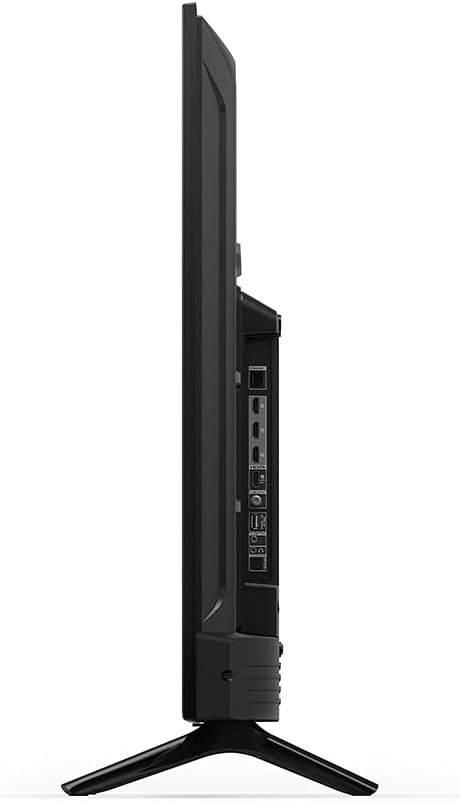
Attēls: Sānu profile of the TV, highlighting its slimness.
Attēls: Aizmugure view of the TV, illustrating the VESA mounting pattern.
Apkope
Televizora tīrīšana
- Pirms tīrīšanas vienmēr atvienojiet televizoru no strāvas.
- Izmantojiet mīkstu, sausu, bezplūksnu drānu, lai maigi noslaucītu ekrānu un korpusu.
- Lai uz ekrāna noturīgi notraipītu, viegli uzspiedietampNoslaukiet drānu ar ūdeni vai ekrāna tīrīšanas līdzekli, kas īpaši paredzēts elektronikai. Neizsmidziniet šķidrumu tieši uz ekrāna.
- Izvairieties no abrazīvu tīrīšanas līdzekļu, vaska vai šķīdinātāju lietošanas, jo tie var sabojāt apdari.
Programmatūras atjauninājumi
Your Fire TV will periodically receive software security updates to improve performance and add new features. Ensure your TV is connected to the internet to receive these updates automatically. You can also check for updates manually through the TV's settings menu.
Problēmu novēršana
Ja rodas problēmas ar Fire TV, skatiet tālāk norādītos bieži sastopamos risinājumus.
- Nav jaudas: Pārliecinieties, vai strāvas vads ir droši pievienots gan televizoram, gan darbojošai elektrotīkla kontaktligzdai. Izmēģiniet citu kontaktligzdu.
- Nav attēla/skaņas: Verify that the correct input source is selected. Check all cable connections (HDMI, audio) are secure. Restart the TV by unplugging it for 30 seconds and plugging it back in.
- Tālvadības pults nereaģē: Replace the AAA batteries in the Alexa Voice Remote Enhanced. Ensure there are no obstructions between the remote and the TV. Re-pair the remote if necessary (hold Home button for 10 seconds).
- Tīkla savienojamības problēmas: Check your Wi-Fi router and modem. Restart your network equipment. Ensure the TV is within range of your Wi-Fi signal or that the Ethernet cable is properly connected.
- Alexa neatbild: Ensure the remote batteries are fresh. Press and hold the Alexa button firmly when speaking. Check your internet connection.
For more detailed troubleshooting or persistent issues, refer to the online support resources for Fire TV.
Garantija un atbalsts
Garantijas informācija
Your Amazon Fire TV 4-Series 50-inch includes a 1-year limited warranty and service. Optional 3-Year and 4-Year Extended Warranties are available for U.S. customers and can be purchased separately. Use of Fire TV is subject to the terms found on the official Amazon webvietne.
Klientu atbalsts
For additional support, frequently asked questions, or to manage your device, please visit the official Amazon Fire TV support pages online. You can find information specific to your device by visiting the 'Manage Your Content and Devices' section on Amazon.


