Ievads
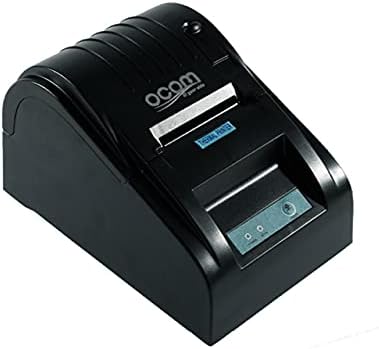
This image shows the OCOM OCPP-585A-U-B Thermal Receipt Printer from a slightly elevated front-right angle. The printer is black with a sleek, compact design. The paper output slot is visible at the top, and the control panel with 'POWER' and 'MODE' indicators is located on the front.
This manual provides detailed instructions for the OCOM OCPP-585A-U-B Thermal Receipt Printer. Please read this manual carefully before using the printer to ensure proper operation and longevity.
Iestatīšanas rokasgrāmata
1. Izpakošana
Carefully remove the printer and all accessories from the packaging. Verify that all components are present: printer unit, power adapter, USB cable, and a roll of thermal paper.
2. Termopapīra ievietošana
- Open the paper cover by pushing the cover open button (usually located on the side or front).
- Insert the thermal paper roll into the paper compartment, ensuring the printing side of the paper faces the print head. The paper should feed smoothly from the bottom of the roll.
- Pull out a small length of paper beyond the paper exit slot.
- Close the paper cover firmly until it clicks into place.
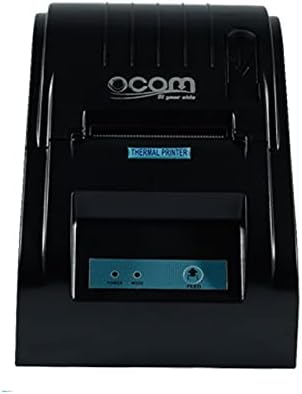
This image displays the OCOM OCPP-585A-U-B Thermal Receipt Printer from a direct top-down perspective. The paper compartment is visible, showing a thermal paper roll correctly inserted. The 'THERMAL PRINTER' label and the control panel with 'POWER' and 'MODE' indicators are clearly visible.
3. Printera pievienošana
- Connect the power adapter to the printer's power input port and then plug it into a power outlet.
- Connect the USB cable to the printer's USB port and the other end to your computer or POS system.
- Press the power button to turn on the printer. The power indicator light should illuminate.
Lietošanas instrukcijas
Pamata drukāšana
Once connected and powered on, the printer is ready to receive print commands from your connected device. Ensure the correct printer driver is installed on your computer/POS system.
- Atveriet dokumentu vai lietojumprogrammu, no kuras vēlaties drukāt.
- Select 'Print' from the file izvēlne.
- Choose 'OCOM OCPP-585A-U-B' as your printer.
- Adjust print settings if necessary (e.g., paper size, print quality).
- Noklikšķiniet uz “Drukāt”.
Self-Test Print
To perform a self-test print, ensure the printer is off. Hold down the 'FEED' button (if available, or a combination of buttons as per specific model) while turning on the printer. Release the button once printing begins. This will print a configuration page, confirming basic printer functionality.
Apkope
Drukas galviņas tīrīšana
Regular cleaning of the print head ensures optimal print quality and extends printer life.
- Izslēdziet printeri un atvienojiet strāvas vadu.
- Atveriet papīra vāku.
- Viegli noslaukiet ar vates tamponu.ampened with isopropyl alcohol to gently wipe the thermal print head (the dark strip inside the printer).
- Pirms vāka aizvēršanas un printera ieslēgšanas ļaujiet drukas galviņai pilnībā nožūt.
Cleaning the Paper Path
No papīra ceļa notīriet visus papīra putekļus vai gružus, izmantojot mīkstu birsti vai saspiestu gaisu.
Problēmu novēršana
| Problēma | Iespējamais cēlonis | Risinājums |
|---|---|---|
| Printeris neieslēdzas | Vaļīgs strāvas kabelis; Bojāta strāvas kontaktligzda | Pārbaudiet strāvas savienojumus; Izmēģiniet citu kontaktligzdu |
| Nav drukas izejas | Paper loaded incorrectly; Out of paper; Driver not installed/selected | Reload paper correctly; Replace paper roll; Install/select correct printer driver |
| Blāva vai tukša druka | Thermal paper loaded upside down; Print head dirty; Paper quality issue | Flip paper roll; Clean print head; Try new thermal paper |
| Printeris bezsaistē | USB cable disconnected; Printer driver issue | Reconnect USB cable; Reinstall printer driver |
Specifikācijas
| Funkcija | Detaļas |
|---|---|
| Pirmais pieejamais datums | 2021. gada 20. jūnijs |
| Ražotājs | OCOM |
| ASIN | B097LSGP62 |
| Preces modeļa numurs | OCPP-585-U-B |
| Zīmola nosaukums | OCOM |
| Savienojamības tehnoloģija | USB |
| Printeru tehnoloģija | Termiskā |
| Krāsa | Melns |
| Modeļa nosaukums | OCPP 585 U B |
| Drukātie materiāli | Etiķetes |
| Skenera tips | Kvīts |
Garantija un atbalsts
This OCOM printer typically comes with a standard manufacturer's warranty. Please refer to the warranty card included with your product for specific terms and conditions, or visit the official OCOM webvietne, lai iegūtu detalizētu informāciju par garantiju.
For technical support, driver downloads, or further assistance, please visit the OCOM official support website or contact their customer service. Keep your model number (OCPP-585A-U-B) and purchase details ready when seeking support.


