1. Ievads
This manual provides detailed instructions for the setup, operation, and maintenance of your Bytech BYMCWC101BLK PC Web Camera. Please read this manual thoroughly before using the product to ensure proper functionality and longevity.
2. Iepakojuma saturs
Pārliecinieties, vai jūsu produkta iepakojumā ir iekļauti visi tālāk norādītie priekšmeti:
- Bytech BYMCWC101BLK dators Web Kamera
- Lietotāja rokasgrāmata (šis dokuments)
- Integrēts USB kabelis
3. Iestatīšana
Follow these steps to set up your Bytech BYMCWC101BLK PC Web Kamera:
- Izvietojums: Novietojiet webcam on top of your computer monitor, laptop screen, or a flat surface. The adjustable clip allows for secure attachment.
- Savienojuma izveide ar datoru: Pievienojiet integrēto USB kabeli no webcam pieejamā datora USB portā.
- Draivera instalēšana: The webcam is typically plug-and-play. Your operating system (Windows, macOS, Linux) should automatically detect and install the necessary drivers. Wait for the installation to complete.
- Verifikācija: Open a video conferencing application (e.g., Zoom, Skype, Microsoft Teams) or your computer's camera application to confirm the webKamera ir atpazīta un rāda video.
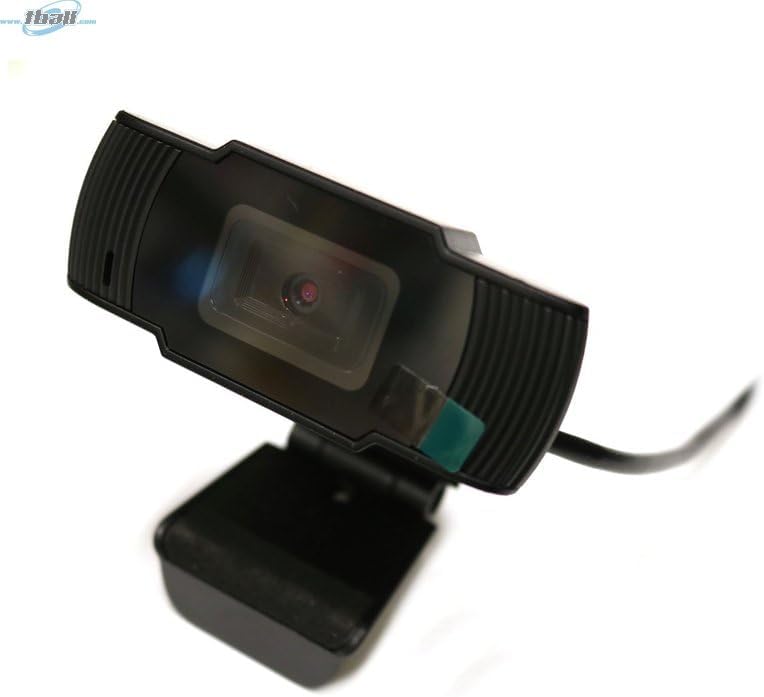
Image: The Bytech BYMCWC101BLK PC Web Camera securely mounted on top of a computer monitor, demonstrating its adjustable clip design.
4. Lietošanas instrukcijas
Once installed, the Bytech BYMCWC101BLK PC Web Camera can be used with various applications:
- Videokonference: Select the Bytech webcam as your video input device within your preferred video conferencing software (e.g., Zoom, Skype, Google Meet).
- Straumēšana: For live streaming platforms, configure the webcam as your primary video source in your streaming software (e.g., OBS Studio).
- Ieraksts: Use your computer's built-in camera application or third-party software to record video.
- Veiktspēja vājā apgaismojumā: The webcam features BSI CMOS photo sensor technology and is designed to perform effectively in low-light conditions, providing clear video even with limited ambient lighting.
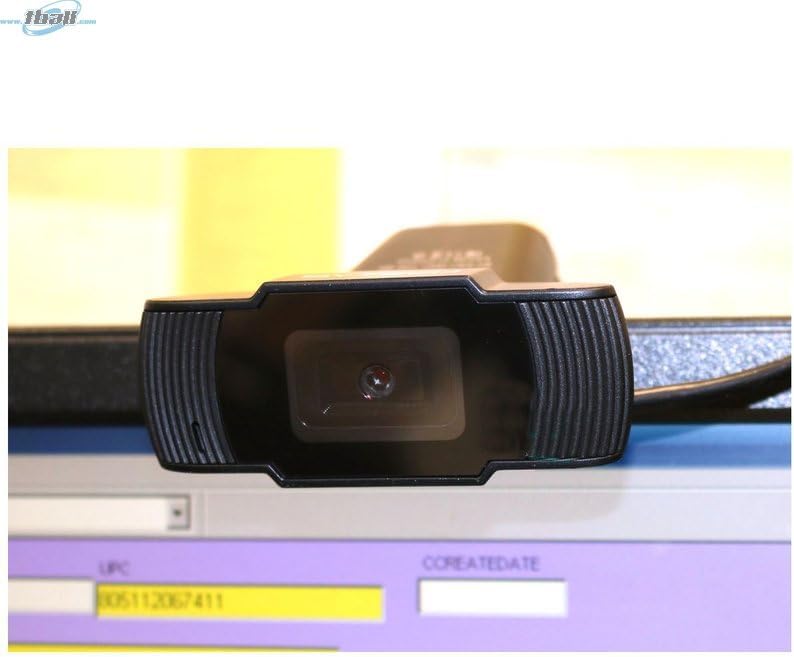
Attēls: Tuvplāns view of the Bytech BYMCWC101BLK PC Web Camera's lens, highlighting its design and integrated privacy cover (if applicable, otherwise just lens).
5. Apkope
To ensure optimal performance and extend the lifespan of your webkamera:
- Tīrīšana: Gently wipe the lens with a soft, lint-free cloth. Avoid using harsh chemicals or abrasive materials.
- Uzglabāšana: Kad to nelieto, uzglabājiet webcam in a clean, dry environment away from direct sunlight and extreme temperatures.
- Kabeļa kopšana: Nelieciet un nesaspiediet USB kabeli pārāk cieši.
6. Traucējummeklēšana
Ja rodas problēmas ar jūsu webkamera, skatiet tālāk norādītās bieži sastopamās problēmas un risinājumus:
- Nav attēla/video:
- Pārliecinieties, vai USB kabelis ir droši pievienots abām ierīcēm webkamera un dators.
- Mēģiniet pieslēgt webcam citā USB portā.
- Restartējiet datoru.
- Check your application settings to ensure the Bytech webkamera ir izvēlēta kā video ievades ierīce.
- Slikta video kvalitāte:
- Nodrošiniet atbilstošu apgaismojumu savā vidē.
- Notīriet webkameras objektīvu ar mīkstu drānu.
- Check your application's video settings for resolution and frame rate.
- Microphone Not Working (if applicable):
- Pārbaudiet, vai webcam's microphone is selected as the audio input device in your computer's sound settings and within your application.
- Ensure the microphone is not muted in your system or application.
7. Specifikācijas
| Funkcija | Detaļas |
|---|---|
| Modeļa nosaukums | BYMCWC101BLK |
| Zīmols | Bytech |
| Savienojamības tehnoloģija | USB |
| Fotoattēlu sensoru tehnoloģija | BSI CMOS |
| Video uzņemšanas formāts | MP4 |
| Īpaša iezīme | Vājš apgaismojums |
| Krāsa | Melns |
| Preces svars | 4.9 unces |
| Iepakojuma izmēri | 7.76 x 4.65 x 2.44 collas |
8. Garantija un atbalsts
For warranty information or technical support, please refer to the documentation included with your purchase or contact your retailer. Keep your proof of purchase for warranty claims.


