Ievads
The Microsoft Modern USB-C Headphones are designed to provide high-quality audio for calls, meetings, and general use, particularly optimized for Microsoft Teams. They offer clear sound, a noise-reducing microphone, and intuitive controls for enhanced productivity and communication.
Iepakojuma saturs
- Microsoft Modern USB-C Headset
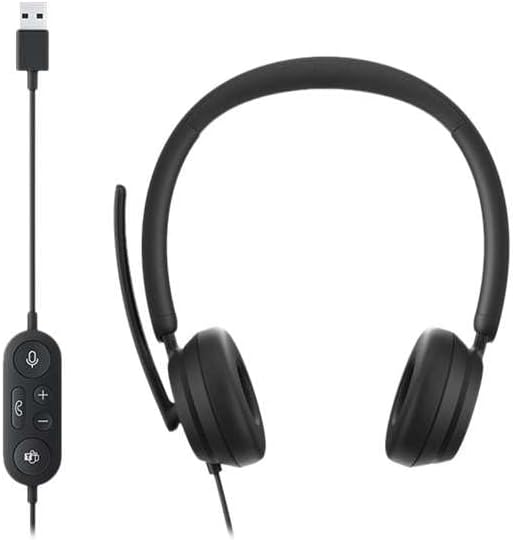
Image: The Microsoft Modern USB-C Headphones, featuring the headset with its attached USB-C cable and inline control unit. The control unit has buttons for mute, volume up/down, call answer/end, and a Microsoft Teams button.
Iestatīšana
Austiņu pievienošana
- Locate an available USB-C port on your computer or compatible device.
- Plug the USB-C connector of the headset into the USB-C port.
- Your operating system (Windows 11/10/8.1/8 or Mac OS 11.0/10.15) should automatically detect and install the necessary drivers.
Mikrofona regulēšana
- The microphone boom is flexible. Position it approximately one inch from your mouth for optimal voice pickup.
- The microphone features noise reduction to minimize background distractions during calls.

Attēls: Tuvplāns view of the earcups and the adjustable microphone boom of the Microsoft Modern USB-C Headphones.
Austiņu darbība
Iekļautās vadīklas
The inline control unit provides convenient access to essential functions:
- Izslēgt pogu: Press to mute or unmute your microphone. An indicator light on the control unit may show mute status.
- Skaļuma palielināšanas / samazināšanas pogas: Pielāgojiet klausīšanās skaļumu.
- Zvana poga: Nospiediet, lai atbildētu uz zvanu vai beigtu to.
- Microsoft Teams Button: Quickly launch or bring Microsoft Teams to the foreground.

Attēls: Detalizēts view of the inline control unit, showing the microphone mute, volume up/down, call, and Microsoft Teams buttons.
Komforts un dizains
The headset features padded and lightweight earcups designed for extended wear, ensuring comfort during long calls or work sessions.

Image: A close-up showing the soft, padded earcup of the Microsoft Modern USB-C Headphones, highlighting its comfortable design.
Apkope
- Tīrīšana: Austiņu tīrīšanai izmantojiet mīkstu, sausu drānu. Izvairieties no asu ķīmisku vielu vai abrazīvu materiālu lietošanas.
- Uzglabāšana: Kad austiņas netiek lietotas, glabājiet tās vēsā, sausā vietā. Izvairieties no ekstremālām temperatūrām.
- Kabeļa kopšana: Lai izvairītos no bojājumiem, nepārspīlējiet ar USB-C kabeļa saliekšanu un raušanu.
Problēmu novēršana
| Problēma | Risinājums |
|---|---|
| Nav skaņas no austiņām |
|
| Mikrofons nedarbojas |
|
| Dators neatpazīst austiņas |
|
Specifikācijas
| Zīmols | Microsoft |
| Modeļa nosaukums | I6N-00009 |
| Preces modeļa numurs | 2026 |
| Savienojamības tehnoloģija | Vadu (USB-C) |
| Ausu novietojums | Virs auss |
| Formas faktors | Uz auss |
| Materiāls | Mākslīgā āda |
| Vadības veids | Zvanu kontrole |
| Saderīgas ierīces | Ar USB-C saderīgas ierīces |
| Operētājsistēmas saderība | Windows 11 / 10 / 8.1 / 8, Mac OS 11.0/10.15 |
| Produkta izmēri | 16 x 3.99 x 24.99 cm |
| Preces svars | 390 g |
| Ūdensizturības līmenis | Ūdens izturīgs |
Garantija un atbalsts
For warranty information and technical support, please refer to the official Microsoft support website or contact Microsoft customer service. Details regarding specific warranty periods and terms are typically provided with your purchase documentation or available online.
You can find support resources at the official Microsoft support page: support.microsoft.com


