1. Ievads
This manual provides instructions for the setup, operation, and maintenance of your Logitech Rally Bar and Tap IP Bundle. This integrated solution is designed to deliver high-quality video conferencing experiences for midsize meeting rooms, supporting platforms such as Microsoft Teams, Zoom Rooms, and Ring Central Rooms.
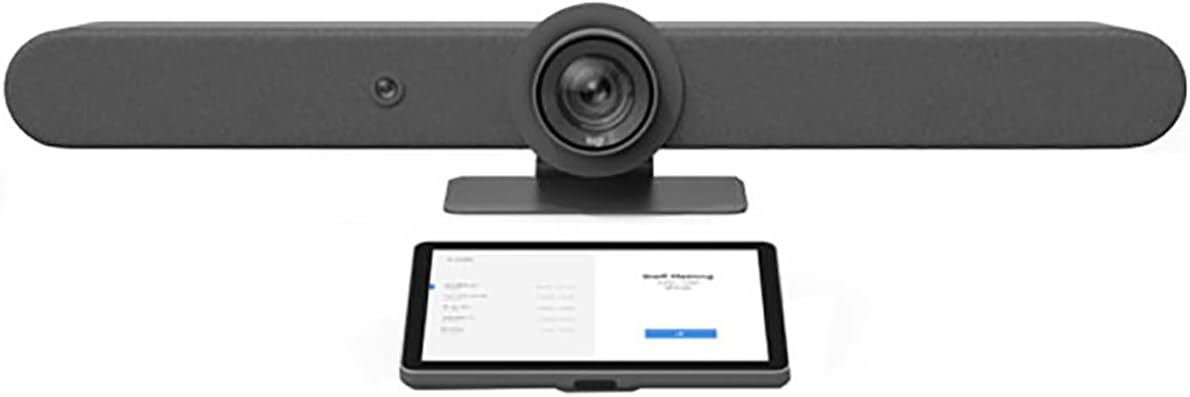
Figure 1: The Logitech Rally Bar (top) and Tap IP (bottom) components of the bundle.
2. Iepakojuma saturs
Pārliecinieties, vai iepakojumā ir visas preces:
- Logitech rallija bārs
- Logitech Pieskarieties IP
- Power Supply for Rally Bar
- Power Supply for Tap IP
- USB Cable (Type A to Type C)
- Ethernet kabelis
- Dokumentācija (īsās lietošanas pamācība, drošības informācija)
3. Iestatīšana
3.1 Fiziskā izvietošana
Logitech Rally Bar: Position the Rally Bar either on a display, on a table, or mounted to a wall. Ensure it has a clear line of sight to meeting participants. The integrated camera, speakers, and microphones are optimized for midsize rooms.

Figure 2: The Logitech Rally Bar, an all-in-one video bar with camera, speakers, and microphones.
Logitech Tap IP: Place the Tap IP on a conference table within easy reach of participants. Ensure it is stable and its screen is visible.

Figure 3: The Logitech Tap IP, a touch controller for meeting room systems.
3.2 Savienojamība
- Jauda: Connect the power adapters to both the Rally Bar and Tap IP, then plug them into a power outlet.
- Tīkls: Connect both the Rally Bar and Tap IP to your network using the provided Ethernet cables. This is essential for IP-based communication and platform integration.
- USB (Rally Bar to Compute Device): If using the Rally Bar in USB mode (e.g., with a dedicated meeting room PC), connect the USB cable from the Rally Bar to the compute device.
- Bluetooth: The Rally Bar supports Bluetooth for connecting compatible accessories. Refer to the Rally Bar's on-screen menu for pairing instructions.
3.3 Programmatūras konfigurācija
Upon initial power-up, the Tap IP will guide you through the setup process. Select your preferred video conferencing platform (Microsoft Teams, Zoom Rooms, or Ring Central Rooms) and follow the on-screen instructions to pair the Tap IP with the Rally Bar and configure your meeting room system.
4. Lietošanas instrukcijas
4.1 Basic Meeting Control (via Tap IP)
- Join Meeting: Tap the 'Join' button on the Tap IP screen for scheduled meetings.
- Start New Meeting: Select the 'Meet Now' option to initiate an ad-hoc meeting.
- Kameras vadība: Use the on-screen controls to pan, tilt, and zoom the Rally Bar's camera.
- Audio vadība: Adjust speaker volume and mute/unmute microphones directly from the Tap IP.
- Kopīgot saturu: Follow the prompts on the Tap IP to share content from your device.
4.2 Advanced Features (Rally Bar)
- RightSight™ Auto-Framing: The Rally Bar automatically detects human figures and adjusts the camera to frame participants optimally. This feature maintains persistent room awareness.
- RightSound™ Audio: Advanced audio processing ensures clear voice pickup and reduces background noise.
- Motorized PTZ Camera: The 15x PTZ camera offers precise control for focusing on specific areas of the room.
5. Apkope
5.1. Tīrīšana
To clean the Rally Bar and Tap IP, use a soft, dry, or slightly damp cloth. Avoid abrasive cleaners, solvents, or aerosol sprays, as these can damage the surfaces.
5.2. Programmatūras atjauninājumi
Logitech regularly releases firmware updates to improve performance and add new features. Ensure your Rally Bar and Tap IP are connected to the internet to receive these updates automatically or manage them through Logitech Sync software.
6. Traucējummeklēšana
6.1 Nav video izejas
- Check all power connections to the Rally Bar and display.
- Verify that the display input is set to the correct source connected to the Rally Bar.
- Ensure the USB cable (if used in USB mode) is securely connected to the compute device.
6.2 Nav audio
- Check the volume level on the Tap IP and the connected display.
- Ensure the microphones are not muted on the Tap IP.
- Verify that the Rally Bar is selected as the audio input/output device in your conferencing platform settings.
6.3 Connectivity Issues (Network/USB)
- Confirm that Ethernet cables are securely connected to both devices and the network.
- Restart the Rally Bar and Tap IP.
- If using USB mode, try a different USB port on the compute device or a different USB cable.
7. Specifikācijas
| Produkta izmēri | 30 x 8 x 6 collas |
| Preces svars | 28.6 mārciņas |
| Modeļa numurs | 991-000419 |
| ASIN | B0B1DSKGLX |
| Fotoattēlu sensoru tehnoloģija | CMOS |
| Video uzņemšanas izšķirtspēja | 1080p |
| Zibatmiņas tips | Iekšējā zibatmiņa |
| Video uzņemšanas formāts | MP4 |
| Atbalstītais audio formāts | PCM, AAC |
| Savienojamības tehnoloģija | Bluetooth, Ethernet, USB |
| Videokameras tips | Video kamera |
| Objektīva tips | Tālummaiņa |
8. Garantija un atbalsts
Lai iegūtu detalizētu informāciju par garantiju un tehnisko atbalstu, lūdzu, skatiet oficiālo Logitech vietni. website or contact Logitech customer service. Keep your proof of purchase for warranty claims.


