Ievads
This manual provides essential information for setting up, operating, and maintaining your Microsoft Surface Studio 2+ All-In-One Desktop Computer. The Surface Studio 2+ is designed for productivity and creativity, featuring a versatile 28-inch PixelSense™ touchscreen display.
Lūdzu, rūpīgi izlasiet šo rokasgrāmatu, lai nodrošinātu pareizu lietošanu un maksimāli palielinātu ierīces kalpošanas laiku.
Kas atrodas kastē
Pārliecinieties, vai iepakojumā ir visas sastāvdaļas:
- Surface Studio 2+ All-in-One Computer
- Virsmas pildspalva
- Virsmas tastatūra
- Pele
- Power Cord with Grip-Release Cable
- Īsā lietošanas pamācība
- Drošības un garantijas rokasgrāmata
Iestatīšana
- Izpakošana: Carefully remove the Surface Studio 2+ and its accessories from the packaging. Place the computer on a stable, flat surface.

Image: The Microsoft Surface Studio 2+ All-in-One computer displaying the Windows 11 desktop interface.
- Strāvas pieslēgums: Connect the power cord to the power port on the back of the Surface Studio 2+ base, then plug the other end into a wall outlet.

Attēls: Aizmugure view of the Surface Studio 2+ base, highlighting the various ports including the power input.
- Pievienojiet perifērijas ierīces: Connect the Surface Keyboard and Mouse. These devices typically connect wirelessly via Bluetooth. Follow the on-screen instructions during initial setup for pairing.
- Sākotnējā palaišana: Press the power button, usually located on the back or side of the display. The computer will guide you through the Windows 11 Pro setup process, including language selection, network connection, and user account creation.
Lietošanas instrukcijas
Displeja pielāgošana
The Surface Studio 2+ features a unique Zero Gravity Hinge, allowing the display to be adjusted from an upright desktop mode to a flat studio mode for drawing and writing.

Image: A sequence showing the Surface Studio 2+ display being adjusted from an upright position to a nearly flat angle.
- Darbvirsmas režīms: Gently push the top of the screen backward to tilt it into an upright position for traditional desktop use.
- Studijas režīms: Gently pull the top of the screen forward and down towards the base to transition it into a low-angle, flat position ideal for creative tasks with the Surface Pen.
Using the Surface Pen and Touchscreen
The 28-inch PixelSense™ touchscreen supports multi-touch gestures and is optimized for use with the included Surface Pen.
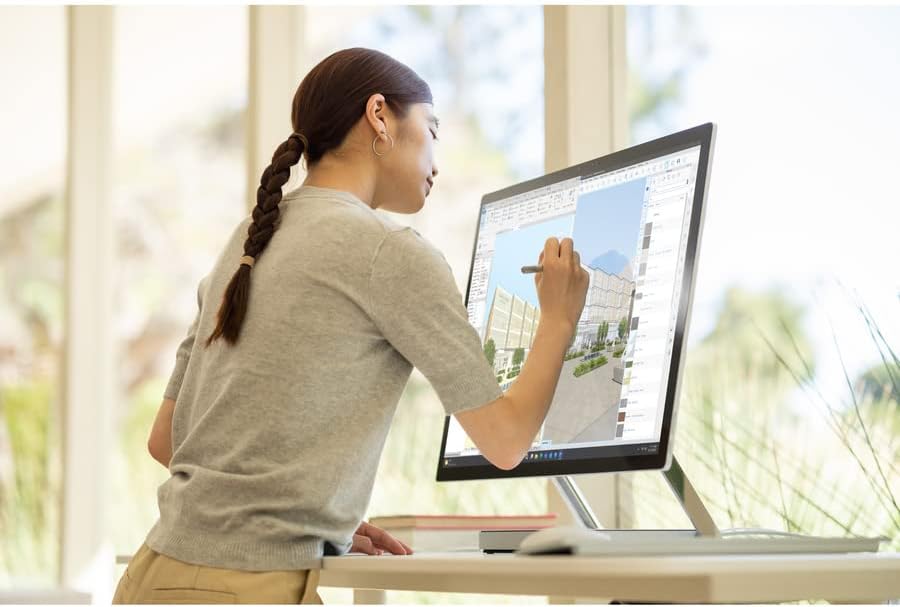
Image: A person using the Surface Pen to interact with the touchscreen of the Microsoft Surface Studio 2+ in studio mode.
- Pieskaršanās žesti: Utilize standard Windows touch gestures for navigation, zooming, and scrolling.
- Surface pildspalva: The Surface Pen allows for precise drawing, writing, and annotation directly on the screen. It can be magnetically attached to the side of the display for storage.
Windows 11 Pro
Your Surface Studio 2+ comes pre-installed with Windows 11 Pro. Familiarize yourself with the operating system's interface and features for optimal productivity.
- Sākt izvēlne: Access applications, settings, and power options from the Start Menu.
- Uzdevumjosla: Piespraudiet bieži izmantotās lietojumprogrammas uzdevumjoslai, lai tām ātri piekļūtu.
- Iestatījumi: Customize your device, manage accounts, and configure privacy settings through the Settings app.
Funkcijas
The Microsoft Surface Studio 2+ is equipped with advanced components for high performance:
- Procesors: Intel Core i7 3 GHz processor for demanding tasks.
- Atmiņa: 32 GB DDR4 RAM for smooth multitasking.
- Uzglabāšana: 1 TB Solid State Drive (SSD) for fast boot times and application loading.
- Grafika: NVIDIA GeForce RTX 3060 with 6GB dedicated memory for graphics-intensive applications and gaming.
- Displejs: 28-inch PixelSense™ touchscreen with 4500 x 3000 resolution.
- Operētājsistēma: Windows 11 Pro.
- Savienojamība: Integrated 802.11ax Wi-Fi and Bluetooth for wireless connections.
Apkope
Ierīces tīrīšana
- Ekrāns: Izmantojiet mīkstu, neplūksnu drānu nedaudz dampnoskalot ar ūdeni vai ekrāna tīrīšanas līdzekli, kas īpaši paredzēts elektronikai. Izvairieties no spēcīgām ķīmiskām vielām.
- Pamatteksts: Noslaukiet ārējās virsmas ar mīkstu, sausu drānu.
- Ventilācija: Ensure the ventilation openings on the base are clear of dust and obstructions to prevent overheating.
Programmatūras atjauninājumi
Regulāri pārbaudiet un instalējiet Windows atjauninājumus, lai nodrošinātu, ka jūsu sistēmā ir jaunākie drošības ielāpi un veiktspējas uzlabojumi.
- Dodieties uz Iestatījumi > Windows atjaunināšana.
- Noklikšķiniet Pārbaudiet, vai nav atjauninājumu un instalējiet visus pieejamos atjauninājumus.
Problēmu novēršana
| Problēma | Iespējamais risinājums |
|---|---|
| Dators neieslēdzas. | Ensure the power cord is securely connected to both the computer and a working electrical outlet. Try a different outlet. |
| Displejs ir tukšs. | Check power connection. Ensure the computer is powered on. If connected to an external display, verify display input settings. |
| Surface Pen or Mouse not responding. | Check battery levels. Re-pair the devices via Bluetooth settings in Windows. |
| Lēna veiktspēja. | Close unnecessary applications. Check for and install Windows updates. Run a disk cleanup. |
| Wi-Fi savienojamības problēmas. | Restart your router and the Surface Studio 2+. Check Wi-Fi settings in Windows to ensure it's enabled and connected to the correct network. |
Specifikācijas
| Funkcija | Detaļas |
|---|---|
| Modeļa numurs | SBG-00001 |
| Displeja izmērs | 28 collas |
| Ekrāna izšķirtspēja | 4500 x 3000 |
| Procesors | Intel Core i7 (3 GHz) |
| RAM | 32 GB DDR4 |
| Cietais disks | 1 TB SSD |
| Grafikas kopprocesors | NVIDIA GeForce RTX 3060 |
| Grafikas kartes RAM ietilpība | 6 GB |
| Operētājsistēma | Windows 11 Pro |
| Bezvadu tips | 802.11ax, Bluetooth |
| Preces svars | 21.1 mārciņas |
| Produkta izmēri (LxWxH) | 25.1 x 0.5 x 17.3 collas |
| Krāsa | Sudrabs |
Garantija un atbalsts
Your Microsoft Surface Studio 2+ is covered by a manufacturer's warranty. Please refer to the included "Safety and Warranty Guide" for detailed information regarding warranty terms, conditions, and registration.
For technical support, driver downloads, or further assistance, please visit the official Microsoft Support website or contact Microsoft customer service.
Tiešsaistes atbalsts: support.microsoft.com/surface


