Ievads
This manual provides essential information for setting up, operating, and maintaining your HP Essential 17t Laptop TPN-I139. Please read these instructions carefully to ensure proper use and to maximize the lifespan of your device.
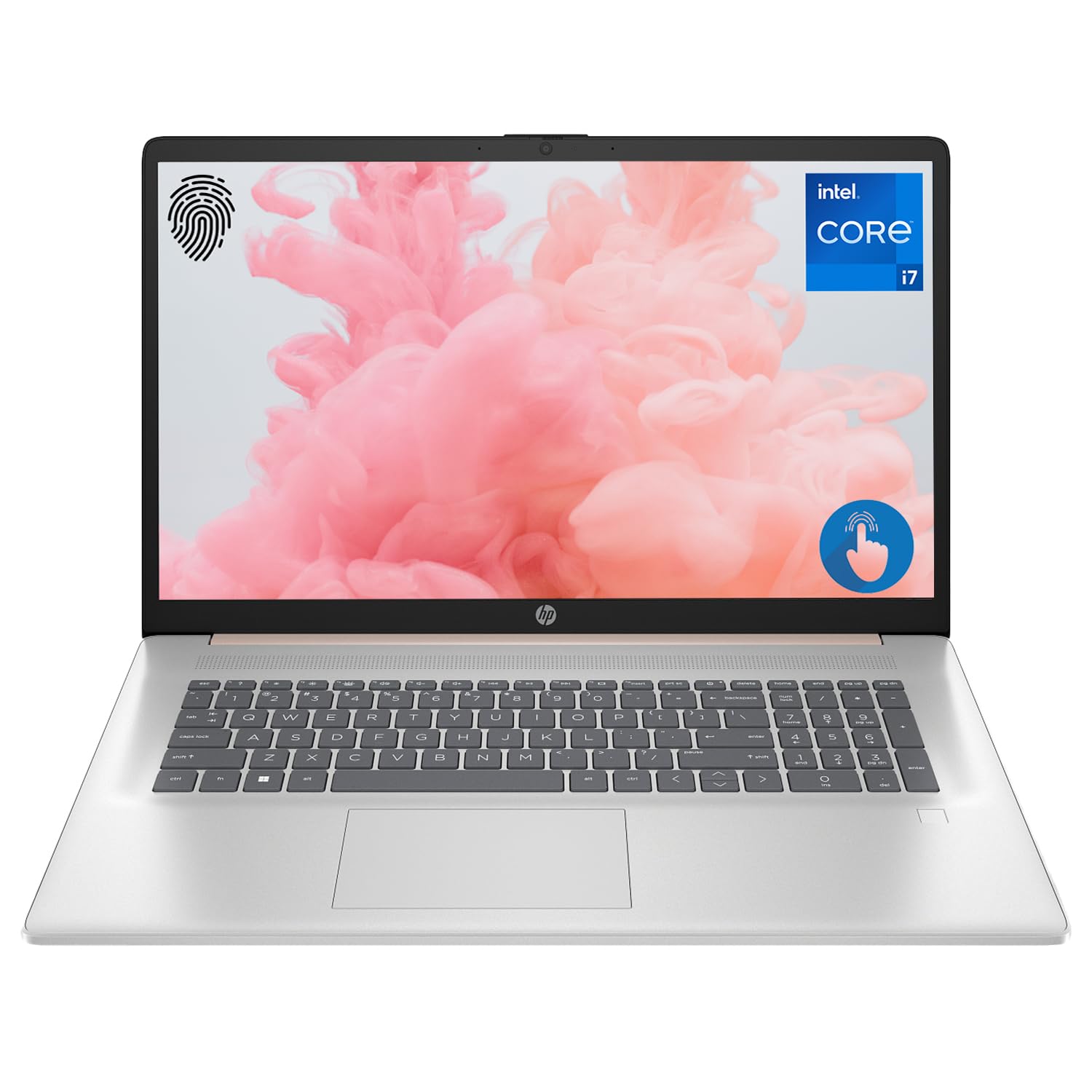
Figure 1: HP Essential 17t Laptop
The HP Essential 17t Laptop is designed for productivity and everyday use, featuring a 17.3-inch HD+ touchscreen, an Intel Core i7-1355U processor, 64GB of RAM, and a 2TB SSD. It comes pre-installed with Windows 11 Home.
Darba sākšana
1. Kas ir kastē
- HP Essential Touchscreen Laptop
- Maiņstrāvas adapteris
- Īsā lietošanas pamācība (ja iekļauta)
2. Sākotnējā ieslēgšana un iestatīšana
- Connect the AC power adapter to the laptop and a power outlet.
- Atveriet klēpjdatora vāku un nospiediet ieslēgšanas/izslēgšanas pogu, kas parasti atrodas uz tastatūras.
- Follow the on-screen instructions to complete the Windows 11 Home setup. This includes selecting your region, connecting to a Wi-Fi network, creating a user account, and accepting the license agreement.

Figure 2: Windows 11 Home Interface
Aparatūra beigusiesview
Porti un savienotāji
Familiarize yourself with the various ports on your laptop for connecting external devices.

Figure 3: Laptop Ports and Connectors
- SuperSpeed USB Type-A (5Gbps signaling rate): USB ierīču, piemēram, peļu, tastatūru vai ārējo disku, pievienošanai.
- HDMI 1.4b: Pieslēgšanai ārējiem displejiem vai projektoriem.
- SuperSpeed USB Type-C (5Gbps signaling rate): Daudzpusīga pieslēgvieta datu pārsūtīšanai un saderīgu ierīču pievienošanai.
- Austiņu/mikrofona kombinētā ligzda (3.5 mm): Austiņu, ārējo skaļruņu vai austiņu ar mikrofonu pievienošanai.
Tastatūra un skārienpaliktnis
The laptop features a full-size backlit keyboard for comfortable typing in various lighting conditions and a responsive touchpad for navigation.
Displejs
Your HP Essential 17t Laptop is equipped with a 17.3-inch HD+ (1600 x 900) touchscreen display, offering intuitive interaction with Windows 11.

Figure 4: 17.3" HD+ Touchscreen Display
Klēpjdatora lietošana
Enerģijas pārvaldība
- Ieslēgšana/izslēgšana: Press the power button to turn the laptop on. To shut down, click the Start button, then Power > Shut down.
- Miega režīms: Close the lid or click the Start button, then Power > Sleep to put the laptop into a low-power state.
- Akumulatora kopšana: The laptop supports battery fast charge, reaching approximately 50% charge in 45 minutes. For optimal battery health, avoid consistently draining the battery to 0% or keeping it at 100% for extended periods.
Skārienekrāna lietošana
Interact with your laptop directly on the screen using touch gestures. Common gestures include tapping to select, pinching to zoom, and swiping to scroll.
Izmantojot pirkstu nospiedumu lasītāju
The integrated fingerprint reader allows for secure and quick login. Set up your fingerprints through Windows Hello in the Windows Settings app (Accounts > Sign-in options).
Savienojuma izveide ar Wi-Fi
To connect to a wireless network, click the Wi-Fi icon in the taskbar, select your desired network, and enter the password if prompted. The laptop supports Wi-Fi 6 for fast and reliable wireless connectivity.
Produktivitātes īpašības
This laptop integrates Copilot + AI capabilities to enhance productivity. These features can assist with scheduling, drafting emails, summarizing documents, and more, streamlining your workflow.

Figure 5: Copilot + AI for Enhanced Productivity
Apkope un kopšana
Klēpjdatora tīrīšana
- Izmantojiet mīkstu, neplūksnu drānu nedaudz dampsamitriniet displeju ar ūdeni vai ekrāna tīrīšanas līdzekli.
- Tastatūras un korpusa tīrīšanai izmantojiet mīkstu, sausu drānu. Izvairieties no spēcīgām ķīmiskām vielām vai abrazīviem materiāliem.
- Pirms tīrīšanas pārliecinieties, vai klēpjdators ir izslēgts un atvienots no strāvas.
Programmatūras atjauninājumi
Regulāri pārbaudiet un instalējiet Windows atjauninājumus, lai nodrošinātu, ka jūsu sistēmā ir jaunākie drošības ielāpi un veiktspējas uzlabojumi. Dodieties uz Iestatījumi > Windows atjaunināšana.
Problēmu novēršana
Ja rodas problēmas ar klēpjdatoru, izmēģiniet šīs pamata problēmu novēršanas darbības:
- Nav jaudas: Pārliecinieties, vai maiņstrāvas adapteris ir droši pievienots gan klēpjdatoram, gan darbojošai strāvas kontaktligzdai. Izmēģiniet citu kontaktligzdu.
- Displeja problēmas: Ja ekrāns ir tukšs, mēģiniet pievienot ārēju monitoru, lai pārbaudītu, vai problēma nav saistīta ar klēpjdatora displeju.
- Wi-Fi savienojums: Restart your router and modem. Ensure Wi-Fi is enabled on your laptop.
- Lēna veiktspēja: Close unnecessary applications. Check for available Windows updates.
Sarežģītāku problēmu gadījumā skatiet HP atbalsta dienestu webvietnē vai sazinieties ar HP klientu apkalpošanas dienestu.
Specifikācijas
Below are the key technical specifications for the HP Essential 17t Laptop TPN-I139:

Figure 6: Intel Core i7-1355U Processor
| Funkcija | Specifikācija |
|---|---|
| Modeļa nosaukums | TPN-I139 |
| Procesors | 13th Gen Intel Core i7-1355U (10 Cores, 12 Threads, up to 5.0 GHz) |
| RAM | 64 GB DDR4 SDRAM (3200 MHz) |
| Uzglabāšana | 2 TB PCIe NVMe M.2 SSD disks |
| Displejs | 17.3" HD+ (1600 x 900) Touchscreen, BrightView, 250 niti |
| Grafika | Intel Iris Xe grafikas |
| Operētājsistēma | Windows 11 Home |
| Bezvadu savienojamība | Wi-Fi 6 (802.11ax) |
| Ostas | 1x SuperSpeed USB Type-C (5Gbps), 2x SuperSpeed USB Type-A (5Gbps), 1x HDMI 1.4b, 1x Headphone/Microphone Combo |
| Īpašas funkcijas | Apgaismota tastatūra, pirkstu nospiedumu lasītājs |
| Izmēri (LxWxH) | 15.78 x 10.15 x 0.78 collas |
| Svars | 5.25 mārciņas |

Figure 7: Intel Iris Xe Graphics
Garantija un atbalsts
Your HP Essential 17t Laptop comes with a standard manufacturer's warranty. For detailed warranty terms and conditions, please refer to the documentation included with your product or visit the official HP support website. For technical assistance, driver downloads, or service requests, please contact HP customer support directly.
Produkts beidziesview Video
Noskatieties šo video, lai iegūtu vizuālu priekšstatuview of the HP Essential 17t Laptop's features and capabilities.
Video 1: HP Essential 17 Touchscreen 13th Gen i7 Laptop Overview by PCOnline US. This video highlights key features and design aspects of the laptop.