1. Iestatīšana
1.1 Izpakošana un sākotnējā pārbaude
Uzmanīgi izņemiet visas sastāvdaļas no iepakojuma. Pārliecinieties, vai visas detaļas ir klāt:
- Logitech Wave Keys bezvadu ergonomiskā tastatūra
- Logitech Lift Vertical Wireless Mouse
- Logi Bolt USB uztvērējs
- AA Battery (pre-installed in mouse)
- AAA Batteries (pre-installed in keyboard)
1.2 Akumulatora uzstādīšana
The keyboard and mouse come with pre-installed batteries. If replacement is needed:
- For Wave Keys Keyboard: Open the battery compartment on the underside of the keyboard. Insert two AAA batteries, ensuring correct polarity. Close the compartment.
- For Lift Vertical Mouse: Open the battery compartment on the underside of the mouse. Insert one AA battery, ensuring correct polarity. Close the compartment.
Detailed diagram illustrating the features of the Logitech Lift Vertical Mouse, including its battery compartment and multi-OS compatibility.
1.3 Ierīču pievienošana
Your devices can connect via Bluetooth or the Logi Bolt USB receiver.
1.3.1 Bluetooth savienojums
- Ieslēdziet tastatūru un peli, izmantojot attiecīgos barošanas slēdžus.
- Press and hold one of the Easy-Switch buttons (1, 2, or 3) on the keyboard or mouse until the LED indicator blinks rapidly, indicating pairing mode.
- On your computer or device, navigate to Bluetooth settings and select "Logitech Wave Keys" or "Logitech Lift" from the list of available devices.
- Follow any on-screen prompts to complete the pairing process. The LED will glow solid for 5 seconds when connected.
1.3.2 Logi Bolt Receiver Connection
- Pievienojiet Logi Bolt USB uztvērēju datora brīvajam USB portam.
- Turn on the keyboard and mouse. They should automatically connect to the receiver. If not, press an Easy-Switch button on the device to select an available channel (e.g., 1) and ensure the receiver is detected.
- For initial pairing with the receiver, you may need to use the Logi Options+ App to add the device.

Diagram highlighting multi-OS connectivity options for the Logitech Wave Keys keyboard, compatible with Windows, macOS, iPadOS, and iOS.
1.4 Installing Logi Options+ App
For full customization and advanced features, download and install the Logi Options+ App:
- Apmeklējiet oficiālo Logitech vietni webvietne (logitech.com/optionsplus) savā datorā.
- Download the Logi Options+ App compatible with your operating system (Windows or macOS).
- Izpildiet ekrānā redzamos norādījumus, lai instalētu lietojumprogrammu.
- Once installed, open the app to detect and customize your Wave Keys keyboard and Lift Vertical Mouse.

A user customizing their workflow using the Logi Options+ App with the Logitech Wave Keys keyboard and Lift Vertical Mouse.
2. Darbība
2.1 Tastatūras lietošana
2.1.1 Ergonomic Typing Position
The Wave Keys keyboard is designed for comfort:
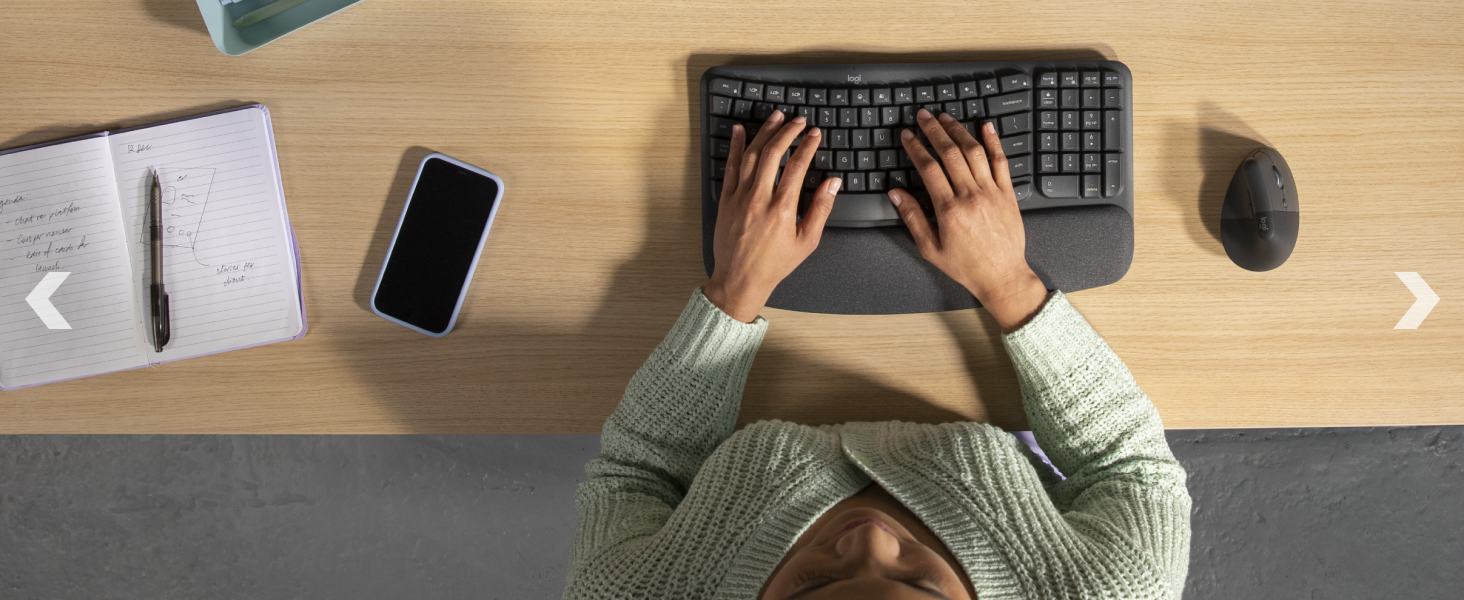
- Position your hands naturally on the wavy keyframe.
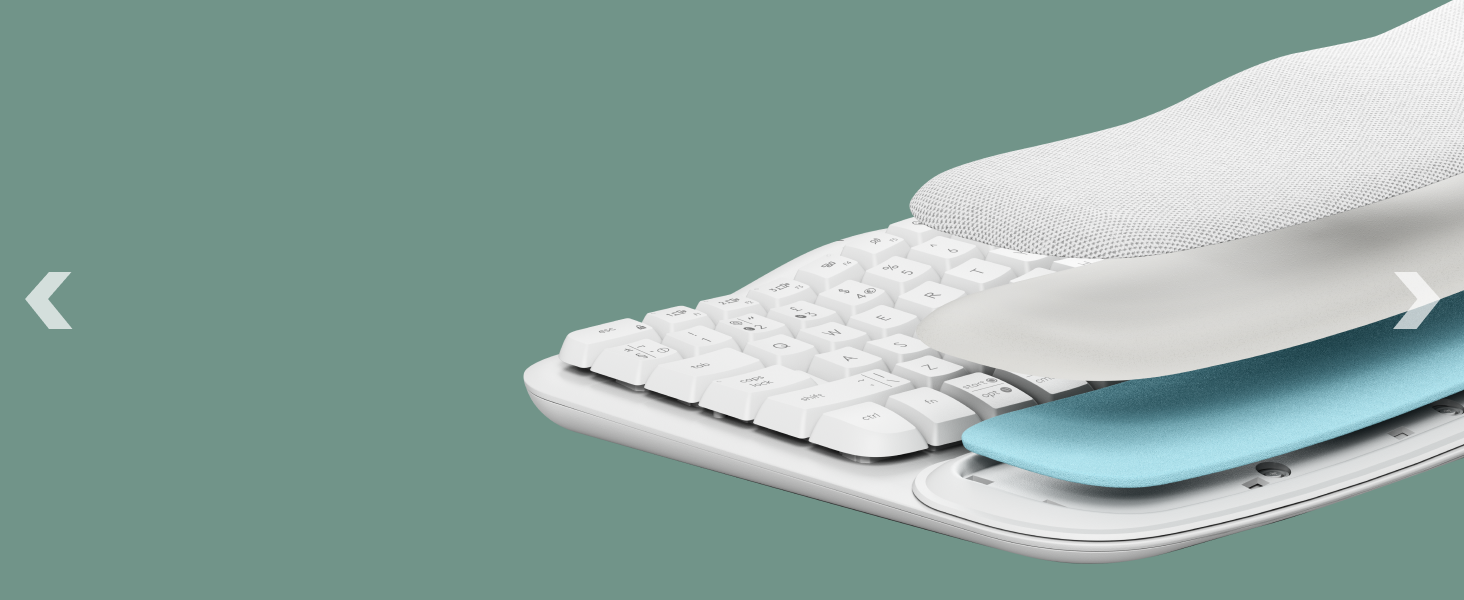
- Utilize the integrated cushioned palm rest to support your wrists, keeping them straight and relaxed.
- Adjust the tilt legs (+4°) on the underside of the keyboard for your preferred typing angle.
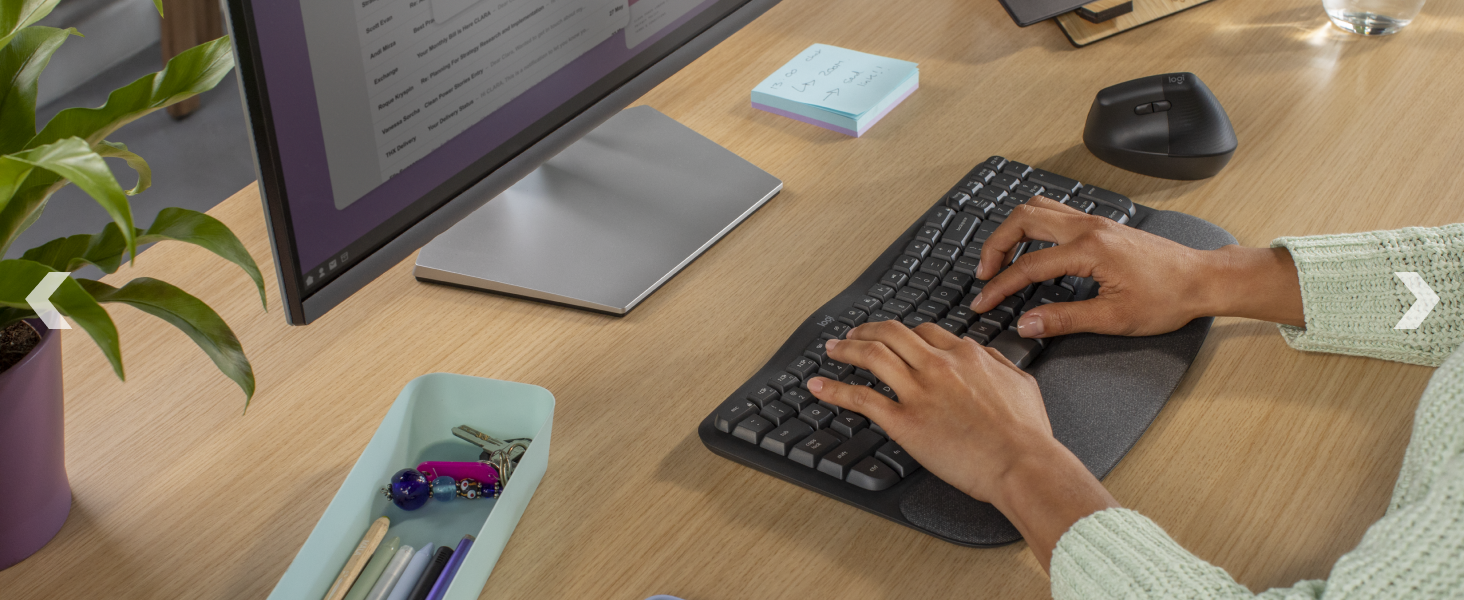
Hands comfortably positioned on the Logitech Wave Keys keyboard, demonstrating the ergonomic design with palm rest support.
2.1.2 Function Keys and Customization
- The top row of keys includes media controls and function keys (F1-F12).
- Use the Logi Options+ App to customize these keys and assign shortcuts for specific applications or actions.
2.2 Peles lietošana
2.2.1 Ergonomic Grip
The Lift Vertical Mouse promotes a natural handshake position:
- Place your hand on the mouse so your palm rests comfortably on its vertical body.
- The 57-degree vertical angle helps reduce wrist pressure and promotes a more natural forearm posture.
- The textured grip and snug thumb rest are designed for small to medium hands.
A hand holding the Logitech Lift Vertical Mouse, demonstrating the natural handshake position facilitated by its vertical design.
2.2.2 SmartWheel and Customizable Buttons
- The SmartWheel offers precise line-by-line scrolling and switches to super-fast free-spin mode for long documents.
- The mouse features quiet clicks for a focused work environment.
- Utilize the Logi Options+ App to customize the side buttons for various functions, such as back/forward navigation or application-specific shortcuts.
2.3 Easy-Switch Functionality
Both the Wave Keys keyboard and Lift Vertical Mouse support Easy-Switch, allowing you to connect to and switch between up to three devices:
- Pair your devices with up to three different computers or operating systems using the Easy-Switch buttons (1, 2, 3).
- To switch between connected devices, simply press the corresponding Easy-Switch button on the keyboard or mouse. The LED indicator will light up for the selected channel.
3. Apkope
3.1. Tīrīšana
To maintain your devices, follow these cleaning guidelines:
- Turn off the keyboard and mouse before cleaning.
- Izmantojiet mīkstu, neplūksnu drānu nedaudz dampnoskalot ar ūdeni vai maigu, neabrazīvu tīrīšanas līdzekli.
- Izvairieties no šķidrumu tiešas izsmidzināšanas uz ierīcēm.
- Tastatūras taustiņu tīrīšanai izmantojiet saspiestu gaisu, lai notīrītu gružus starp taustiņiem.
3.2. Akumulatora nomaiņa
Replace batteries when the low battery indicator appears or performance degrades:
- Tastatūra: Replace with two AAA batteries. The keyboard offers up to 3 years of battery life.
- Pele: Replace with one AA battery. The mouse offers up to 2 years of battery life.
- Atbrīvojieties no izlietotajām baterijām saskaņā ar vietējiem noteikumiem.
4. Traucējummeklēšana
4.1 Savienojamības problēmas
- Ierīce neizveido savienojumu: Ensure the keyboard and mouse are turned on and fully charged or have fresh batteries. Verify that the correct Easy-Switch channel is selected.
- Bluetooth savienošanas pārī kļūme: Make sure your device's Bluetooth is enabled and the keyboard/mouse is in pairing mode (blinking LED). Try removing the device from your computer's Bluetooth list and re-pairing.
- Logi Bolt receiver issues: Ensure the receiver is securely plugged into a working USB port. Try a different USB port. Use the Logi Options+ App to re-pair the devices with the receiver if necessary.
- Traucējumi: Move the devices closer to your computer or receiver. Avoid placing them near other wireless devices or large metal objects that might cause interference.
4.2 Mouse Tracking Irregularities
- Sporadic tracking or cursor disappearance (especially on Windows PC): Ensure your operating system (e.g., Windows 11) and Logitech drivers are up to date. Check for any conflicting software or background processes. Try restarting your computer.
- Unresponsive cursor: Clean the mouse sensor on the underside of the mouse. Ensure you are using the mouse on a suitable surface; reflective or uneven surfaces can affect tracking.
4.3 Ierīce nereaģē
- Check batteries: Nomainiet baterijas, ja to līmenis ir zems vai tās ir izlādējušās.
- Strāvas cikls: Izslēdziet ierīci un pēc tam ieslēdziet to vēlreiz.
- Atjaunot savienojumu: Follow the connection steps in Section 1.3.
4.4 Logi Options+ App Issues
- App not detecting devices: Ensure devices are connected and turned on. Restart the Logi Options+ App and your computer.
- Customizations not applying: Ensure the app is running in the background. Check for app updates.
5. Specifikācijas
| Funkcija | Detaļas |
|---|---|
| Zīmols | Logitech |
| sērija | Lift Ergo |
| Operētājsistēmas saderība | Mac OS, Windows 7 and later, iPadOS, iOS |
| Krāsa | Balts |
| Barošanas avots | Battery Powered (Keyboard: 2x AAA, Mouse: 1x AA) |
| Savienojamības tehnoloģija | Bluetooth, Logi Bolt USB uztvērējs |
| Īpašas funkcijas | Ergonomic Design, Wrist Support, Easy-Switch, Customizable Keys/Buttons, SmartWheel, Quiet Clicks |
| Movement Detection Technology (Mouse) | Optiskais |
| Tastatūras akumulatora darbības laiks | Līdz 3 gadiem |
| Peles akumulatora darbības laiks | Līdz 2 gadiem |
| Pārstrādātas plastmasas saturs (klaviatūra) | 46% |
| Pārstrādātas plastmasas saturs (pele) | 54% |
6. Garantija un atbalsts
6.1 Informācija par garantiju
For detailed warranty information regarding your Logitech Wave Keys & Lift Vertical Mouse Ergonomic Bundle, please refer to the official Logitech webvietnē vai garantijas dokumentācijā, kas iekļauta produkta iepakojumā. Garantijas noteikumi un nosacījumi var atšķirties atkarībā no reģiona.
6.2 Klientu atbalsts
If you encounter any issues or have questions not covered in this manual, please visit the official Logitech support webvietne palīdzības saņemšanai:
- Logitech atbalsts: support.logi.com
- The Logi Options+ App also provides access to support resources and software updates.


