1. Ievads
This manual provides comprehensive instructions for the Hyperkin Pixel Art Bluetooth Controller, Tetris™ Edition (Model M01328-TETS). This limited-edition wireless controller is designed for use with various gaming platforms, offering a blend of retro aesthetics and modern functionality. Please read this manual thoroughly before use to ensure proper setup and operation.

Image 1.1: The Hyperkin Pixel Art Bluetooth Controller, Tetris™ Edition, showcasing its unique Tetris-themed design.
2. Iepakojuma saturs
Pārliecinieties, vai iepakojumā ir visas preces:
- Hyperkin Pixel Art Bluetooth Controller (Tetris™ Edition)
- USB-C uzlādes kabelis
- Lietotāja rokasgrāmata (šis dokuments)
3. Kontroliera izkārtojums
Familiarize yourself with the buttons and features of your controller:

3.1. attēls: priekšpuse view of the controller, displaying the D-pad, analog sticks, action buttons (A, B, X, Y), SELECT, START, and Tetris™ logo.
- D-Pad: Virziena ievade.
- Kreisās/labās analogās vadības sviras: Precise 360-degree movement.
- Darbību pogas (A, B, X, Y): Galvenās mijiedarbības pogas.
- ATLASES poga: Function varies by platform/game.
- SĀKT poga: Function varies by platform/game.
- Plecu pogas (L1, R1): Augšpusē piestiprinātas pogas.
- Trigger Buttons (L2, R2): Bottom-mounted analog triggers.
- Mājas poga: Returns to system menu (functionality varies by platform).
- Turbo poga: Activates/deactivates turbo function for selected buttons.
- USB-C ports: Uzlādei un vadu savienojumam.

3.2. attēls: Aizmugure view of the controller, showing the ergonomic grip and product label.
4. Iestatīšana
4.1. Kontroliera uzlāde
Before initial use, fully charge the controller. Connect the included USB-C charging cable to the controller's USB-C port and the other end to a USB power source (e.g., computer, USB wall adapter). The charging indicator light will show charging status and turn off when fully charged.
4.2. Bluetooth savienošana pārī
The controller supports wireless connection via Bluetooth up to 30 feet. Follow these general steps for pairing:
- Pārliecinieties, vai kontrolieris ir uzlādēts.
- Turn on the controller (specific method may vary, typically holding the Home button).
- Activate pairing mode on the controller (refer to specific platform instructions below, usually a combination of buttons or a dedicated pairing button). The indicator lights will flash rapidly.
- On your device (Nintendo Switch, PC, Mac, Android, iOS), navigate to the Bluetooth settings.
- Meklēt available devices and select "Hyperkin Pixel Art Controller" or similar.
- Once paired, the indicator lights on the controller will become solid.
4.2.1. Pairing with Nintendo Switch/OLED Model
- From the HOME Menu, select "Controllers" > "Change Grip/Order."
- While on this screen, press and hold the pairing button on the Hyperkin controller until the indicator lights flash.
- Once paired, the controller will appear on the screen, and the player indicator will light up.
4.2.2. Pairing with PC (Windows 10/11)
- Go to "Settings" > "Devices" > "Bluetooth & other devices."
- Turn on Bluetooth and click "Add Bluetooth or other device."
- Select "Bluetooth" and then choose "Hyperkin Pixel Art Controller" from the list.
4.2.3. Pairing with Mac
- Open "System Settings" (or "System Preferences") > "Bluetooth."
- Ensure Bluetooth is on. The controller should appear in the list of devices.
- Click "Connect" or "Pair" next to "Hyperkin Pixel Art Controller."
4.2.4. Pairing with Android/iOS Devices
- Go to your device's "Settings" > "Bluetooth."
- Turn on Bluetooth. The controller should appear in the list of available devices.
- Tap on "Hyperkin Pixel Art Controller" to pair.

Image 4.1: The controller demonstrating wireless connectivity with a Nintendo Switch console, highlighting its Bluetooth capability.
5. Lietošanas instrukcijas
5.1. Pamata vadības ierīces
The controller functions as a standard gamepad. Button mapping may vary depending on the game and platform. Refer to your game's instructions for specific control schemes.
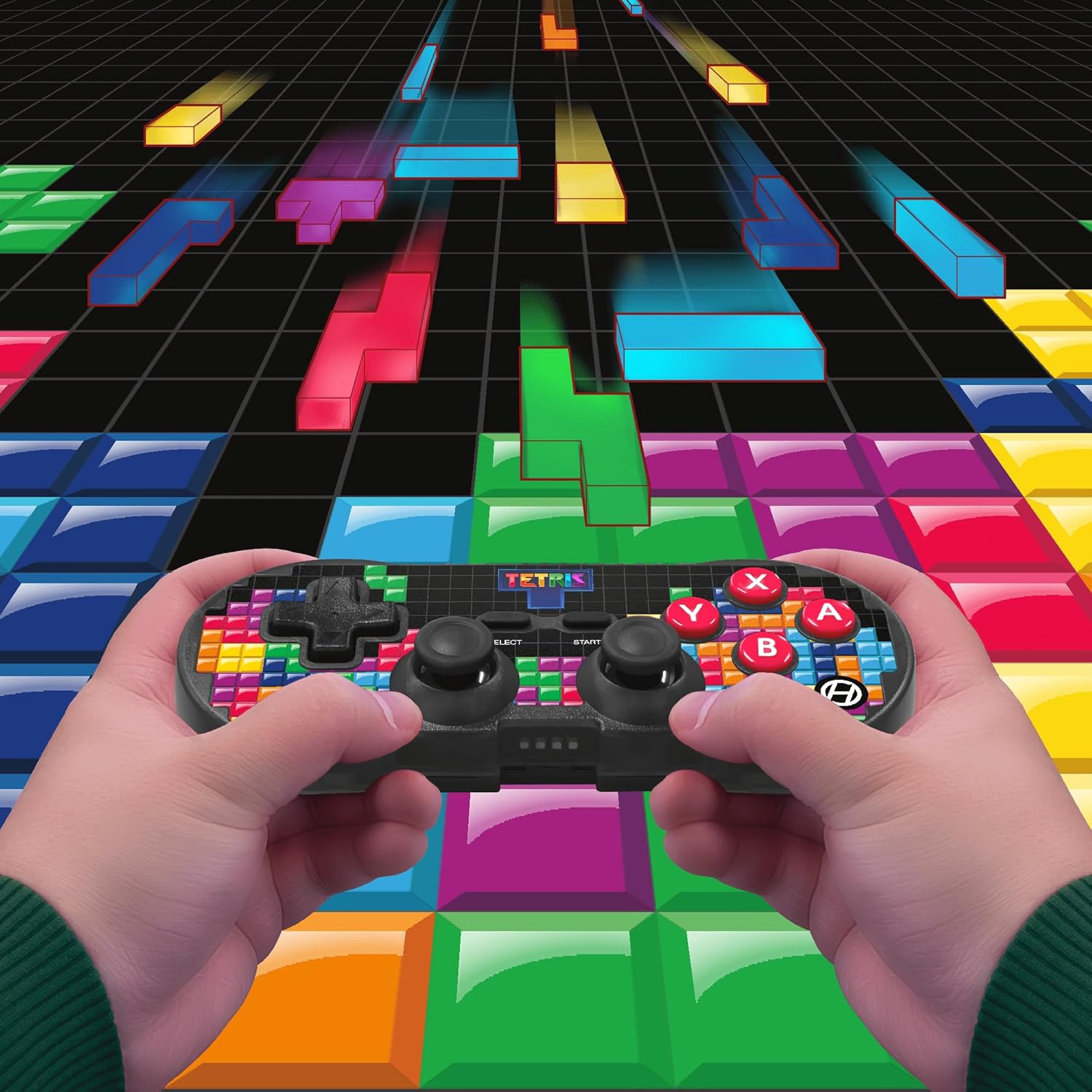
Image 5.1: A user holding the controller, illustrating its use during gameplay.
5.2. Turbo funkcija
The controller features a turbo function for rapid button presses. To activate or deactivate turbo for a specific button:
- Nospiediet un turiet Turbo poga.
- While holding the Turbo button, press the desired darbības poga (A, B, X, Y, L1, R1, L2, R2) you wish to apply turbo to.
- Release both buttons. The selected action button will now have turbo enabled.
- To disable turbo for that button, repeat the process.
6. Saderība
The Hyperkin Pixel Art Bluetooth Controller is compatible with a wide range of platforms:
- Nintendo Switch
- Nintendo Switch OLED modelis
- Windows 10/11 dators
- Mac
- Android ierīces
- iOS ierīces
- Tvaiks
- Raspberry Pi
- Amazon Games
- Amazon Luna
- Tesla

Image 6.1: Visual representation of the controller's broad compatibility across multiple gaming and computing platforms.
7. Apkope
Lai nodrošinātu kontroliera ilgmūžību un optimālu veiktspēju:
- Tīrīšana: Kontroliera tīrīšanai izmantojiet mīkstu, sausu drānu. Izvairieties no abrazīviem tīrīšanas līdzekļiem vai šķīdinātājiem.
- Uzglabāšana: Uzglabājiet kontrolieri vēsā, sausā vietā, pasargājot to no tiešiem saules stariem un ekstremālām temperatūrām.
- Akumulatora kopšana: Do not attempt to replace the internal Lithium Polymer battery. Avoid fully discharging the battery for extended periods.
- Izvairieties no pilieniem: Aizsargājiet kontrolieri no kritieniem un triecieniem, kas var sabojāt iekšējās sastāvdaļas.
8. Traucējummeklēšana
Ja rodas problēmas ar Hyperkin Pixel Art Bluetooth kontrolieri, skatiet tālāk norādītās bieži sastopamās problēmas un risinājumus.
| Problēma | Iespējamais risinājums |
|---|---|
| Kontrolieris neieslēdzas. | Pārliecinieties, vai kontrolieris ir pilnībā uzlādēts. Pievienojiet to strāvas avotam, izmantojot USB-C kabeli. |
| Controller does not pair via Bluetooth. |
|
| Input lag or dropped connection. |
|
| Pogas nereaģē vai ir iestrēgušas. | Clean around the buttons with a soft, dry cloth. Avoid liquid cleaners. If the issue persists, contact support. |
9. Specifikācijas
| Funkcija | Detaļas |
|---|---|
| Modeļa numurs | M01328-TETS |
| Savienojamība | Bluetooth (Wireless up to 30 ft.), USB-C (Wired) |
| Saderība | Nintendo Switch/OLED, Windows 10/11 PC, Mac, Android, iOS, Steam, Raspberry Pi, Amazon Games, Amazon Luna, Tesla |
| Īpašas funkcijas | Turbo function, Retro design with modern ergonomics, High-quality symmetrical sticks, Responsive action buttons, Reliable triggers |
| Akumulatora tips | 1 Lithium Polymer battery (internal) |
| Iepakojuma izmēri | 7.24 x 5 x 2.48 collas |
| Preces svars | 9.9 unces |
| Ražotājs | Hiperkins |
10. Garantija un atbalsts
For warranty information and technical support, please visit the official Hyperkin webvietnē vai sazinieties ar klientu apkalpošanas nodaļu. Saglabājiet pirkuma apliecinājumu garantijas prasību iesniegšanai.
Hyperkin Oficiālais Webvietne: www.hyperkin.com


