Ievads
This manual provides detailed instructions for the OWC Gemini Thunderbolt (USB-C) Docking Station and External RAID Storage Solution. It covers setup, operation, maintenance, troubleshooting, and technical specifications to ensure optimal performance and longevity of your device.
Drošības informācija
- Pirms ierīces lietošanas uzmanīgi izlasiet visus norādījumus.
- Nepakļaujiet ierīci mitrumam vai ekstremālām temperatūrām.
- Izmantojiet tikai ierīces komplektācijā iekļauto strāvas adapteri.
- Nemēģiniet ierīci atvērt vai remontēt pats. Visu apkopi uzticiet kvalificētam personālam.
- Nodrošiniet pareizu ventilāciju ap ierīci, lai novērstu pārkaršanu.
Iepakojuma saturs
Pārliecinieties, vai iepakojumā ir visas preces:
- OWC Gemini Thunderbolt (USB-C) Docking Station
- Strāvas adapteris
- Thunderbolt (USB-C) Cable
- Lietotāja rokasgrāmata (šis dokuments)
- Drives (pre-installed for 32TB model)
Produkts beidziesview
The OWC Gemini is a versatile docking station and external storage solution designed for high-performance data management and expanded connectivity.

Attēls: priekšpuse view of the OWC Gemini Thunderbolt Docking Station, showcasing its sleek black design and OWC branding.
Galvenās iezīmes
- Dual Drive Bays: Supports 2.5-inch and 3.5-inch SATA drives for flexible storage configurations.
- Hardware RAID: Offers RAID 0, RAID 1, SPAN, and JBOD modes for optimized performance or data redundancy.
- Thunderbolt (USB-C) Connectivity: Two Thunderbolt 3 (USB-C) ports for host connection, daisy-chaining, and power delivery (up to 27W).
- Paplašināta savienojamība: Includes two USB 3.2 Gen 2 Type-A ports, one HDMI port, one 2.5 Gigabit Ethernet port, and one SD 4.0/UHS-II media slot.
- Augstas izšķirtspējas displeja atbalsts: HDMI 2.1 supports up to 8K @ 120Hz, and Thunderbolt 3 supports up to 8K @ 60Hz or 4K @ 120Hz.
Portu izkārtojums
The OWC Gemini provides a comprehensive set of ports for various connectivity needs.

Attēls: Aizmugure view of the OWC Gemini Docking Station, highlighting the 7 ports of connectivity including Thunderbolt, USB, HDMI, and Ethernet.
- Thunderbolt 3 (USB-C) Host Port: Izveido savienojumu ar datoru.
- Thunderbolt 3 (USB-C) Downstream Port: For daisy-chaining, additional displays, or charging USB-C devices.
- USB 3.2 2. paaudzes A tipa porti (x2): USB perifērijas ierīču pievienošanai.
- HDMI 2.1 ports: For connecting an external display.
- 2.5 gigabitu Ethernet ports: For high-speed network connectivity.
- SD 4.0/UHS-II Media Slot: Located on the front panel for convenient access.
- DC 12V barošanas ieeja: Savieno ar strāvas adapteri.

Image: Close-up of the front panel of the OWC Gemini, showing the easily accessible SD card slot.
Iestatīšana
1. Drive Installation (if applicable)
For models without pre-installed drives, follow these steps to install 2.5-inch or 3.5-inch SATA drives.

Image: The OWC Gemini unit illustrating its two flexible drive bays, compatible with both 2.5-inch and 3.5-inch drives.
- Ensure the device is powered off and disconnected from your computer.
- Open the drive bay door(s) according to the product's physical design.
- Insert your 2.5-inch or 3.5-inch SATA drives into the bays, ensuring they are securely seated.
- Close the drive bay door(s).
2. RAID konfigurācija
The OWC Gemini supports hardware RAID. Refer to the specific RAID configuration utility or physical switches on the device (if present) to set your desired RAID level (RAID 0, RAID 1, SPAN, or JBOD).
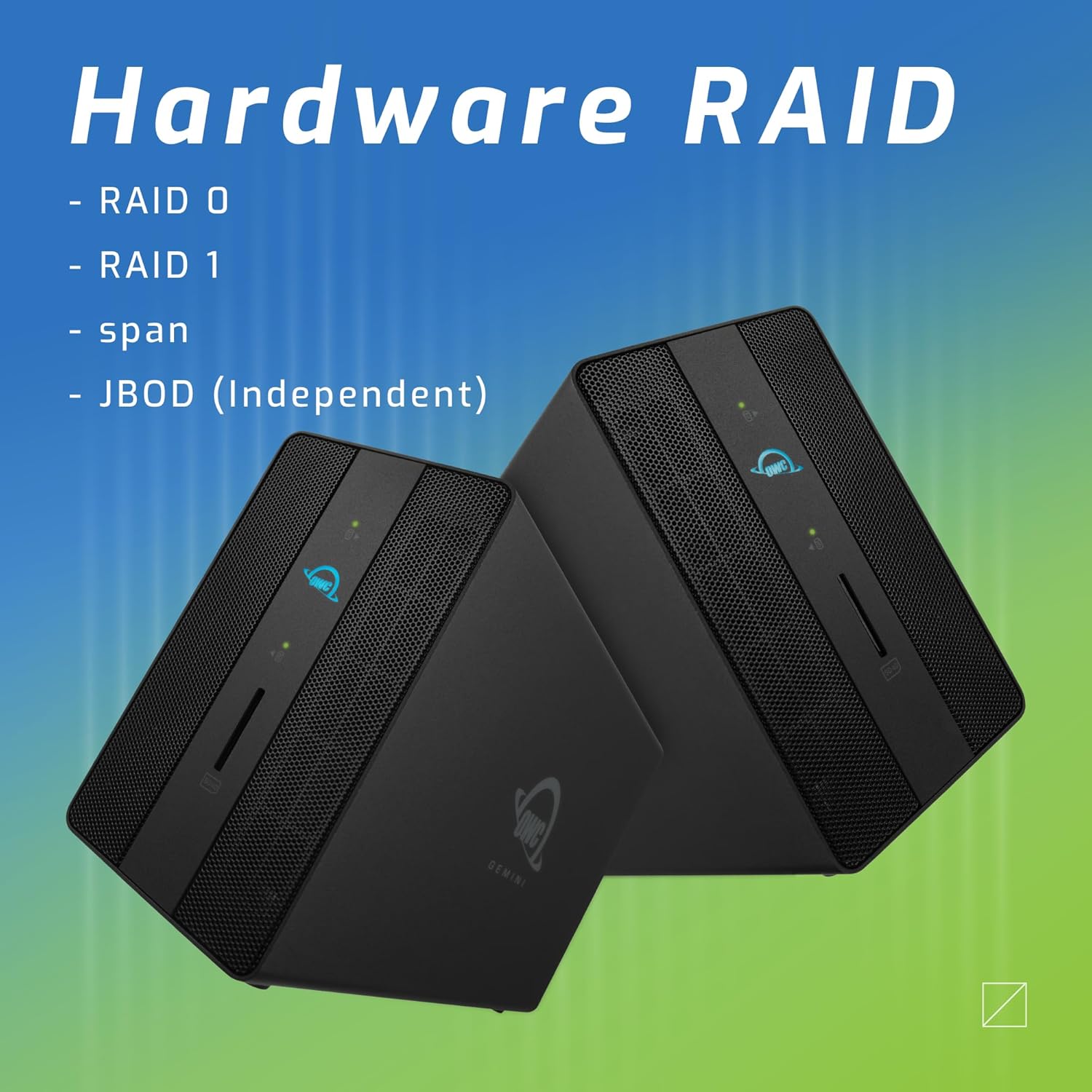
Image: Two OWC Gemini units, emphasizing the hardware RAID capabilities for configurations like RAID 0, RAID 1, SPAN, and JBOD.
RAID Levels Explained:
- RAID 0 (svītrošana): Combines drives for maximum speed and capacity, but offers no data redundancy.
- RAID 1 (spoguļošana): Duplicates data across drives for redundancy, sacrificing half the total capacity for data protection.
- SPAN (Concatenation): Combines drives into a single large volume without striping or mirroring.
- JBOD (tikai disku ķekars): Treats each drive as an independent volume.
3. Savienošana ar datoru
- Connect the power adapter to the DC 12V power input on the OWC Gemini and then to a power outlet.
- Connect one end of the Thunderbolt (USB-C) cable to the host port on the OWC Gemini.
- Connect the other end of the Thunderbolt (USB-C) cable to a Thunderbolt (USB-C) port on your computer.
- Ierīcei vajadzētu ieslēgties automātiski.
4. Initializing Drives
After connecting, your operating system may prompt you to initialize and format the new drives. Follow the on-screen instructions. For macOS, use Disk Utility. For Windows, use Disk Management.
Lietošanas instrukcijas
Datu pārsūtīšana
Once the drives are initialized and formatted, they will appear as accessible volumes on your computer. You can drag and drop files to and from these volumes as you would with any other storage device.
Izmantojot USB portus
Connect USB peripherals such as external drives, keyboards, or mice to the two USB 3.2 Gen 2 Type-A ports. These ports support data transfer speeds up to 10 Gb/s.
Ārējā displeja pievienošana
Use the HDMI 2.1 port to connect an external monitor. The Gemini supports resolutions up to 8K @ 120Hz via HDMI.
Tīkla savienojamība
Connect an Ethernet cable from your network router or switch to the 2.5 Gigabit Ethernet port on the Gemini for high-speed wired network access.
Using the SD Card Slot
Insert an SD 4.0/UHS-II compatible SD card into the front-facing slot for quick data transfer from cameras or other devices.
Daisy-Chaining and Power Delivery

Image: A close-up of the OWC Gemini's Thunderbolt ports, illustrating their use for daisy-chaining, connecting additional displays, and charging USB-C devices.
The second Thunderbolt 3 (USB-C) port allows you to:
- Margrietiņa-ķēde additional Thunderbolt devices.
- Pievienojiet an additional display (up to 8K @ 60Hz or 4K @ 120Hz).
- Charge USB-C devices with up to 27 watts of power.
Apkope
- Tīrīšana: Ierīces ārpuses tīrīšanai izmantojiet mīkstu, sausu drānu. Nelietojiet šķidrus tīrīšanas līdzekļus vai aerosolus.
- Ventilācija: Ensure that the ventilation grilles are not obstructed to prevent overheating.
- Programmaparatūras atjauninājumi: Periodically check the OWC webvietni programmaparatūras atjauninājumiem, lai nodrošinātu optimālu veiktspēju un saderību.
- Droša izmešana: Always safely eject the OWC Gemini from your operating system before disconnecting it or powering it off to prevent data corruption.
Problēmu novēršana
Ierīce nav atpazīta
- Ensure all cables are securely connected, especially the Thunderbolt cable to both the Gemini and your computer.
- Verify the power adapter is correctly connected and the device is receiving power.
- Try connecting the Gemini to a different Thunderbolt port on your computer.
- Restartējiet datoru.
- Check your operating system's Disk Utility (macOS) or Disk Management (Windows) to see if the drives are detected but uninitialized or unformatted.
Lēns datu pārsūtīšanas ātrums
- Ensure you are using a Thunderbolt 3 compatible cable and port.
- Check the RAID configuration. RAID 1 (mirroring) will have slower write speeds than RAID 0 (striping).
- Close any unnecessary applications that might be consuming system resources.
- Pārliecinieties, vai datora draiveri ir atjaunināti.
Displeja problēmas
- Verify the HDMI cable is securely connected to both the Gemini and your monitor.
- Check your display settings in your operating system.
- Ensure your monitor supports the resolution and refresh rate you are attempting to use.
- Izmēģiniet citu HDMI kabeli vai monitoru, ja tāds ir pieejams.
Tīkla savienojuma problēmas
- Ensure the Ethernet cable is securely connected to both the Gemini and your network device.
- Pārbaudiet datora tīkla iestatījumus.
- Restartējiet maršrutētāju/modemu.
Specifikācijas
| Funkcija | Detaļas |
|---|---|
| Zīmols | OWC |
| Modeļa numurs | OWCTB3GM000H32 |
| Uzglabāšanas ietilpība | 32.0TB (as configured) |
| Drive Bays | 2 (supports 2.5" and 3.5" SATA drives) |
| RAID līmeņi | SPAN, RAID 0, RAID 1, JBOD (Hardware RAID) |
| Uzņēmēja saskarne | Thunderbolt 3 (USB-C) |
| Datu pārsūtīšanas ātrums | Up to 40 Gb/s (Thunderbolt 3), Up to 10 Gb/s (USB 3.2 Gen 2) |
| Ostas | (1) Thunderbolt 3 (USB-C) Host, (1) Thunderbolt 3 (USB-C) Downstream, (2) USB 3.2 Gen 2 Type-A, (1) HDMI 2.1, (1) 2.5 Gigabit Ethernet, (1) SD 4.0/UHS-II |
| Displeja atbalsts | HDMI 2.1: Up to 8K @ 120Hz; Thunderbolt 3: Up to 8K @ 60Hz or 4K @ 120Hz |
| Strāvas piegāde | Up to 27W via Thunderbolt 3 |
| Saderīgas ierīces | Desktop, Laptop, Tablet (with Thunderbolt/USB-C port) |
| Krāsa | Melns |
| Svars | 9.35 mārciņas (aptuveni) |
| UPC | 810100983697 |
Garantija un atbalsts
Garantijas informācija
OWC products are covered by a limited warranty. Please refer to the official OWC website or your purchase documentation for specific warranty terms and conditions. Keep your proof of purchase for warranty claims.
Tehniskais atbalsts
For technical assistance, troubleshooting, or further inquiries, please visit the official OWC support webvietnē vai sazinieties ar viņu klientu apkalpošanas dienestu.


