1. Ievads
This manual provides detailed instructions for the setup, operation, and maintenance of your KTC 32-Inch 2K QHD IPS Monitor, model H32T13. Please read this manual thoroughly before using the monitor to ensure proper functionality and to prevent damage.
The KTC H32T13 monitor features a 32-inch IPS panel with 2K QHD (2560x1440) resolution, a 100Hz refresh rate, and support for FreeSync/G-Sync technologies. It is designed for both office productivity and gaming, offering vibrant colors, wide viewing angles, and eye-care features.
2. Kas ir kastē
Pārliecinieties, vai iepakojumā ir visas sastāvdaļas:
- KTC 32-Inch 2K QHD IPS Monitor (H32T13)
- Monitora statīvs (pamatne un kakls)
- HDMI kabelis
- Strāvas vads
- Strāvas adapteris
- Skrūvgriezis
- Lietotāja rokasgrāmata (šis dokuments)

Image: Contents of the KTC H32T13 monitor package.
3. Produkts beidziesview
The KTC H32T13 monitor is designed for a superior visual experience. Key features include:
- 32-inch QHD (2560x1440) IPS Panel: Delivers crisp, detailed images with accurate colors and wide viewleņķi.
- 100Hz atsvaidzes intensitāte: Provides smoother motion for gaming and fast-paced content.
- FreeSync/G-Sync Compatibility: Reduces screen tearing and stuttering for a fluid gaming experience.
- HDR atbalsts: Enhances contrast and color for more realistic visuals.
- Acu kopšanas tehnoloģija: Features Flicker-Free and Low Blue Light modes to reduce eye strain during prolonged use.
- Daudzpusīga savienojamība: Equipped with multiple HDMI 2.0 and DisplayPort 1.4 inputs.
- Ergonomisks dizains: Offers tilt adjustment and VESA mount compatibility for flexible positioning.
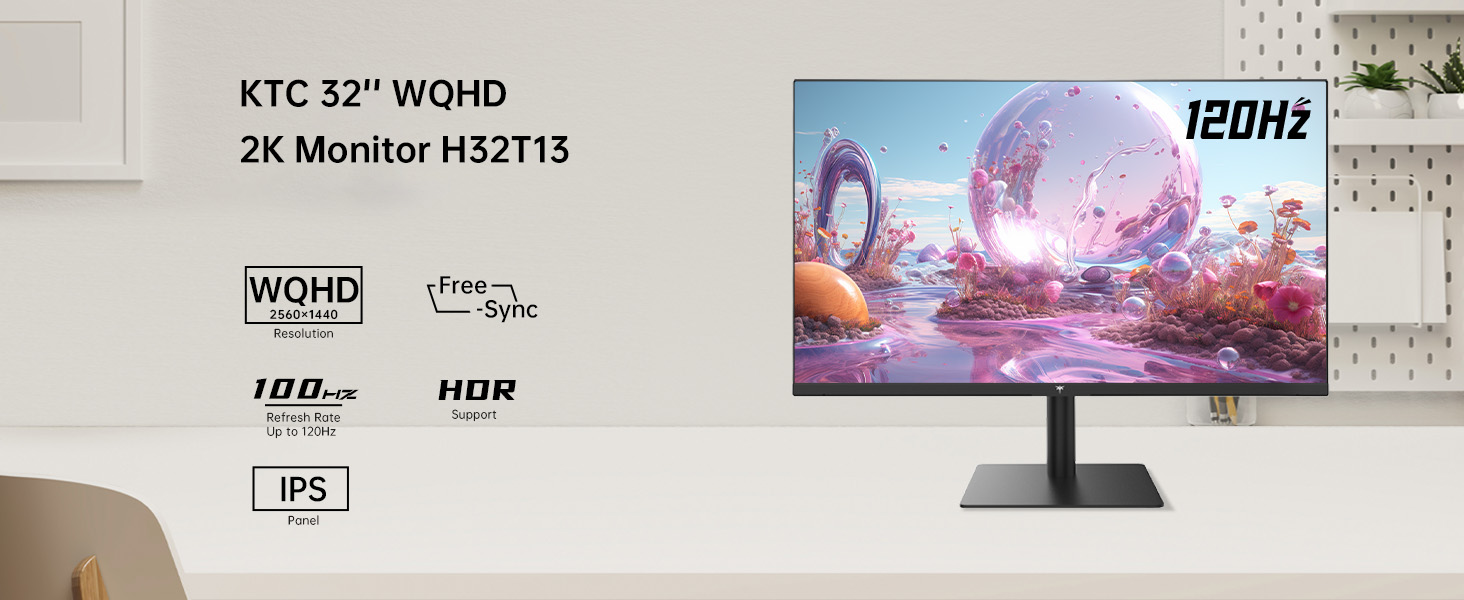
Image: KTC H32T13 monitor showcasing its key display technologies.

Image: The 32-inch screen size of the KTC H32T13 monitor.
4. Iestatīšana
4.1 Statīva salikšana
- Uzmanīgi izņemiet monitora un statīva sastāvdaļas no iepakojuma.
- Attach the stand neck to the monitor panel using the provided screws and screwdriver.
- Piestipriniet statīva pamatni pie statīva kakliņa.
- Novietojiet salikto monitoru uz stabilas, līdzenas virsmas.
4.2 VESA stiprinājums (pēc izvēles)
The monitor supports VESA 100mm x 100mm mounting. If you wish to use a VESA-compatible arm or wall mount (not included), remove the stand and attach the VESA mount according to its instructions.

Attēls: Aizmugure view of the monitor with VESA 100x100mm mounting points.
4.3 Pievienošana datoram
- Pārliecinieties, vai gan monitors, gan dators ir izslēgti.
- Connect one end of the provided HDMI cable to an HDMI port on your computer's graphics card.
- Connect the other end of the HDMI cable to one of the HDMI 2.0 ports on the monitor. Alternatively, use a DisplayPort cable to connect to a DP 1.4 port for higher refresh rates and FreeSync/G-Sync functionality.
- Connect the power adapter to the monitor's DC input and then plug the power cord into a power outlet.
- Ieslēdziet datoru, pēc tam ieslēdziet monitoru.

Image: Monitor connectivity ports (DC, HDMI 1, HDMI 2, DP 1).
5. Lietošanas instrukcijas
5.1 Ieslēgšana/izslēgšana
Lai ieslēgtu vai izslēgtu monitoru, nospiediet uz tā esošo ieslēgšanas/izslēgšanas pogu. Kad monitors ir ieslēgts, iedegsies ieslēgšanas/izslēgšanas indikators.
5.2 Ievades avota izvēle
Use the OSD (On-Screen Display) menu buttons to navigate and select your desired input source (HDMI 1, HDMI 2, or DisplayPort).
5.3 Displeja iestatījumu pielāgošana (OSD izvēlne)
The OSD menu allows you to customize various display settings. Typically, buttons are located on the back or bottom of the monitor. Refer to the quick start guide for specific button functions.
- Spilgtums/kontrasts: Pielāgojiet kopējo spilgtumu un kontrasta attiecību.
- Krāsu iestatījumi: Modify color temperature, gamma, and individual RGB levels. The monitor supports 1.07 billion colors and 103% sRGB.
- Attēla režīms: Select from preset modes optimized for different content (e.g., Standard, Game, Movie, Text).
- Atsvaidzināšanas biežums: The monitor supports up to 100Hz. Ensure your graphics card settings are configured to match.
- FreeSync/G-Sync: Enable this feature in the OSD menu and your graphics card control panel for adaptive synchronization.
- Eye Care Modes: Activate Flicker-Free and Low Blue Light modes to reduce eye strain.
- HDR: Enable HDR for compatible content and devices.

Image: Monitor displaying enhanced colors and brightness with HDR enabled.

Image: Visual comparison of FreeSync/G-Sync enabled and disabled, demonstrating smoother gameplay.

Image: IPS panel advantages in brightness and color over VA panels.
5.4 Fiziskās korekcijas
The monitor stand allows for tilt adjustment from -5° to 15° to optimize your viewleņķis.

Image: Monitor tilt adjustment range and eye care features.
Video: Beigāsview of the KTC 2K IPS Office Monitor, highlighting its features and suitability for office use. This video demonstrates the monitor's visual quality and design.
6. Apkope
6.1 Monitora tīrīšana
- Pirms tīrīšanas vienmēr izslēdziet monitoru un atvienojiet strāvas vadu.
- Viegli izmantojiet mīkstu, neplūksnu drānu dampnoskalot ar ūdeni vai maigu, neabrazīvu ekrāna tīrīšanas līdzekli.
- Wipe the screen gently to remove dust and smudges. Avoid applying direct pressure to the screen.
- Do not use alcohol, ammonia-based cleaners, or abrasive materials, as these can damage the screen surface.
- Notīriet monitoru casinnoslaukiet ar mīkstu, sausu drānu.
6.2. Uzglabāšana
If storing the monitor for an extended period, ensure it is powered off, unplugged, and stored in a cool, dry place away from direct sunlight and extreme temperatures. Use the original packaging if available for best protection.
7. Traucējummeklēšana
| Problēma | Iespējamais cēlonis | Risinājums |
|---|---|---|
| Ekrānā nav attēla | Monitor not powered on; Incorrect input source; Loose video cable; Computer in sleep mode. | Ensure power is connected and monitor is on. Select correct input source. Check video cable connections. Wake up computer. |
| Attēls ir izplūdis vai deformēts | Incorrect resolution; Faulty video cable; Graphics driver issues. | Set display resolution to 2560x1440. Try a different video cable. Update graphics drivers. |
| Ekrāna mirgošana vai plīsumi | Refresh rate mismatch; FreeSync/G-Sync not enabled or incompatible. | Ensure refresh rate is set to 100Hz. Enable FreeSync/G-Sync in monitor OSD and graphics card settings. Use DisplayPort for FreeSync/G-Sync. |
| Nav skaņas no austiņām | Headphones not connected properly; Audio output not set to monitor. | Check headphone connection. Set monitor as default audio output in your computer's sound settings. |
| Pogas nereaģē | OSD lock enabled; Temporary software glitch. | Check if OSD lock is active (refer to quick start guide). Power cycle the monitor. |
8. Specifikācijas
| Funkcija | Detaļas |
|---|---|
| Modeļa numurs | H32T13 |
| Ekrāna izmērs | 32 collas |
| Paneļa veids | IPS |
| Izšķirtspēja | 2560 x 1440 (QHD platleņķa 1440p) |
| Malu attiecība | 16:9 |
| Atsvaidzināšanas biežums | 100 Hz |
| Spilgtums | 350 Candela (typ.) |
| Krāsu gamma | 103% sRGB |
| Krāsu dziļums | 1.07 miljardi krāsu |
| HDR atbalsts | Jā |
| Adaptīvā sinhronizācija | FreeSync/G-Sync Compatible |
| Savienojamība | 2x HDMI 2.0, 1x DisplayPort 1.4 |
| Slīpuma regulēšana | -5° līdz 15° |
| VESA kalns | 100 mm x 100 mm |
| Acu kopšanas līdzekļi | Flicker-Free, Eye Protection Mode (Low Blue Light) |
| Produkta izmēri | 5.31 x 32.48 x 21.2 collas |
| Preces svars | 18.81 mārciņas |
9. Garantija un atbalsts
9.1 Informācija par garantiju
KTC products are covered by a limited warranty. Please refer to the warranty card included in your product packaging or visit the official KTC webDetalizētus garantijas noteikumus un nosacījumus skatiet vietnē. Saglabājiet pirkuma apliecinājumu garantijas prasību iesniegšanai.
9.2 Klientu atbalsts
For technical assistance, troubleshooting not covered in this manual, or warranty inquiries, please contact KTC customer support through the following channels:
- Tiešsaistes atbalsts: Visit the KTC official website for FAQs, driver downloads, and support contact forms.
- E-pasta atbalsts: Refer to your warranty card or the KTC webvietnē, lai atrastu atbilstošo atbalsta e-pasta adresi.
- Amazon atbalsts: If purchased via Amazon, you can contact the seller directly through your Amazon order history for assistance.
Image: Steps to contact KTC customer support via Amazon.


