1. Ievads
This manual provides detailed instructions for the setup, operation, and maintenance of your KAYSION SK45 Bluetooth Thermal Shipping Label Printer. Please read this manual thoroughly before using the printer to ensure optimal performance and longevity.
Produkta īpašības:
- Bluetooth savienojums: Seamless wireless printing from smartphones and tablets (iOS and Android).
- USB savienojums: Compatible with Mac OS and Windows laptops and PCs.
- Lietotājam draudzīgs dizains: Durable print head, one-touch paper feed calibration, and quiet operation.
- Smart Thermal Printing: No ink or toner required, 203 DPI resolution for clear prints, and high-speed printing up to 150mm/s.
- Plaša etiķešu saderība: Supports labels from 1" to 4.4" width, including 4x6'' shipping labels, product labels, address labels, and more.
- Daudzpusīgas lietojumprogrammas: Ideal for commercial and domestic use, including shipping, barcode, product pricing, and organization.
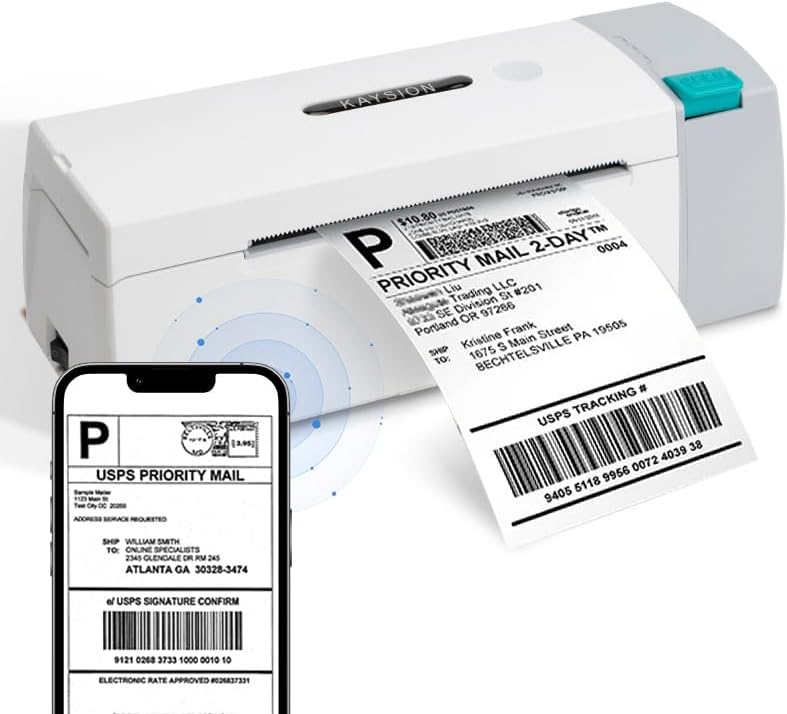
The KAYSION SK45 Thermal Printer in operation, demonstrating its ability to print shipping labels directly from a mobile device.
2. Iestatīšanas rokasgrāmata
2.1 Izpakošana un sākotnējā pārbaude
Uzmanīgi izņemiet visas sastāvdaļas no iepakojuma. Pārliecinieties, vai ir šādas lietas:
- KAYSION SK45 Thermal Printer
- Strāvas adapteris
- USB kabelis
- Sample Etiķetes
Inspect the printer for any visible damage. If any components are missing or damaged, please contact customer support.
2.2 Etiķešu ielāde
The SK45 printer features a built-in paper compartment designed to accommodate label rolls up to 12 meters in length.
- Press the 'Open' button on the side of the printer to lift the top cover.
- Place the label roll into the paper tray, ensuring the labels feed from the bottom and the printable side faces upwards.
- Izvelciet dažas uzlīmes garām drukas galviņai.
- Cieši aizveriet augšējo vāku, līdz tas noklikšķ savā vietā.
- The printer will automatically calibrate and feed a few labels to detect the label size.

Image illustrating the internal paper tray of the KAYSION SK45 printer, showing where to load the label roll.
2.3 Strāvas pieslēgums
Connect the power adapter to the printer's power port and then plug it into a wall outlet. The power indicator light will illuminate.
2.4 Programmatūras un lietotņu instalēšana
The KAYSION SK45 printer supports both wired and wireless connections.
For Mobile Devices (Bluetooth):
Download and install the official application for your smartphone or tablet:
- Android lietotne: "Print Label"
- iOS lietotne: "Zlabel"
You can typically find these apps on the Google Play Store or Apple App Store by searching for the respective names. Once installed, open the app and follow the in-app instructions to connect to your printer via Bluetooth.

Visual guide showing the four steps to connect the printer via Bluetooth using the mobile application: scan QR, connect, edit, and print.
For Computers (USB):
For Mac OS and Windows laptops and PCs, connect the printer using the provided USB cable. Drivers may be required and can typically be found on the KAYSION official website or included on a CD/USB drive with your purchase.

The KAYSION SK45 printer demonstrating its dual connectivity options, showing a wireless connection to a smartphone and a wired USB connection to a laptop.
3. Lietošanas instrukcijas
3.1 Printing Your First Label
Once the printer is connected and labels are loaded, you can begin printing. The process will vary slightly depending on whether you are using the mobile app or a computer application.
Izmantojot mobilo lietotni:
- Open the "Print Label" (Android) or "Zlabel" (iOS) app.
- Select or create the label design you wish to print.
- Ensure the printer is selected and connected via Bluetooth within the app.
- Tap the 'Print' button. The printer will automatically feed and print the label.
Izmantojot datoru:
- Open your preferred label design software or shipping platform.
- Select the KAYSION SK45 as your printer.
- Pielāgojiet drukas iestatījumus pēc nepieciešamības (piemēram, etiķetes izmēru, orientāciju).
- Sāciet drukas komandu no savas programmatūras.

A user demonstrating the ease of operation of the KAYSION SK45 printer, printing labels for various purposes.
3.2 Supported Label Types and Sizes
The KAYSION SK45 is designed to print on a wide range of thermal labels, with a printing width from 0.78 inches (20mm) to 4.09 inches (104mm).
Commonly supported label types include:
- 4x6 inch shipping labels
- 3x2 inch product labels
- 3x1 inch address labels
- 2x2 inch circle labels
- 2.25x1.25 inch product SKU labels
- 2x1 inch barcode labels
- 1x1 inch QR code labels
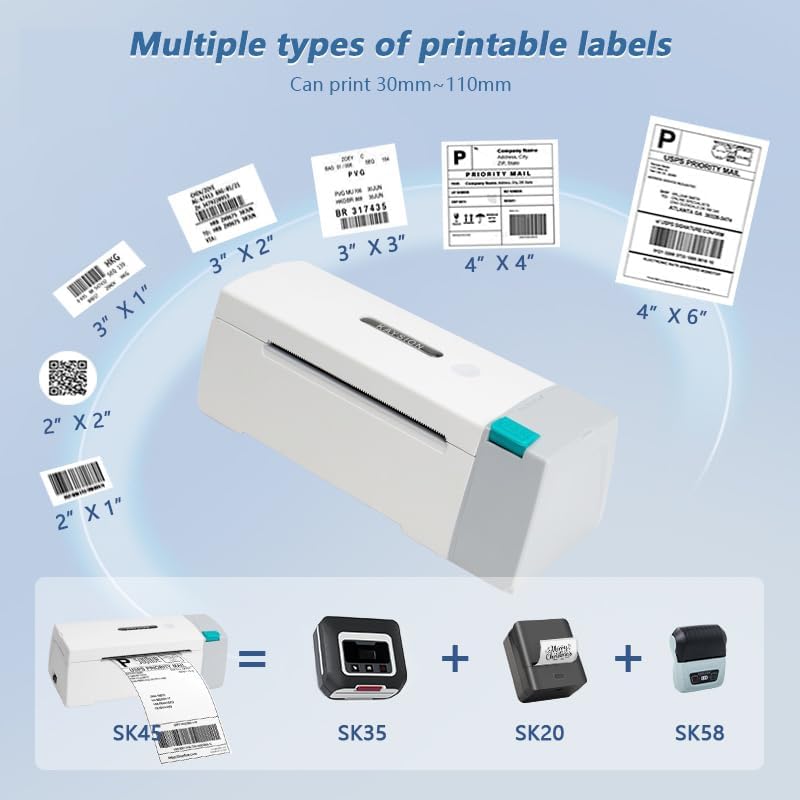
Ilustrāciju izstādeasing the diverse range of label sizes and types that can be printed using the KAYSION SK45 thermal label printer.

The KAYSION SK45 printer demonstrating its compatibility with different types of thermal labels, suitable for various business and personal needs.
3.3 Video Guide: KAYSION SK45 Thermal Printer Overview
Šis video sniedz vizuālu ieskatuview of the KAYSION SK45 Thermal Printer, including its features and basic operation. It demonstrates the printer's design, paper loading, and various printing applications.
4. Apkope
Regular maintenance ensures the longevity and optimal performance of your KAYSION SK45 printer.
4.1 Drukas galviņas tīrīšana
The print head is a critical component and should be cleaned periodically, especially if print quality degrades or lines appear on labels.
- Izslēdziet printeri un atvienojiet strāvas vadu.
- Atveriet printera augšējo vāku.
- Gently wipe the print head surface with an alcohol swab or a lint-free cloth lightly dampar izopropilspirtu.
- Pirms vāka aizvēršanas un printera atkārtotas ieslēgšanas ļaujiet drukas galviņai pilnībā nožūt.
4.2 Vispārējā tīrīšana
Wipe the exterior of the printer with a soft, dry cloth to remove dust and debris. Avoid using abrasive cleaners or solvents.
5. Traucējummeklēšana
If you encounter issues with your KAYSION SK45 printer, refer to the following common problems and solutions:
| Problēma | Iespējamais cēlonis | Risinājums |
|---|---|---|
| Printeris neieslēdzas | No power, faulty power adapter | Check power connections. Ensure the power adapter is securely plugged into both the printer and the wall outlet. Try a different outlet. |
| Etiķetes netiek padotas vai iesprūst | Labels incorrectly loaded, paper path obstruction, incorrect label type | Ensure labels are loaded correctly and not creased. Clear any obstructions in the paper path. Use only thermal labels compatible with the printer. Perform a one-touch paper feed calibration. |
| Poor print quality (faint, lines, blank) | Netīra drukas galviņa, zemas kvalitātes etiķetes, nepareizi drukas blīvuma iestatījumi | Clean the print head as described in the Maintenance section. Use high-quality thermal labels. Adjust print density settings in your printing software/app. |
| Bluetooth savienojuma problēmas | Printer not in pairing mode, app issues, device Bluetooth off | Ensure the printer's Bluetooth indicator is active. Restart the printer and your mobile device. Reinstall the printing app. Ensure Bluetooth is enabled on your device. |
| USB savienojums nav atpazīts | Missing or incorrect drivers, faulty USB cable, incorrect port | Install or update printer drivers. Try a different USB cable or USB port on your computer. Restart your computer. |
If the problem persists after trying these solutions, please contact KAYSION customer support for further assistance.
6. Specifikācijas
Detailed technical specifications for the KAYSION SK45 Thermal Shipping Label Printer:
- Modelis: SK45
- Drukāšanas tehnoloģija: Termiskā
- Drukas izšķirtspēja: 203 dpi (203 x 203 dpi)
- Max Print Speed (Monochrome): 150 mm/s
- Drukas platums: 0.78 collas - 4.09 collas (20 mm - 104 mm)
- Savienojamība: Bluetooth, USB
- Aparatūras saskarne: USB
- Krāsa: Balts
- Produkta izmēri: 8.38 x 2.75 x 2.95 collas (21.29 x 6.99 x 7.49 cm)
- Preces svars: 2.2 mārciņas (1 kg)
- Maksimālā ievades loksnes ietilpība: 50 (for roll labels)
- Atmiņas atmiņas ietilpība: 64 MB
- Iekļautie komponenti: Etiķetes (sample)
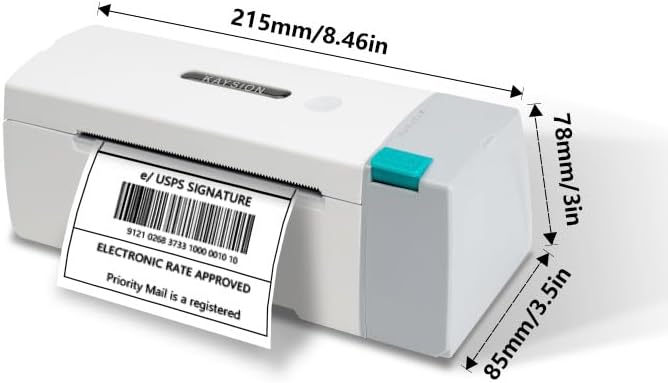
Diagram showing the physical dimensions of the KAYSION SK45 printer in both millimeters and inches.
7. Garantija un atbalsts
Your KAYSION SK45 Bluetooth Thermal Shipping Label Printer comes with a standard manufacturer's warranty. For specific warranty terms and conditions, please refer to the warranty card included with your product or visit the official KAYSION webvietne.
For technical support, troubleshooting assistance, or any inquiries regarding your printer, please contact KAYSION customer service through the contact information provided on their official webvietne vai jūsu pirkumu platforma.
Ražotājs: Šanhajas Dengyuan informācijas tehnoloģiju Co., Ltd.


