1. Svarīga drošības informācija
Please read this section carefully before using your Veidoo W40 tablet to ensure safe and proper operation. Keep this manual for future reference.
Vispārīgi piesardzības pasākumi
- Nepakļaujiet planšetdatoru ekstremālām temperatūrām, tiešiem saules stariem vai augstam mitrumam.
- Do not drop, bend, or puncture the tablet.
- Keep the tablet away from water and other liquids. If it gets wet, power it off immediately and allow it to dry completely before use.
- Use only accessories approved by Veidoo. Unauthorized accessories may damage the tablet or pose safety risks.
- Do not attempt to disassemble, repair, or modify the tablet yourself. Contact customer support for assistance.
Akumulatora drošība
- The tablet contains a non-removable lithium-ion battery. Do not attempt to replace it yourself.
- Nepakļaujiet akumulatoru uguns vai liela karstuma iedarbībai.
- Dispose of the tablet and its battery responsibly, following local regulations.
Uzlādes drošība
- Charge the tablet using the provided USB-C cable and a compatible power adapter.
- Do not charge the tablet in damp nosacījumiem.
- Unplug the charger when the tablet is fully charged or not in use.
2. Produkts beidziesview
The Veidoo W40 is an 11-inch Android tablet designed for versatile use, featuring an Octa-Core processor, ample storage, and modern connectivity options.
Galvenās iezīmes
- Displejs: 11-inch In-Cell HD Touch Screen with 1280x800 resolution.
- Procesors: 2.0 GHz Octa-Core processor for smooth performance.
- Atmiņa un atmiņa: 8GB RAM (4GB + 4GB expandable) and 128GB internal storage, expandable up to 1TB via MicroSD card.
- Operētājsistēma: Android 14.
- Kameras: 2MP front camera and 5MP rear camera.
- Savienojamība: WiFi 6 (802.11ax) and Bluetooth 5.0.
- Akumulators: 5000 mAh ietilpība.

Image: Veidoo W40 Tablet configuration summary, highlighting key features like Android 14, 11-inch In-Cell display, 1280x800 resolution, Octa-Core processor, 8GB RAM, 128GB ROM, 5000mAh battery, WiFi 6, Bluetooth 5.0, and dual cameras.
3. Kas ir kastē
The standard package for your Veidoo W40 tablet typically includes the following items:
- Veidoo W40 11-inch Android Tablet
- USB-C uzlādes kabelis
- Strāvas adapteris
- Lietotāja rokasgrāmata
Note: Contents may vary slightly depending on region or retailer.
4. Darba sākšana (iestatīšana)
4.1 Planšetdatora uzlāde
- Pievienojiet USB-C kabeli planšetdatora uzlādes portam.
- Pievienojiet USB-C kabeļa otru galu strāvas adapterim.
- Pievienojiet strāvas adapteri sienas kontaktligzdai.
- Allow the tablet to charge fully before first use. The battery indicator on the screen will show charging status.
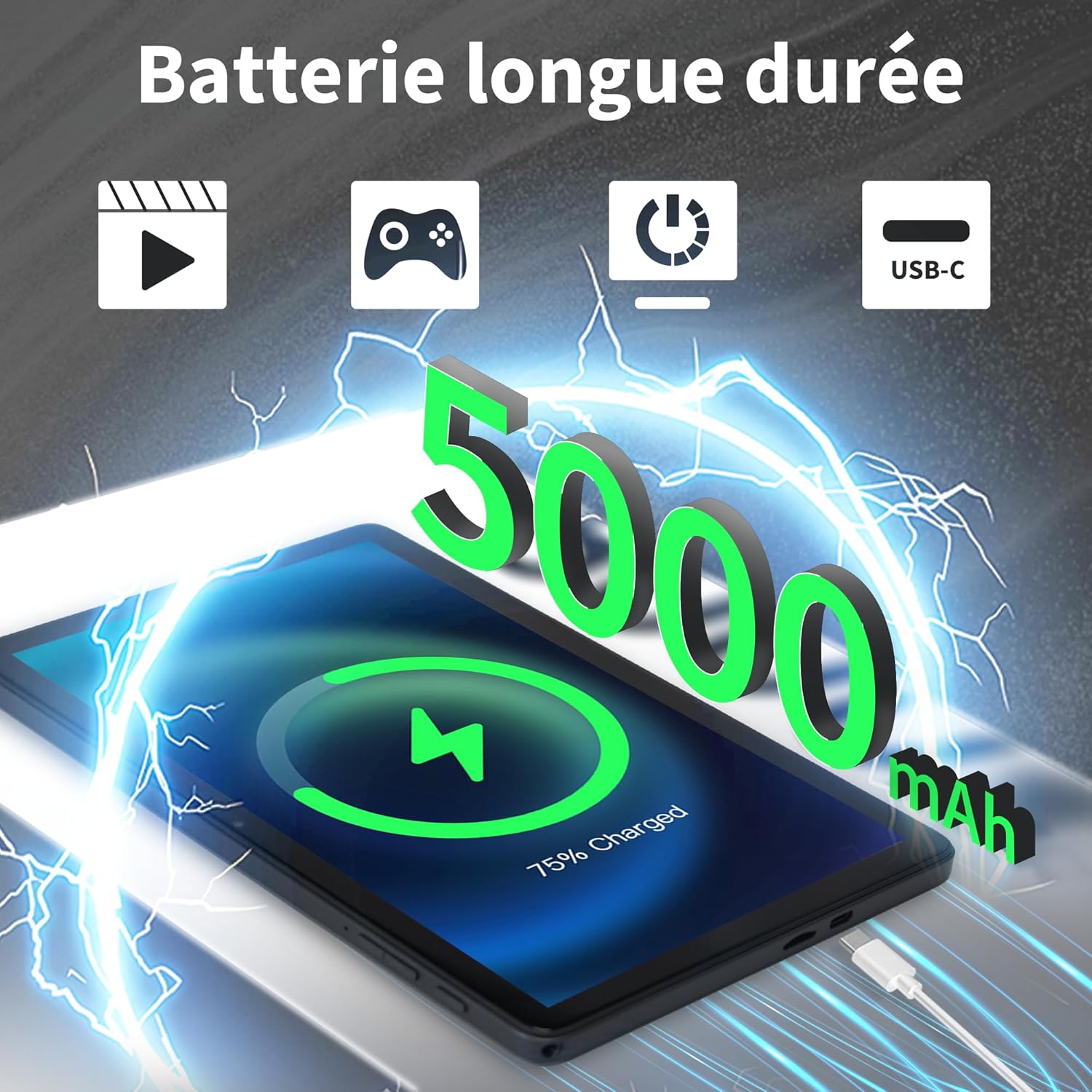
Image: Veidoo W40 Tablet connected to a USB-C charger, showing the battery icon and 5000mAh capacity.
4.2 Ieslēgšana/izslēgšana
- Lai ieslēgtu: Press and hold the Power button until the Veidoo logo appears on the screen.
- Lai izslēgtu: Nospiediet un turiet ieslēgšanas/izslēgšanas pogu, līdz parādās barošanas opciju izvēlne. Atlasiet “Izslēgt” un apstipriniet.
- Lai restartētu: Barošanas opciju izvēlnē atlasiet “Restartēt” un apstipriniet.
4.3 Sākotnējās iestatīšanas vednis
Pēc pirmās ieslēgšanas planšetdators jūs vadīs cauri sākotnējai iestatīšanas procedūrai:
- Izvēlieties vēlamo valodu.
- Izveidojiet savienojumu ar Wi-Fi tīklu.
- Pieņemiet noteikumus un nosacījumus.
- Pierakstieties ar savu Google kontu vai izveidojiet jaunu. Tas ir nepieciešams, lai lejupielādētu lietotnes no Google Play veikala.
- Set up screen lock (PIN, pattern, or password) and other security features.
- Review and adjust other settings as prompted.
4.4 MicroSD kartes ievietošana
The tablet supports expandable storage up to 1TB using a MicroSD card.
- Atrodiet MicroSD kartes slotu planšetdatora sānos.
- Uzmanīgi ievietojiet MicroSD karti slotā ar zelta kontaktiem uz leju, līdz tā noklikšķ savā vietā.
- The tablet will detect the card and may prompt you to format it for use as portable or internal storage. Follow the on-screen instructions.
5. Pamatdarbība
5.1 Pieskarieties žesti
- Pieskarieties: Vienreiz pieskarieties ekrānam, lai atlasītu vienumu vai atvērtu lietotni.
- Pieskarieties un turiet: Press and hold an item to access contextual menus or drag items.
- Pavelciet: Lai ritinātu lapas vai sarakstus, velciet pirkstu pāri ekrānam.
- Šķipsnu: Izmantojiet divus pirkstus, lai tuvinātu vai tālinātu fotoattēlus un web lapas.
5.2 Savienojuma izveide ar Wi-Fi
- Dodieties uz Iestatījumi > Tīkls un internets > Wi-Fi.
- Pārslēgt Wi-Fi On.
- Sarakstā atlasiet vēlamo Wi-Fi tīklu.
- Ievadiet paroli, ja tā tiek prasīta, un pieskarieties Savienot.
5.3 Savienojuma izveide ar Bluetooth ierīcēm
- Dodieties uz Iestatījumi > Pievienotās ierīces > Savienojuma preferences > Bluetooth.
- Pārslēgt Bluetooth On.
- Pārliecinieties, vai jūsu Bluetooth ierīce ir savienošanas pārī režīmā.
- Select the device from the list of available devices and follow any on-screen prompts to complete pairing.
5.4. Kameras lietošana
The tablet features a 2MP front camera and a 5MP rear camera.
- Atveriet Kamera lietotne.
- Pieskarieties kameras ikonai, lai pārslēgtos starp priekšējo un aizmugurējo kameru.
- Pieskarieties slēdža pogai, lai uzņemtu fotoattēlu vai sāktu/apturētu video ierakstīšanu.
- Access photos and videos in the Gallery app.

Image: Tablet cameras (2MP front, 5MP rear) with example photos, demonstrating its capability to capture moments.
5.5 Krātuves pārvaldība
The tablet comes with 128GB of internal storage and supports up to 1TB expandable storage.
- Dodieties uz Iestatījumi > Uzglabāšana uz view krātuves izmantošana.
- You can free up space by uninstalling unused apps, deleting old photos/videos, or moving fileuz MicroSD karti.

Image: Tablet storage illustration, showing how photos, videos, and music can be stored on the 128GB ROM and expanded with 8GB RAM.
5.6 Installing/Uninstalling Apps
- Instalējiet lietotnes: Atveriet Google Play veikals lietotni, meklējiet vēlamo lietotni un pieskarieties Instalējiet.
- Lietotņu atinstalēšana: Touch and hold the app icon on the home screen or app drawer, then drag it to "Uninstall" or select "App info" and tap "Uninstall". Alternatively, go to Iestatījumi > Lietotnes > atlasiet lietotni > Atinstalēt.

Image: Tablet in use for various activities such as watching movies, playing games, working, and video calls, demonstrating its versatility.
6. Apkope un kopšana
6.1 Planšetdatora tīrīšana
- Planšetdatora ekrāna un korpusa tīrīšanai izmantojiet mīkstu, bezplūksnu drānu.
- Noturīgiem traipiem nedaudz uzdzerietampNoslaukiet drānu ar ūdeni vai ekrāna tīrīšanas līdzekli, kas paredzēts elektronikai.
- Izvairieties no spēcīgu ķīmisku vielu, abrazīvu tīrīšanas līdzekļu vai aerosolu lietošanas.
6.2 Akumulatora optimizācija
To maximize battery life (5000mAh):
- Samaziniet ekrāna spilgtumu.
- Izslēdziet Wi-Fi un Bluetooth, kad tie netiek lietoti.
- Aizveriet fona lietotnes.
- Enable battery saver mode in Settings.
- Uzlādes un lietošanas laikā izvairieties no ekstremālām temperatūrām.
6.3. Programmatūras atjauninājumi
Regulāri pārbaudiet un instalējiet programmatūras atjauninājumus, lai nodrošinātu optimālu veiktspēju un drošību.
- Dodieties uz Iestatījumi > Sistēma > Sistēmas atjauninājums.
- Izpildiet ekrānā redzamos norādījumus, lai pārbaudītu un instalētu visus pieejamos atjauninājumus.
6.4 Rūpnīcas atiestatīšana
Rūpnīcas datu atiestatīšana izdzēsīs visus datus no planšetdatora un atjaunos sākotnējos rūpnīcas iestatījumus. Pirms turpināt, dublējiet svarīgos datus.
- Dodieties uz Iestatījumi > Sistēma > Atiestatīt opcijas.
- Izvēlieties Dzēst visus datus (atiestatīt rūpnīcas datus).
- Apstipriniet savu lēmumu un, ja tiek prasīts, ievadiet PIN kodu/rakstu/paroli.
7. Traucējummeklēšana
If you encounter issues with your Veidoo W40 tablet, try the following solutions:
Planšetdators neieslēdzas
- Ensure the tablet is sufficiently charged. Connect it to a power source and wait a few minutes before attempting to power on.
- Nospiediet un 10–15 sekundes turiet nospiestu ieslēgšanas/izslēgšanas pogu, lai piespiedu kārtā restartētu ierīci.
Wi-Fi savienojuma problēmas
- Pārliecinieties, vai iestatījumos ir iespējots Wi-Fi.
- Restartējiet savu Wi-Fi maršrutētāju.
- Planšetdatora iestatījumos aizmirstiet tīklu un pievienojiet to vēlreiz.
- Pārliecinieties, vai atrodaties Wi-Fi signāla diapazonā.
Lēna veiktspēja vai lietotņu avārijas
- Aizveriet neizmantotās fona lietojumprogrammas.
- Clear the cache of problematic apps (Settings > Apps > [App Name] > Storage & cache > Clear cache).
- Restartējiet planšetdatoru.
- Pārliecinieties, ka ir pieejama pietiekama uzglabāšanas vieta.
- Check for system and app updates.
Ekrāns nereaģē
- Restartējiet planšetdatoru, turot nospiestu ieslēgšanas/izslēgšanas pogu.
- Pārliecinieties, ka ekrāns ir tīrs un bez gružiem.
8. Specifikācijas
Below are the technical specifications for the Veidoo W40 11-inch Android Tablet:
| Funkcija | Specifikācija |
|---|---|
| Modelis | W40 |
| Displeja izmērs | 11 collas |
| Ekrāna izšķirtspēja | 1280 x 800 pixels (In-Cell HD Touch Screen) |
| Procesors | 2.0 GHz Octa-Core (Allwinner) |
| RAM | 8 GB (4 GB + 4 GB paplašināma) |
| Iekšējā atmiņa (ROM) | 128GB |
| Paplašināma krātuve | Līdz 1 TB, izmantojot MicroSD karti |
| Operētājsistēma | Android 14 |
| Priekšējā kamera | 2 MP |
| Aizmugurējā kamera | 5 MP |
| Wi-Fi | WiFi 6 (802.11ax) |
| Bluetooth | Bluetooth 5.0 |
| Akumulatora ietilpība | 5000 mAh |
| Izmēri (LxWxH) | 9.57 x 6.34 x 0.31 collas |
| Svars | 1.13 mārciņas |
| Krāsa | Pelēks |

Image: Octa-Core processor illustration, highlighting the 2.0 GHz speed and performance benefits.
9. Garantija un atbalsts
Garantijas informācija
Your Veidoo W40 tablet is covered by a standard manufacturer's warranty. Please refer to the warranty card included in your package or visit the official Veidoo webvietnē, lai iepazītos ar detalizētiem noteikumiem un nosacījumiem par garantijas segumu, ilgumu un pretenziju iesniegšanas procesu.
Klientu atbalsts
If you require technical assistance, have questions about your product, or need to report an issue, please contact Veidoo customer support. For inquiries, you may consult via email. Contact details are typically available on the official Veidoo webvietnē vai izmantojot jūsu pirkumu platformu.


