1. Ievads
This manual provides essential information for the setup, operation, and maintenance of your Vibox IV-524 Gaming PC. This mid-range gaming PC offers a balance of performance and value, suitable for smooth gameplay at 1080p and 1440p resolutions. Equipped with a powerful multi-core processor and a dedicated graphics card, it efficiently runs popular games and provides room for future upgrades.
2. Drošības informācija
- Barošanas avots: Use only the provided power cable and connect it to a grounded outlet. Ensure the power supply voltage matches your local electrical standards.
- Ventilācija: Do not block ventilation openings. Ensure adequate airflow around the PC to prevent overheating.
- Šķidrums un mitrums: Keep the PC away from liquids and excessive moisture. Do not operate the PC with wet hands.
- Izvietojums: Place the PC on a stable, flat surface. Avoid placing it in direct sunlight or near heat sources.
- Apkope: Do not attempt to open or repair the PC yourself. Refer all servicing to qualified personnel.
3. Iepakojuma saturs
Pārliecinieties, vai iepakojumā ir visas preces:
- Vibox IV-524 Gaming PC Tower
- Strāvas kabelis
- 300 Mbps Wi-Fi Adapter
- Dokumentācija (īsās lietošanas pamācība, garantijas informācija)
- RGB Lighting Controller (if applicable)
4. Iestatīšana
4.1 Izpakošana
Carefully remove the PC from its packaging. Inspect for any visible damage. Retain the original packaging for future transport or servicing.

Image: The Vibox IV-524 Gaming PC Tower, showcasing its white chassis and internal components.
4.2 Perifērijas ierīču pievienošana
- Monitors: Connect your monitor to the graphics card (NVIDIA GeForce RTX 5060) using an HDMI or DisplayPort cable. Ensure the cable is securely fastened.
- Tastatūra un pele: Connect your keyboard and mouse to the available USB ports on the rear or front of the PC.
- Jauda: Connect the power cable to the PC's power supply unit and then to a wall outlet.
- Tīkls: For wired internet, connect an Ethernet cable to the LAN port. For wireless internet, install the provided Wi-Fi adapter into an available USB port.

Image: Close-up of the Vibox IV-524 PC's front panel, highlighting USB 2.0, USB 3.0, headphone, and microphone ports, along with power and LED control buttons.
4.3 Sākotnējā palaišana un Windows iestatīšana
- Nospiediet ieslēgšanas/izslēgšanas pogu datora priekšpusē.
- The PC will boot into Windows 11 Home. Follow the on-screen instructions to complete the initial Windows setup, including language, region, network connection, and user account creation.
- Ensure all drivers are installed. Your system typically comes with pre-installed drivers. If any issues arise, visit the Vibox support webvietne jaunākajiem draiveriem.

Image: Visual representation of Windows 11 Home features, including faster loading times with DirectStorage, AutoHDR for enhanced graphics, seamless Xbox Game Pass integration, and optimized CPU performance.
5. Darbība
5.1. Ieslēgt/izslēgt un restartēt
- Ieslēgšana: Nospiediet barošanas pogu uz priekšējā paneļa.
- Izslēgt: Noklikšķiniet uz pogas Sākt operētājsistēmā Windows un pēc tam atlasiet Izslēgt > Izslēgt.
- Restartēt: Noklikšķiniet uz pogas Sākt operētājsistēmā Windows un pēc tam atlasiet Izslēgt > Restartēt.
5.2 Savienojuma izveide ar Wi-Fi
- Ensure the Wi-Fi adapter is connected to a USB port.
- In Windows, click the Network icon in the taskbar.
- Sarakstā atlasiet vēlamo Wi-Fi tīklu un noklikšķiniet uz “Savienot”.
- Ievadiet tīkla drošības atslēgu (paroli), ja tiek prasīts.
5.3 RGB apgaismojuma vadība
Your PC features customizable RGB lighting. If an RGB controller or remote was included, refer to its specific instructions for changing colors and effects. Otherwise, lighting may be controlled via pre-installed software or motherboard utilities.
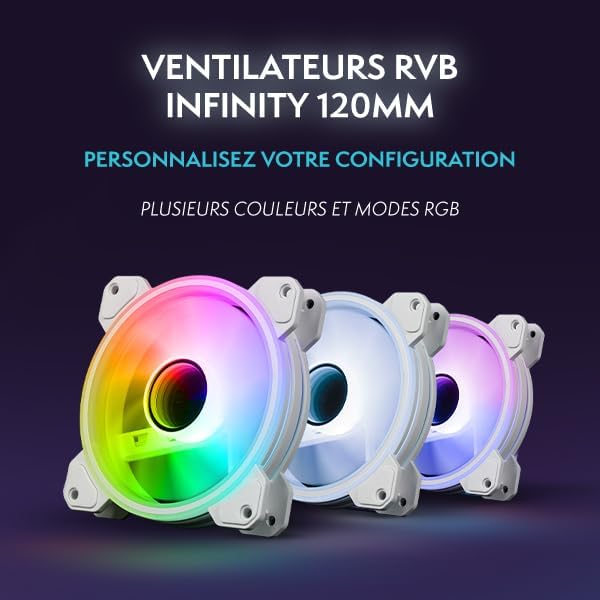
Attēls: Iekšējais view of the Vibox IV-524 PC, showcasing the illuminated RGB fans and components within the white chassis.
6. Apkope
6.1. Tīrīšana
- Ārpuse: Izmantojiet mīkstu, damp drānu ārējo virsmu tīrīšanai. Izvairieties no spēcīgām ķīmiskām vielām.
- Putekļi: Periodically clean dust from the ventilation grilles and internal components using compressed air. Ensure the PC is powered off and unplugged before cleaning.
6.2. Programmatūras atjauninājumi
Regularly update your Windows operating system, graphics drivers, and other software to ensure optimal performance and security. Windows Update can be accessed via Settings > Windows Update.
7. Traucējummeklēšana
- Nav jaudas: Ensure the power cable is securely connected to both the PC and the wall outlet. Check if the wall outlet is functional.
- Nav displeja: Verify that the monitor cable is correctly connected to the graphics card and the monitor is powered on and set to the correct input source.
- Nav interneta savienojuma: For Wi-Fi, ensure the adapter is installed and drivers are up to date. For wired, check the Ethernet cable connection. Restart your router/modem.
- Sistēmas palēnināšanās: Pārbaudiet fona lietojumprogrammas, kas patērē resursus. Pārliecinieties, vai SSD diskā ir pietiekami daudz brīvas vietas. Veiciet ļaunprogrammatūras skenēšanu.
- Pārkaršana: Ensure ventilation openings are clear. Clean dust from inside the PC.
For further assistance, refer to the Vibox support webvietni vai sazinieties ar klientu apkalpošanas dienestu.
8. Specifikācijas
| Komponents | Detaļas |
|---|---|
| Zīmols | Vibox |
| Modeļa numurs | IV-524 |
| Procesors | AMD Ryzen 7 5700X (8 Cores, Max 4.6 GHz) |
| Grafikas karte | NVIDIA GeForce RTX 5060 (8 GB GDDR7, HDMI 2.1, DisplayPort) |
| RAM | 16 GB DDR4 3200 MHz (Dual Channel) |
| Uzglabāšana | 1 TB SSD (Solid State) |
| Operētājsistēma | Windows 11 Home |
| Savienojamība | Wi-Fi (300 Mbps adapter included) |
| USB porti | 3x USB 2.0, 3x USB 3.0 |
| HDMI porti | 1 |
| Izmēri (G x P x A) | 37 x 20 x 46 cm |
| Svars | 12 kg |

Image: Diagram illustrating the dimensions of the Vibox IV-524 PC tower: 38cm (depth), 20cm (width), and 46cm (height).
9. Garantija un atbalsts
Your Vibox IV-524 Gaming PC comes with a manufacturer's warranty. Please refer to the warranty documentation included in your package for specific terms and conditions. For technical support, driver downloads, or further assistance, please visit the official Vibox support webvietnē vai sazinieties ar klientu apkalpošanas nodaļu.
Vibox Support: Visit the Vibox Store on Amazon


