1. Ievads
This manual provides essential information for the safe and efficient use of your Fujitsu FMVF75K1BA FMV Desktop F 23.8-inch PC. Please read this manual thoroughly before operating the device and retain it for future reference. This desktop PC is designed for general computing tasks, featuring a 23.8-inch Full HD display, an Intel Core i7 processor, 16GB of RAM, and a 512GB storage drive, running Windows 11 Home.
2. Drošības informācija
Lai novērstu produkta bojājumus un nodrošinātu lietotāja drošību, ievērojiet šādus drošības pasākumus:
- Barošanas avots: Izmantojiet tikai ierīces komplektācijā iekļauto strāvas adapteri. Pārliecinieties, vai strāvas kontaktligzda ir pareizi iezemēta.
- Ventilācija: Do not block ventilation openings. Maintain adequate space around the PC for proper airflow to prevent overheating.
- Vide: Avoid exposing the PC to extreme temperatures, humidity, dust, or direct sunlight. Operate in a stable, dry environment.
- Šķidrumi un svešķermeņi: Keep liquids and foreign objects away from the PC. If liquid enters the device, immediately disconnect power and contact support.
- Apkope: Do not attempt to service the PC yourself. Refer all servicing to qualified service personnel.
- Tīrīšana: Pirms tīrīšanas atvienojiet strāvas vadu. Izmantojiet mīkstu, sausu drānu. Nelietojiet šķidrus vai aerosola tīrīšanas līdzekļus.
3. Iepakojuma saturs
Pārliecinieties, vai iepakojumā ir visi priekšmeti:
- Fujitsu FMVF75K1BA FMV Desktop F 23.8-inch PC
- Strāvas adapteris un strāvas vads
- Tastatūra
- Pele
- Īsā lietošanas pamācība (ja iekļauta)
- Garantijas karte (ja ir iekļauta)
4. Produkts beidziesview
The Fujitsu FMVF75K1BA is an all-in-one desktop PC featuring a 23.8-inch display. Key components include the integrated display, CPU, memory, storage, and various input/output ports.
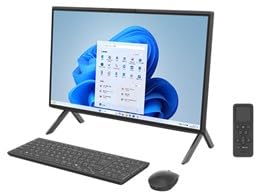
4.1. attēls. Priekšpuse view of the Fujitsu FMVF75K1BA FMV Desktop F PC. This image shows the integrated display and the sleek design of the all-in-one unit.
4.1 Priekšējais panelis
- Displejs: 23.8-inch Full HD (1920x1080) screen.
- Barošanas poga: Located typically on the bottom right or side of the display bezel.
- Webkamera: Integrated at the top center of the display.
4.2 Rear/Side Panels
- USB porti: For connecting peripherals like keyboard, mouse, external drives.
- HDMI ports: For connecting an external monitor or TV.
- LAN ports: Vadu tīkla savienojumam.
- Audio ligzdas: For headphones, microphone, or external speakers.
- Strāvas padeve: Strāvas adaptera pievienošanai.
5. Iestatīšana
Veiciet šīs darbības sākotnējai iestatīšanai:
- Izpakošana: Uzmanīgi izņemiet datoru un visus piederumus no iepakojuma.
- Pozīcija: Place the PC on a stable, flat surface with adequate ventilation space around it.
- Pievienojiet tastatūru un peli: Plug the USB keyboard and mouse into the available USB ports on the PC.
- Pievienojiet strāvu: Connect the power adapter to the power input port on the PC, then plug the power cord into a grounded electrical outlet.
- Ieslēgšana: Nospiediet barošanas pogu, lai ieslēgtu datoru.
- Sākotnējā Windows iestatīšana: Izpildiet ekrānā redzamos norādījumus, lai pabeigtu Windows 11 Home sākotnējo iestatīšanu, tostarp valodas, reģiona, tīkla savienojuma un lietotāja konta izveidi.
6. Lietošanas instrukcijas
6.1 Ieslēgšana/izslēgšana
- Ieslēgt: Nospiediet barošanas pogu.
- Lai izslēgtu: Noklikšķiniet uz pogas Sākt, pēc tam uz Barošana un atlasiet “Izslēgt”.
- Lai restartētu: Noklikšķiniet uz pogas Sākt, pēc tam uz Barošana un atlasiet “Restartēt”.
- Lai gulētu: Noklikšķiniet uz pogas Sākt, pēc tam uz Barošana un atlasiet “Miega režīms”.
6.2 Savienojuma izveide ar tīklu
- Vadu savienojums: Connect an Ethernet cable from your router/modem to the LAN port on the PC.
- Bezvadu savienojums (Wi-Fi):
- Noklikšķiniet uz Wi-Fi ikonas uzdevumjoslā.
- Sarakstā atlasiet vēlamo Wi-Fi tīklu.
- Ievadiet tīkla drošības atslēgu (paroli), ja tiek prasīts.
- Click "Connect". The PC supports IEEE802.11ax (Wi-Fi 6E) for high-speed wireless connectivity.
6.3 Using Microsoft Office + 365
Your PC comes with Microsoft Office + 365. Follow the on-screen instructions upon first launch of any Office application (e.g., Word, Excel) to activate your subscription. An internet connection and a Microsoft account are typically required for activation.
7. Apkope
7.1. Tīrīšana
- Ekrāns: Izmantojiet mīkstu, nepūkojošu drānu, kas īpaši paredzēta elektronikai. Noturīgu traipu gadījumā viegli nosusiniet.ampen the cloth with water or a screen cleaner. Do not spray cleaner directly onto the screen.
- Šasija: Wipe the exterior surfaces with a soft, dry cloth. Avoid abrasive materials or harsh chemicals.
- Ventilācija: Periodically check and gently clean the ventilation openings to prevent dust buildup, which can impede airflow.
7.2. Programmatūras atjauninājumi
Regularly update your Windows operating system and drivers to ensure optimal performance and security. Windows Update typically handles this automatically, but you can manually check by going to Iestatījumi > Windows atjaunināšana.
7.3. Datu dublēšana
Lai novērstu datu zudumu, ir ļoti ieteicams regulāri dublēt svarīgos datus ārējā diskdzinī vai mākoņkrātuvē.
8. Traucējummeklēšana
| Problēma | Iespējamais cēlonis | Risinājums |
|---|---|---|
| Dators neieslēdzas. | Power cable loose, power outlet issue, power adapter fault. | Pārbaudiet visus strāvas savienojumus. Izmēģiniet citu strāvas kontaktligzdu. Pārliecinieties, vai strāvas adapteris darbojas. |
| Ekrānā nav attēla. | PC is off, display brightness too low, external monitor not connected (if applicable). | Ensure PC is on. Adjust display brightness. If using an external monitor, check its power and cable connection. |
| Nevar izveidot savienojumu ar Wi-Fi. | Incorrect password, Wi-Fi adapter off, router issue, out of range. | Verify Wi-Fi password. Check if Wi-Fi is enabled in Windows settings. Restart your router. Move closer to the router. |
| PC is running slow. | Too many programs open, low disk space, malware, outdated drivers. | Close unnecessary applications. Free up disk space. Run a virus scan. Update Windows and drivers. |
9. Specifikācijas
| Modeļa nosaukums | FMVF75K1BA |
| Zīmols | Fujitsu |
| Displejs | 23.8 collu, 1920x1080 izšķirtspēja |
| Procesors | Intel Core i7 |
| RAM | 16GB |
| Uzglabāšana | 512GB |
| Operētājsistēma | Windows 11 Home |
| Bezvadu LAN | IEEE802.11ax (Wi-Fi 6E compatible)/ac/a/b/g/n |
| Ostas | USB, HDMI, LAN, Audio Jacks (specific number and type may vary) |
10. Garantija un atbalsts
Your Fujitsu FMVF75K1BA PC is covered by a manufacturer's warranty. Please refer to the warranty card included in your package for specific terms and conditions, including the warranty period and coverage details.
For technical support, service, or warranty claims, please contact Fujitsu customer support through their official website or the contact information provided in your warranty documentation. Have your model number (FMVF75K1BA) and serial number ready when contacting support.
Tiešsaistes atbalsts: Apmeklējiet oficiālo Fujitsu atbalsta vietni website for drivers, FAQs, and further assistance.


