1. Ievads
This manual provides detailed instructions for the setup, operation, and maintenance of your POLONO PM220S Label Maker Machine. Please read this manual thoroughly before using the device to ensure proper function and longevity.
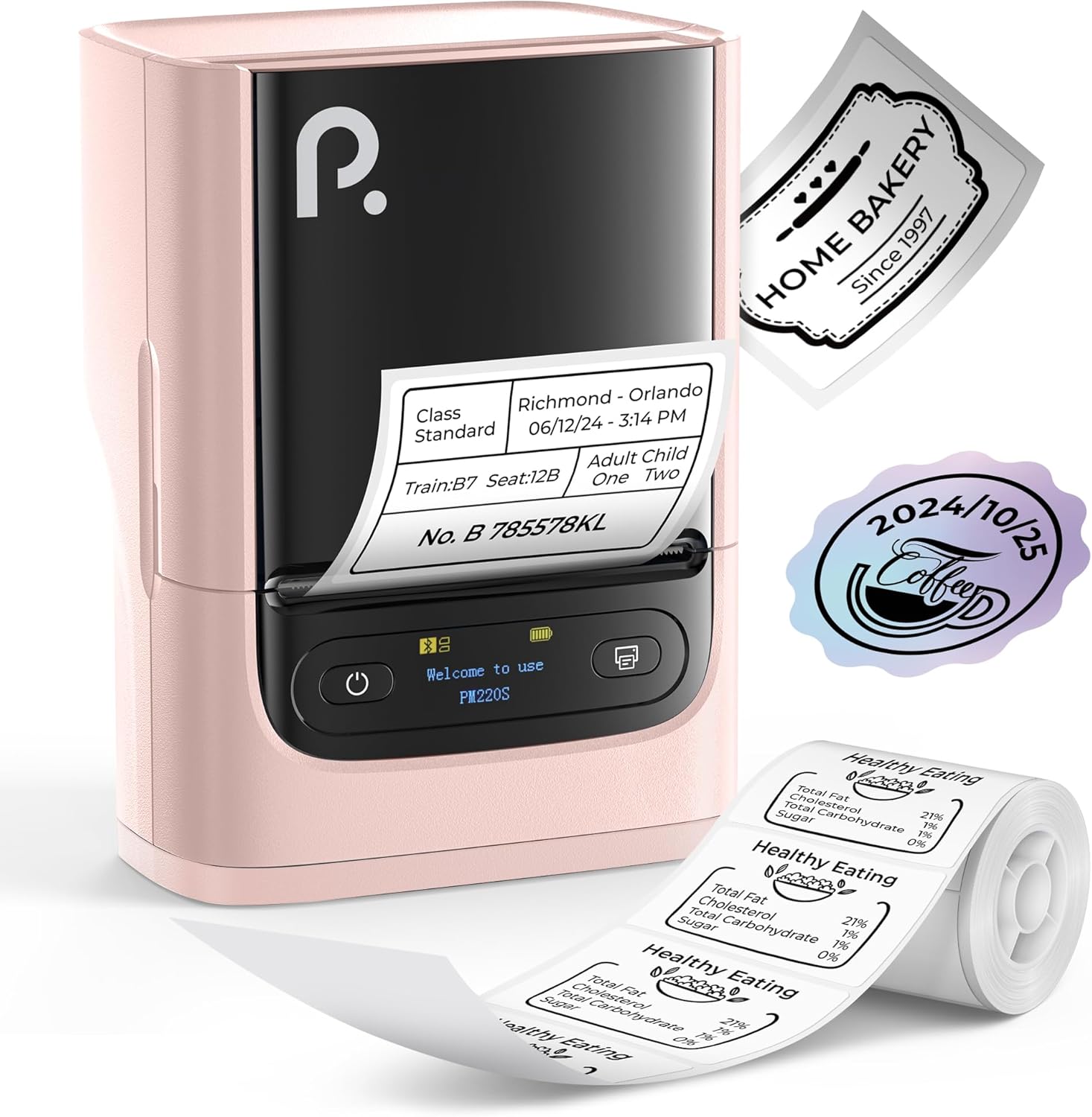
Figure 1: POLONO PM220S Label Maker Machine with sampetiķetes.
2. Produkts beidziesview
2.1 Iekļautās sastāvdaļas
- POLONO PM220S Label Maker Machine
- Label Tape (50x30mm, pre-installed or included)
- USB uzlādes kabelis
- Lietotāja rokasgrāmata (šis dokuments)
2.2 Galvenās funkcijas
- Bluetooth savienojums: Seamless connection with iOS, Android, and PC devices.
- Intuitive LED Screen: Displays battery level, Bluetooth connection status, and alerts for paper shortages or timed shutdowns.
- Feature-Rich "Labelnize" App: Offers label templates, supports QR codes, barcodes, tables, text, icons, 90+ fonts, 14+ languages, and 450+ material presets.
- Premium Thermal Printing: BPA-Free Direct Thermal Technology with 203 DPI for high-definition, inkless printing.
- Plaša etiķešu saderība: Supports label widths from 23-54mm (0.91"-2.12").
- Pārnēsājams dizains: Compact and lightweight for easy transport and use in various environments.
3. Iestatīšanas instrukcijas
3.1. Ierīces uzlāde
Before first use, fully charge the label maker using the provided USB cable. The LED screen will indicate charging status.
3.2 App Installation and Driver Download
For mobile devices (iOS/Android), download the "Labelnize" app from your respective app store. For PC users, visit polono.com to download the necessary driver and application.

Figure 2: Universal compatibility with smartphones and laptops for app and driver installation.
3.3 Savienojuma izveide, izmantojot Bluetooth
- Ensure the PM220S is powered on.
- On your mobile device, open the "Labelnize" app.
- Within the app, search for and connect to the PM220S via Bluetooth. Do not connect directly via your device's Bluetooth settings for mobile devices.
- For PC, ensure the driver is installed, then connect through the downloaded application.
3.4 Loading Label Tape
- Open the label compartment cover.
- Insert the label roll with the printing surface facing upwards.
- Adjust the paper slot guides to secure the tape according to its width (23-54mm) for precise alignment.
- Aizveriet vāku.

Figure 3: Proper loading of label tape into the PM220S.
4. Lietošanas instrukcijas
4.1 Using the "Labelnize" App
- Open the "Labelnize" app on your connected device.
- Select from various pre-designed templates or create your own custom labels.
- The app allows you to add text, barcodes, QR codes, tables, icons, and more.
- Customize labels using a selection of over 90 fonts and 14 languages.
- Utilize the 450+ material presets for different label applications.
- Svarīgi: For optimal results, use specialized POLONO labels. Avoid tearing the green back sticker to prevent printing issues.
4.2 Understanding the LED Screen Display
The integrated LED screen provides real-time feedback on the printer's status:
- Akumulatora līmenis: Indicates the current charge of the device.
- Bluetooth savienojums: Shows if the device is successfully connected via Bluetooth.
- Papīrs Šorstage Brīdinājums: Notifies when the label roll is low or empty.
- Laika izslēgšana: Displays countdown for automatic power-off to conserve battery.

Figure 4: LED screen display functions for real-time status monitoring.
4.3 Printing a Label
- Design your label within the "Labelnize" app.
- Review the label preview lai nodrošinātu precizitāti.
- Tap the "Print" button in the app.
- The label maker will print the label using thermal technology.
- Carefully tear off the printed label.
5. Apkope
5.1 Vispārēja aprūpe
- Turiet ierīci tīru un tīru no putekļiem un gružiem.
- Nepakļaujiet ierīci ārkārtējai temperatūrai vai tiešiem saules stariem.
- Nelietojot ierīci, glabājiet to sausā vietā.
5.2 Drukas galviņas tīrīšana
If print quality degrades, the thermal print head may need cleaning:
- Turn off the label maker and disconnect it from any power source.
- Atveriet etiķetes nodalījumu.
- Viegli noslaukiet termodrukas galviņu ar vates tamponu.ampar izopropilspirtu.
- Pirms vāka aizvēršanas un lietošanas atsākšanas ļaujiet drukas galviņai pilnībā nožūt.
6. Traucējummeklēšana
| Problēma | Iespējamais cēlonis | Risinājums |
|---|---|---|
| Ierīce neieslēdzas | Zems akumulatora līmenis vai problēmas ar jaudu. | Charge the device fully. Ensure the power button is pressed correctly. |
| Nevar izveidot savienojumu, izmantojot Bluetooth | Incorrect connection method or app issue. | Ensure you are connecting through the "Labelnize" app, not directly via phone settings. Restart both the device and the app. For PC, verify driver installation. |
| Poor print quality / Faint printing | Dirty print head, incorrect label type, or low battery. | Clean the print head (see Section 5.2). Ensure you are using thermal labels. Charge the device. |
| Etiķetes ir nepareizi izlīdzinātas vai iestrēgušas | Improper label loading or paper slot adjustment. | Open the cover, remove any jammed labels, and reload the tape ensuring the paper slot guides are adjusted correctly for the label width. Avoid tearing the green back sticker. |
| "Paper Shortage" alert | Label roll is empty or incorrectly loaded. | Replace the label roll or re-seat it correctly. |
7. Specifikācijas
| Zīmols | POLONO |
| Modeļa nosaukums | PM220S |
| Savienojamības tehnoloģija | Bluetooth |
| Drukas tehnoloģija | Termiskā |
| Maksimālā drukas izšķirtspēja | 203 DPI |
| Maksimālais drukas ātrums (vienkrāsains) | 45.0 mm/s |
| Atbalstītie multivides izmēri | 23-54mm (0.91"-2.12") width, 50x30mm included |
| Produkta izmēri | 3.3 collu dziļums x 4.4 collu platums x 2.5 collu augstums (8.4 x 11.2 x 6.4 cm) |
| Preces svars | 13.4 unces (380 g) |
| Īpaša iezīme | Portable, Inkless Printing, LED Display |
8. Garantija un atbalsts
For warranty information, technical support, or to purchase accessories and replacement labels, please visit the official POLONO webvietne plkst polono.com or contact POLONO customer service directly.
Lūdzu, saglabājiet pirkuma apliecinājumu garantijas prasībām.


