1. Ievads
The Brother DCP-L2640DW is a compact, high-performance monochrome laser all-in-one printer designed for home offices and small workgroups. This manual provides essential information for setting up, operating, maintaining, and troubleshooting your printer to ensure optimal performance.
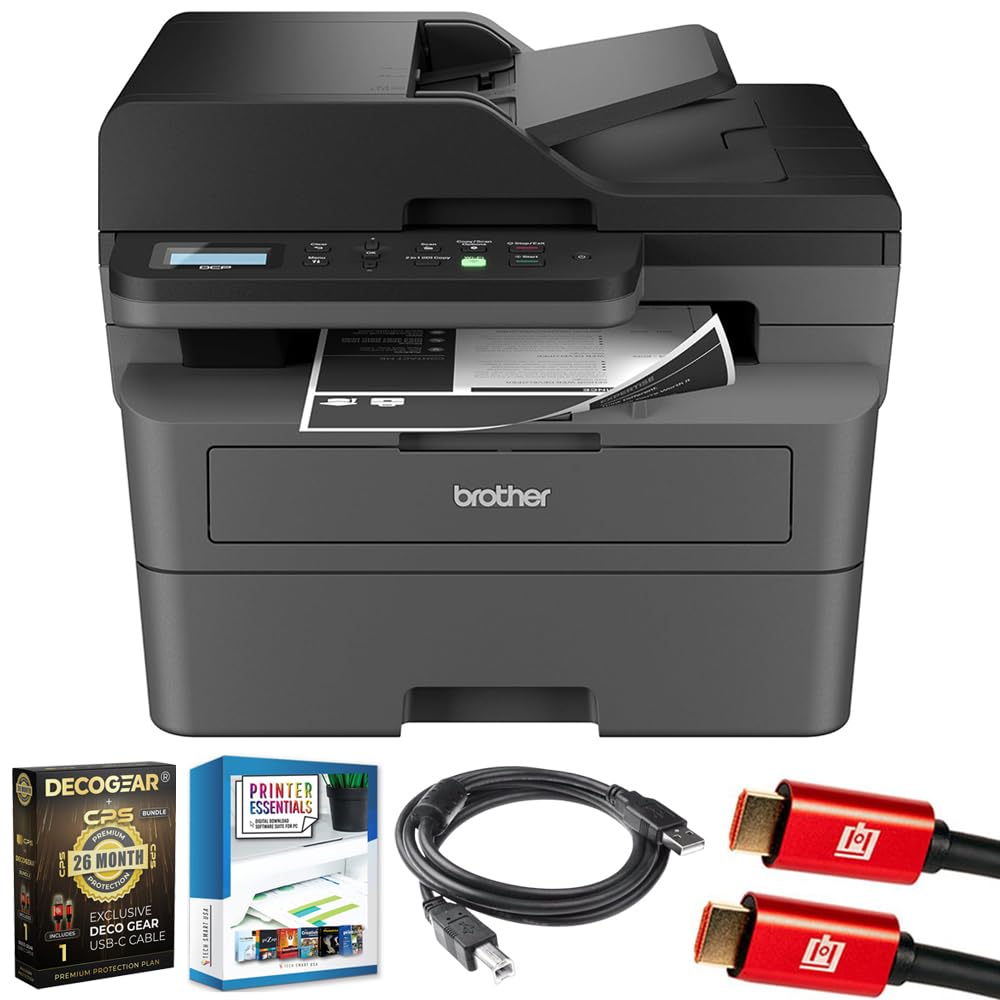
Image 1.1: Brother DCP-L2640DW Compact Monochrome Laser Printer
2. Galvenās iezīmes
- Trīs vienā funkcionalitāte: Print, copy, and scan capabilities in a compact design.
- Ātrs drukāšanas ātrums: Delivers up to 36 pages per minute for efficient task completion.
- Automātiskā abpusējā drukāšana: Built-in two-sided printing to save time and paper.
- 50-Sheet Automatic Document Feeder (ADF): For efficient multi-page scanning and copying.
- High-Capacity Paper Handling: 250-sheet paper tray plus a manual feed slot for diverse media types.
- Elastīgas savienojamības iespējas: Dual-band Wi-Fi, Ethernet, USB, and mobile printing via Brother Mobile Connect, AirPrint, Mopria, and Wi-Fi Direct.
- Advanced Network Security: Features like TLS/SSL, SNMP v3, and IP filtering for secure operation.

2.1. attēls: beidziesview of the Brother DCP-L2640DW's key features including print speed, connectivity, and compact design.
3. Kas ir kastē
- Brother DCP-L2640DW Monochrome Laser Printer
- Starter Black Toner Cartridge (approx. 700 pages)
- Brother DR830 Drum Unit (approx. 15,000 pages)
- Maiņstrāvas vads
- Documentation (Quick Setup Guide, Product Safety and Protection Information)
4. Iestatīšana
4.1. Izpakošana
- Uzmanīgi izņemiet printeri no iepakojuma.
- Noņemiet visas aizsarglentes un iepakojuma materiālus no printera ārpuses un iekšpuses.
4.2. Toner Cartridge and Drum Unit Installation
- Atveriet printera priekšējo vāku.
- Remove the toner cartridge and drum unit assembly from the printer.
- Unpack the new toner cartridge and drum unit.
- Insert the toner cartridge firmly into the drum unit until it locks into place.
- Slide the green tab on the drum unit from left to right several times to clean the corona wire. Return the tab to the home position.
- Reinstall the toner cartridge and drum unit assembly into the printer.
- Aizveriet priekšējo vāku.
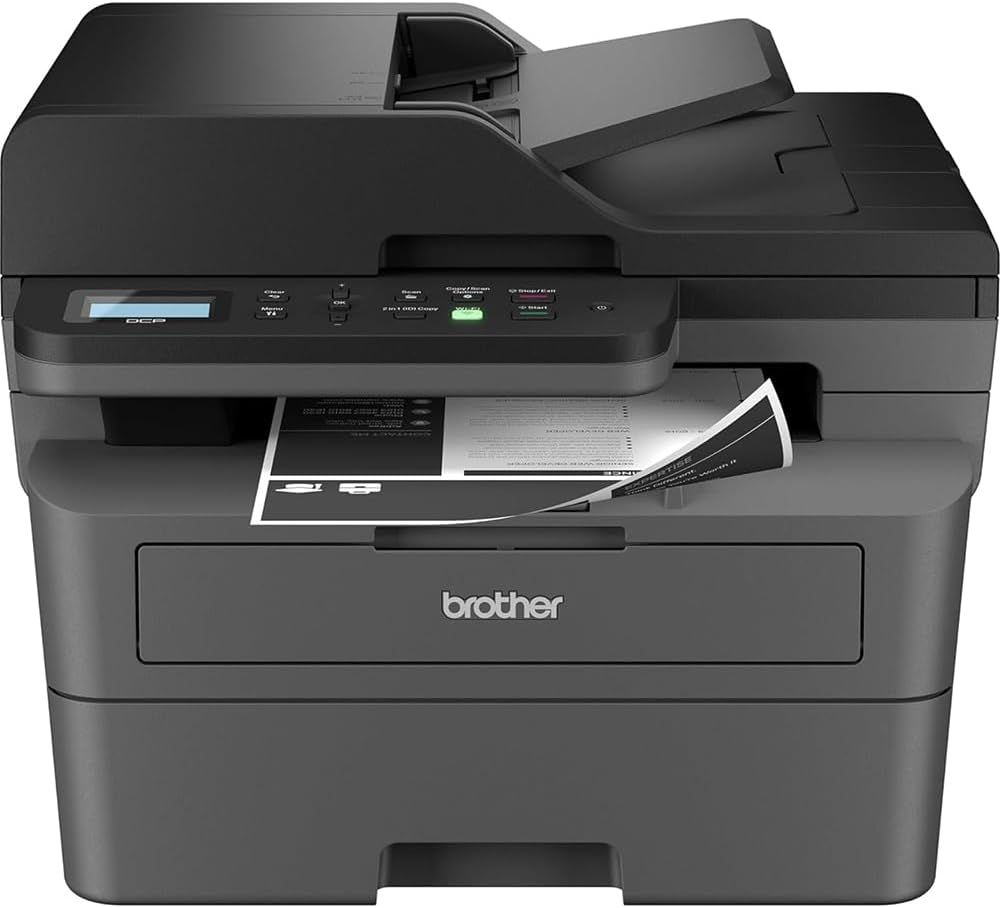
Image 4.1: The Brother DCP-L2640DW printer with the front cover open, showing the toner cartridge and drum unit assembly.
4.3. Strāvas pieslēgums
- Connect the AC power cord to the printer's power input.
- Pievienojiet otru strāvas vada galu iezemētai elektrības kontaktligzdai.
- Nospiediet barošanas pogu, lai ieslēgtu printeri.
4.4. Initial Setup & Connectivity
Follow the on-screen instructions on the printer's LCD display to complete the initial setup, including language selection and date/time settings.
- Bezvadu iestatīšana: Navigate to the network settings on the printer's control panel, select your Wi-Fi network, and enter the password.
- Ethernet savienojums: Pievienojiet maršrutētāja vai tīkla centrmezgla Ethernet kabeli printera Ethernet portam.
- USB savienojums: Connect a USB cable from your computer to the printer's USB port.
- Draivera instalēšana: Install the printer drivers from the included CD-ROM or download them from the official Brother support webvietne.
4.1. video: Produkts pāriview video demonstrating the Brother DCP-L2640DW printer's features and ease of use.
5. Lietošanas instrukcijas
5.1. Dokumentu drukāšana
- Load paper into the 250-sheet paper tray or the manual feed slot.
- Datorā vai mobilajā ierīcē atveriet dokumentu, kuru vēlaties drukāt.
- Lietojumprogrammas izvēlnē atlasiet “Drukāt”.
- Choose your Brother DCP-L2640DW printer.
- Adjust print settings (e.g., number of copies, duplex printing) as needed.
- Noklikšķiniet uz “Drukāt”.
5.2. Dokumentu kopēšana
- Place your document face down on the scanner glass or face up in the Automatic Document Feeder (ADF).
- Printera vadības panelī nospiediet pogu “Kopēt”.
- Use the arrow keys to select the number of copies or adjust other settings.
- Lai sāktu kopēšanu, nospiediet pogu "Sākt".

Image 5.1: The Brother DCP-L2640DW highlighting its Automatic Document Feeder for multi-page tasks.
5.3. Dokumentu skenēšana
- Place your document face down on the scanner glass or face up in the ADF.
- On the printer's control panel, press the 'Scan' button.
- Select your desired scan destination (e.g., PC, email, cloud).
- Adjust scan settings (e.g., resolution, color mode) as needed.
- Lai sāktu skenēšanu, nospiediet pogu “Sākt”.
5.4. Mobilā drukāšana
The Brother DCP-L2640DW supports various mobile printing solutions:
- Brother Mobile Connect lietotne: Download the app to manage your printer, print, and scan from your smartphone or tablet.
- Apple AirPrint: Print directly from your Apple iOS device without installing drivers.
- Mopria drukas pakalpojums: Drukājiet no Mopria sertificētām Android ierīcēm.
- Wi-Fi Direct: Print directly from your mobile device to the printer without needing a router.

Image 5.2: The Brother Mobile Connect App interface, showing options for document print, photo print, scan, copy, and toner monitoring.
6. Apkope
6.1. Tonera nomaiņa
When the toner is low or empty, the printer's display will indicate that the toner cartridge needs to be replaced. Always use genuine Brother toner cartridges for optimal performance and print quality.
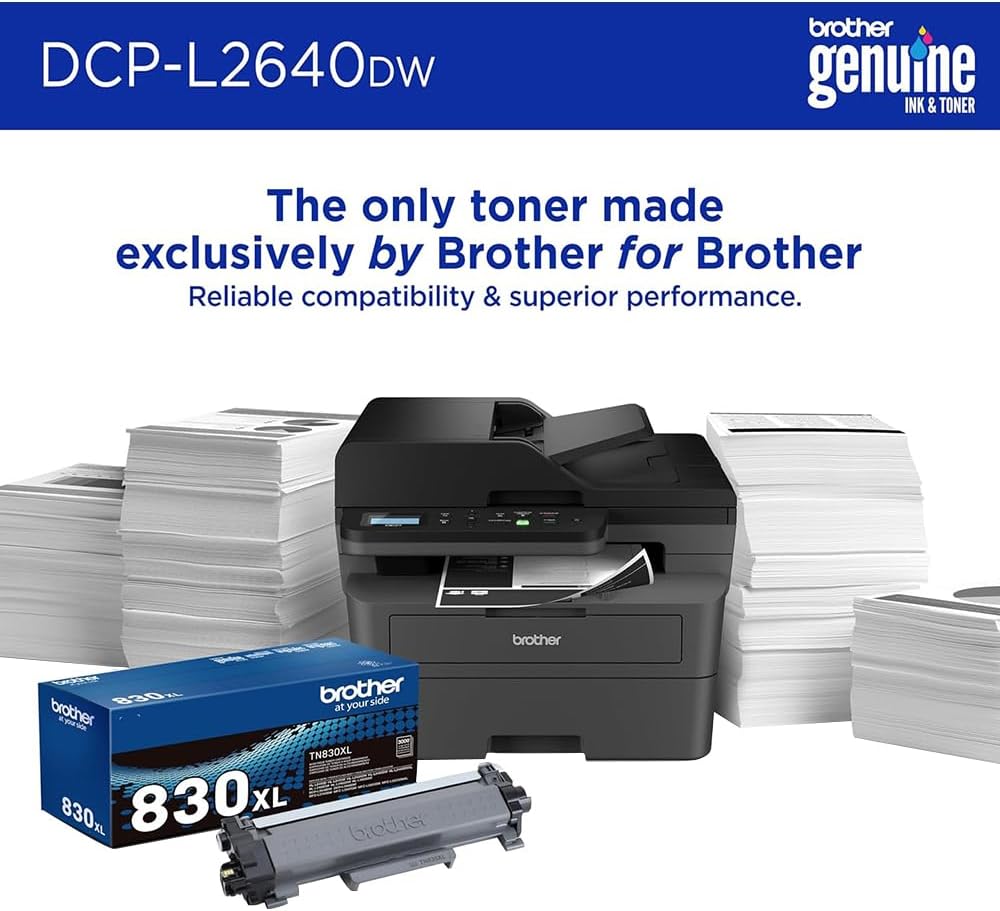
Image 6.1: Brother Genuine Ink & Toner packaging, emphasizing reliable compatibility and superior performance.
6.2. Drum Unit Replacement
The drum unit is a separate consumable that needs to be replaced periodically, typically after approximately 15,000 pages. The printer will notify you when it's time to replace the drum unit.
6.3. Tīrīšana
- Ārpuse: Noslaukiet printera ārpusi ar mīkstu, neplūksnainu drānu.
- Skenera stikls: Clean the scanner glass with a soft, lint-free cloth moistened with glass cleaner.
- Koronas stieple: Regularly clean the corona wire inside the drum unit by sliding the green tab.
7. Traucējummeklēšana
- Papīra iestrēgšana: Follow the on-screen instructions or refer to the printer's documentation to clear paper jams from various access points.
- Savienojamības problēmas: Ensure the printer is connected to the correct network (Wi-Fi or Ethernet) or directly to the computer via USB. Restarting the printer and router can often resolve temporary connection problems.
- Slikta drukas kvalitāte: Check toner levels, clean the corona wire, and ensure you are using appropriate paper for your print job.
- Kļūdu ziņojumi: Refer to the printer's LCD display for specific error codes and consult the online manual or Brother support for solutions.
8. Specifikācijas
| Funkcija | Detaļas |
|---|---|
| Modeļa numurs | DCP-L2640DW |
| Drukas tehnoloģija | Lāzers |
| Printera izvade | Vienkrāsains |
| Maksimālais drukas ātrums, vienkrāsains | 36 ppm |
| Maksimālā melnbaltās drukas izšķirtspēja | 1200 x 1200 punkti collā |
| Automātiskā abpusējā drukāšana | Jā |
| Skenera tips | Plakana gulta |
| Maksimālā ievades loksnes ietilpība | 250 XNUMX loksnes |
| Automātiskās dokumentu padeves (ADF) ietilpība | 50 XNUMX loksnes |
| Savienojamības tehnoloģija | USB, Ethernet, Dual-band Wi-Fi |
| Saderīga kasetne | TN830, TN830XL |
| Produkta izmēri | 15.7"D x 16.1"W x 12.5"H |
| Svars | Not specified in provided data, typically around 20-30 lbs for similar models. |
9. Garantija un atbalsts
The Brother DCP-L2640DW Monochrome Laser Printer comes with a Limited Warranty. For specific warranty terms and conditions, please refer to the documentation included with your product or visit the official Brother support webvietne.
Lai saņemtu tehnisko atbalstu, draiveru lejupielādes un papildu resursus, lūdzu, apmeklējiet vietni Brāļu atbalsts Webvietne.


