1. Ievads
This manual provides essential information for the safe and efficient operation of your HP DesignJet Z6 44-inch Large Format Plotter Printer. Please read this manual thoroughly before using the printer to ensure proper setup, usage, and maintenance. Retain this manual for future reference.
The HP DesignJet Z6 is a professional-grade large-format printer designed for high-quality output of CAD drawings, GIS maps, posters, banners, and photographic prints. It features a 6-color pigment ink system and supports various media types up to 44 inches wide.

1.1. attēls: priekšpuse view of the HP DesignJet Z6 44-inch Large Format Plotter Printer, showcasing its robust design and integrated media basket.
2. Drošības informācija
Lai novērstu traumas vai printera bojājumus, vienmēr ievērojiet šādus drošības pasākumus:
- Ensure the printer is placed on a stable, level surface capable of supporting its weight.
- Connect the printer to a grounded power outlet. Do not use extension cords or adapters that are not rated for the printer's power requirements.
- Darbības laikā turiet rokas un vaļīgu apģērbu tālāk no kustīgajām daļām.
- Do not attempt to open or service internal components unless specifically instructed by this manual or authorized service personnel.
- Use only genuine HP ink cartridges and media to ensure optimal performance and prevent damage.
- Sargājiet printeri no ūdens vai pārmērīga mitruma.
- Pirms tīrīšanas vai jebkādas apkopes atvienojiet printeri no strāvas kontaktligzdas.
3. Iestatīšana
3.1 Izpakošana un novietošana
Carefully remove the printer from its packaging. Retain all packaging materials for potential future transport. Place the printer in its intended location, ensuring adequate space around it for ventilation and access for media loading and maintenance.
3.2 Strāvas pieslēgums
Connect the power cord to the printer's power inlet and then to a grounded electrical outlet. Do not power on the printer until all initial setup steps are complete.
3.3 Initial Ink Cartridge Installation
- Atveriet tintes kasetnes piekļuves vāku.
- Izsaiņojiet katru tintes kasetni.
- Insert each cartridge into its corresponding color-coded slot until it clicks into place.
- Aizveriet tintes kasetnes piekļuves vāku.
3.4 Media Loading (Rolls)
The DesignJet Z6 supports dual rolls for continuous printing. Follow these steps to load a media roll:
- Ensure the media basket is in the open position.
- Open the roll cover.
- Insert the media roll onto the spindle, ensuring the media feeds from the top.
- Slide the spindle with the media roll into the designated roll slot (Roll 1 or Roll 2).
- Feed the leading edge of the media into the printer until it is detected.
- Aizveriet ruļļa vāku.
- The printer will automatically align and trim the media.

Image 3.1: A user loading a media roll onto the spindle, preparing it for insertion into the printer.

Image 3.2: A user adjusting the media roll after insertion, ensuring proper alignment within the printer's roll feeder.
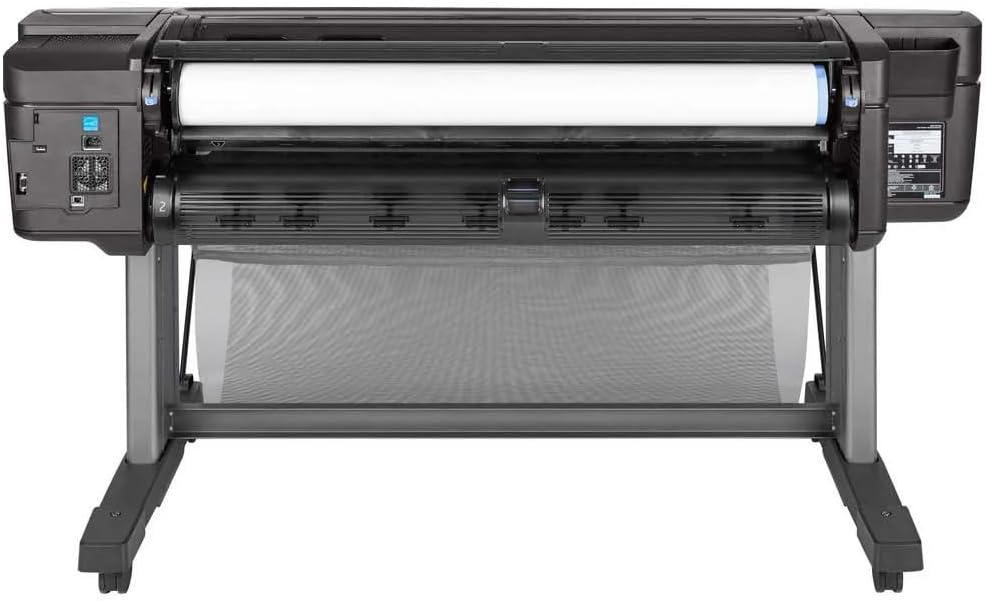
3.3. attēls: No augšas uz leju view of the printer's media loading bay, illustrating the dual roll capacity and feed mechanism.
3.5 Tīkla un USB savienojums
The printer supports Gigabit Ethernet and USB connectivity. Connect the appropriate cable to the printer and your network or computer. For network setup, follow the on-screen prompts on the printer's control panel to configure network settings (IP address, etc.).
3.6 Draivera instalēšana
Install the latest printer drivers from the official HP webvietne (www.hp.com/support/designjetZ6) on your computer. Follow the on-screen instructions provided by the installer.
4. Printera lietošana
4.1 Vadības panelis beidziesview
The printer features an intuitive touchscreen control panel. Use it to navigate menus, check printer status, manage print jobs, and configure settings.
4.2 Dokumenta drukāšana
- Pārliecinieties, vai printeris ir ieslēgts un pievienots datoram vai tīklam.
- Atveriet datorā dokumentu, kuru vēlaties drukāt.
- Izvēlieties File > Drukāt (vai līdzvērtīgu komandu jūsu lietojumprogrammā).
- Choose the HP DesignJet Z6 printer from the list of available printers.
- Adjust print settings such as paper size, media type, print quality, and color options in the printer driver properties.
- Noklikšķiniet Drukāt.
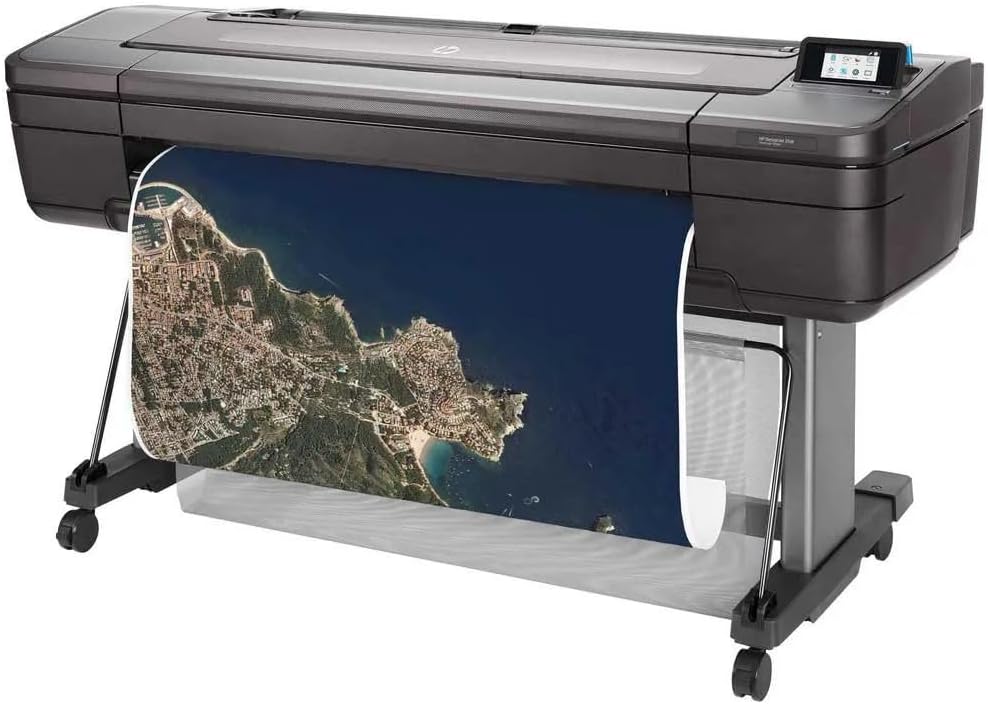
Image 4.1: The HP DesignJet Z6 printer in operation, producing a detailed large-format map print.

Image 4.2: The printer with its media output basket extended, ready to collect finished prints.
4.3 Media Handling
The printer automatically detects the loaded media type and size. Ensure the correct media profile is selected in the print driver for optimal results. The dual-roll system allows for automatic switching between rolls when one runs out or a different media type is required.
5. Apkope
Regular maintenance ensures consistent print quality and extends the life of your printer.
5.1 Tintes kasetnes nomaiņa
When an ink cartridge is low or empty, the printer's control panel will display a notification. To replace:
- Atveriet tintes kasetnes piekļuves vāku.
- Nospiediet tukšo kasetni, lai to atbrīvotu, pēc tam izvelciet to.
- Unpack a new genuine HP ink cartridge.
- Ievietojiet jauno kasetni pareizajā slotā, līdz tā noklikšķ.
- Aizveriet piekļuves durvis.
5.2. Drukas galviņas apkope
The printer performs automatic printhead maintenance. If print quality issues arise (e.g., streaks, missing lines), you can initiate a printhead cleaning or alignment cycle from the control panel's maintenance menu.
5.3. Tīrīšanas procedūras
- Ārpuse: Noslaukiet ārējās virsmas ar mīkstu, damp, nepūkojošu drānu. Nelietojiet abrazīvus tīrīšanas līdzekļus vai šķīdinātājus.
- Media Path: Periodically inspect the media path for dust or debris. Refer to the printer's control panel or online support for specific instructions on cleaning the media path if necessary.
5.4. Programmaparatūras atjauninājumi
Regularly check for and install firmware updates from the HP website. Firmware updates can improve performance, add features, and resolve issues.
6. Traucējummeklēšana
Šajā sadaļā ir aplūkotas bieži sastopamas problēmas, ar kurām jūs varētu saskarties. Lai iegūtu detalizētāku problēmu novēršanas informāciju, skatiet HP atbalsta webvietne.
6.1 Drukas kvalitātes problēmas
- Streaks or Faded Colors: Check ink levels. Perform a printhead cleaning cycle from the control panel. Ensure the correct media type is selected in the print driver.
- Nepareizas krāsas: Verify color settings in the print driver. Ensure you are using genuine HP ink cartridges.
- Grainy Prints: Select a higher print quality setting in the print driver. Use appropriate media for high-resolution printing.
6.2 Savienojamības problēmas
- Printeris nav atrasts: Check all cable connections (USB or Ethernet). Restart the printer and your computer/network device. Verify network settings on the printer's control panel.
- Print Jobs Not Sending: Ensure printer drivers are correctly installed and updated. Check the print queue for stalled jobs.
6.3 Media Handling Errors
- Papīra iestrēgšana: Follow the on-screen instructions on the control panel to clear any jammed media. Always pull jammed media in the direction of the paper path to avoid damage.
- Media Not Loading: Ensure the roll is correctly seated on the spindle and inserted into the printer. Check that the leading edge is fed properly.
7. Specifikācijas
| Funkcija | Specifikācija |
|---|---|
| Modeļa nosaukums | HP DesignJet Z6 |
| Preces modeļa numurs | T8W16A#B1K |
| Drukas tehnoloģija | Inkjet (6-color pigment ink) |
| Maksimālā drukas izšķirtspēja | 2400 x 1200 optimizēta dpi |
| Maksimālais materiāla izmērs | 44 collas |
| Savienojamība | Gigabit Ethernet, USB |
| Tintes krāsas | Cyan, Magenta, Yellow, Black (plus additional colors for 6-color system) |
| Cietais disks | 500GB self-encrypting |
| Atbalstītie multivides veidi | Glossy photo paper, plain paper, various large-format technical documents |
| Produkta izmēri | 71 x 39.3 x 27.4 collas (1803 x 998 x 695 mm) |
| Īpašas funkcijas | Energy Star certified, PostScript 3, native PDF support, dual-roll support |
8. Garantija un atbalsts
8.1 Informācija par garantiju
This product is a Certified Amazon Renewed Product and comes with the Amazon Renewed Guarantee. For specific warranty terms and conditions, please refer to the documentation provided with your purchase or visit the Amazon Renewed program details page.
For new products, HP typically offers a limited warranty. Please refer to the official HP website or your product documentation for the most current warranty information.
8.2 Tehniskais atbalsts
For technical assistance, driver downloads, and additional troubleshooting resources, please visit the official HP support webvietne:
- HP DesignJet Z6 Support Page
- You may also find helpful information on the Amazon Renewed support pages for renewed products.
When contacting support, have your printer's model number (Z6) and serial number ready. The serial number is typically located on a label on the back or side of the printer.